If you are encountering the Unity Package Manager error that says “Failed to Start, Operation Timed Out,” you’re not alone. Many Unity users face this issue, especially when launching Unity Editor. In this article, we’ll walk through all possible causes and step-by-step solutions to fix this error for good.
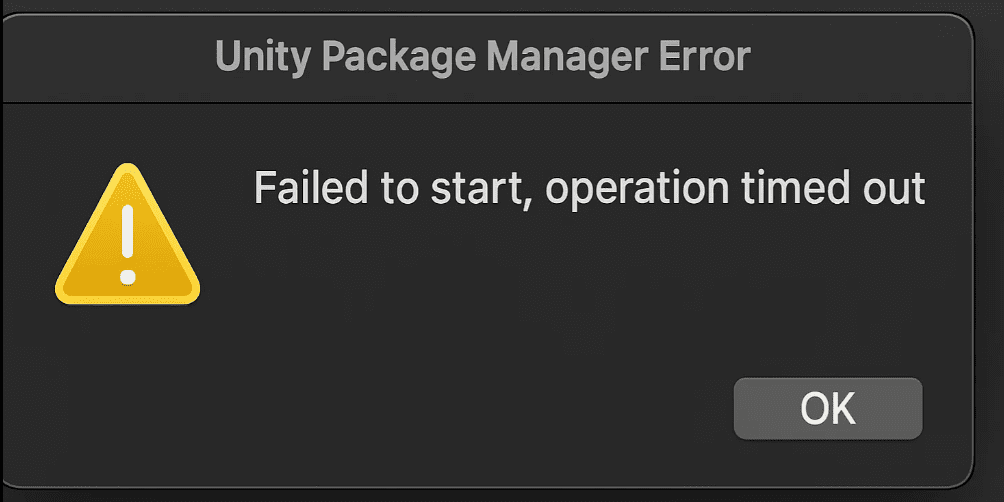
🔍 What Causes the Unity Package Manager Timeout Error?
There are several potential reasons why this error might occur:
- Firewall or antivirus is blocking Unity.
- Missing or corrupted Package Manager files.
- Incorrect Unity installation path.
- Internet connection issues.
- Outdated operating system or Unity version.
- Insufficient permissions or misconfigured firewall rules.
Let’s dive into how to solve each of these issues.
🛠 Step-by-Step Fixes for Unity Package Manager Timeout Error
✅ 1. Check If Package Manager Files Exist
First, confirm whether the Unity Package Manager is installed.
- Open Unity Hub.
- Check the Unity version you’re using (e.g., 2022.3).
- Note the path where the Unity Editor is installed. Example:
F:\Unity Editors\2022.3.x. - Navigate to:
UnityEditor > Editor > Data > Resources - Inside the
Resourcesfolder, ensure that thePackageManagerfolder and itsUnityPackageManager.exefile exist.
If the exe file is missing, your antivirus or firewall may have deleted it. You’ll need to reinstall Unity after disabling the antivirus/firewall temporarily (covered below).
🔒 2. Create Inbound and Outbound Rules in Windows Firewall
If the file exists but Unity can’t connect, Windows Firewall might be blocking it. Follow these steps to add firewall rules:
- Open Windows Defender Firewall with Advanced Security.
- Go to Inbound Rules > New Rule.
- Select Program and click Next.
- Paste the full path to
UnityPackageManager.exe.
Example:F:\Unity Editors\2022.3.x\Editor\Data\Resources\PackageManager\Server\UnityPackageManager.exe - Allow the connection.
- Check all boxes: Domain, Private, and Public.
- Name the rule: Unity Package Manager.
- Click Finish.
Repeat the same steps for Outbound Rules as well.
🛡 3. Temporarily Disable Antivirus or Windows Firewall
Sometimes, security software blocks the Package Manager from launching.
To disable Windows Defender Firewall temporarily:
- Go to Windows Security > Firewall & Network Protection.
- Click Active Network (e.g., Private).
- Turn off the firewall temporarily.
- If using third-party antivirus like Norton or Avast, disable them as well.
⚠️ Important: After testing, re-enable your firewall/antivirus and configure exclusions instead of leaving them off permanently.
🚫 4. Add Antivirus Exclusion for Unity Package Manager
To prevent antivirus from deleting the Package Manager again:




- Open Windows Security.
- Go to Virus & Threat Protection > Manage Settings.
- Scroll to Exclusions > Click Add or remove exclusions.
- Add the full path to the
UnityPackageManager.exefile.
📝 Make sure you’re the administrator on your PC to make these changes.
🔁 5. Restart PC After Making Changes
After updating your firewall and antivirus settings, restart your computer before launching Unity. This ensures all settings are applied properly.
🔄 6. Upgrade or Downgrade Unity Version
Some Unity versions might be buggy. Try upgrading to a newer version or downgrading to a more stable one via Unity Hub.
💡 7. Ensure Your PC Meets Requirements
Make sure:
- Your operating system is up to date (Windows 10 or 11 recommended).
- You have enough RAM and storage space.
- You’re connected to the internet.
Older OS versions like Windows 7 or XP can trigger timeout issues.
🧠 8. Check Task Manager If Issue Persists on Reopen
If Unity opens fine once but fails the second time, something might not be closing properly in the background.
- Open Task Manager.
- Check if any Unity processes are still running.
- End any leftover Unity or Package Manager processes before restarting.
🧰 9. Reinstall Unity (If Files Are Missing or Corrupt)
If the UnityPackageManager.exe is missing:
- Disable your antivirus/firewall temporarily.
- Uninstall Unity completely.
- Download Unity again from the official website.
- Reinstall and ensure the path is valid.
- Add the necessary exclusions post-install.
📄 Summary
| Fix | Description |
|---|---|
| ✅ Check Package Manager Exists | Ensure UnityPackageManager.exe is present |
| 🔒 Add Firewall Rules | Create inbound/outbound rules for the package manager |
| 🛡 Add Antivirus Exclusion | Prevent future deletions or blocks |
| 🔁 Restart PC | Apply new rules and settings |
| 🔄 Upgrade/Downgrade | Try a different Unity version |
| 💡 Check System Requirements | Update Windows and confirm resources |
| 🧰 Reinstall Unity | If files are missing or corrupted |
🔗 Useful Resources
⚠️ Disclaimer
Disclaimer: This guide is intended for educational purposes. Disabling antivirus or firewall protection should be done temporarily and with caution. Always re-enable protection after testing. Follow all steps responsibly.
🏷️ Tags and Hashtags
Tags: Unity, Unity Hub, Unity Package Manager Error, Unity Firewall Fix, Antivirus Exclusion, Unity Timeout Fix, Unity Editor
Hashtags:
#Unity #GameDevelopment #UnityTips #PackageManager #WindowsFirewall #UnityFix #UnityError #UnityHub #GameDevTips #UnityTroubleshooting
If this article helped you, feel free to share it with others in the Unity community!








