Today, we’re diving into a fairly common but confusing Windows error that reads:
“There was a problem starting winScomrssrv.dll — The specified module could not be found.”
If you’ve seen this error on boot or while opening apps, don’t panic. This isn’t a critical Windows issue, but it is something you should fix—especially because it’s often linked to leftover malware or corrupted startup entries.
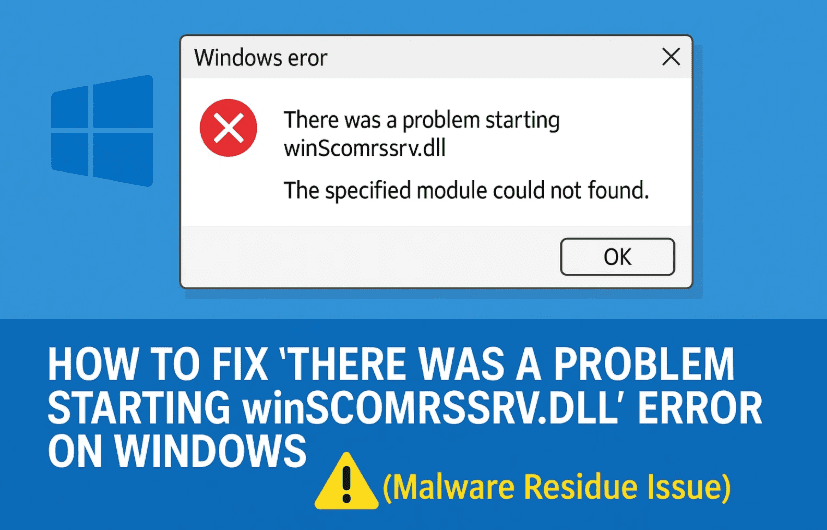
In this detailed guide, we’ll explain what causes this DLL startup error and walk you through a safe, free, and effective method to remove it using Microsoft’s official Autoruns utility.
Let’s fix this step-by-step.
🧠 Why Does This Error Occur?
When you see the winScomrssrv.dll error at startup, it usually means:
- A program that once relied on this DLL was removed, but a reference to it still exists in the Windows startup registry.
- Often, malware or adware creates and uses such DLLs—and even after antivirus software removes the malware, it may leave behind broken references.
Windows then tries to load the missing DLL at boot and fails, showing you that popup error.
✅ Step-by-Step Fix Using Microsoft’s Autoruns Tool
Now that we understand the cause, let’s move on to the actual fix. Windows Task Manager doesn’t show all startup entries—especially hidden or registry-based ones. That’s why we’ll use Autoruns, a powerful utility provided by Microsoft to manage all auto-start locations.
So far, we’ve done a good job understanding the problem—now let’s fix it.
🔧 Step 1: Download Autoruns (Free Microsoft Tool)
- Visit the official Microsoft Sysinternals page:
🔗 Download Autoruns for Windows - Click “Download Autoruns and Autorunsc” and save the ZIP file to your Desktop or preferred location.
✅ This tool is 100% safe and maintained by Microsoft—so no need to worry about third-party risk.
📁 Step 2: Extract and Launch Autoruns
- Right-click the downloaded ZIP file and choose “Extract All…”.
- Extract the contents to a new folder on your desktop.
- Inside the extracted folder, double-click
Autoruns64.exe(orAutoruns.exeif you’re on a 32-bit system). - When prompted, click “Agree” to the license terms.
🔍 Step 3: Locate the winScomrssrv.dll Entry
- By default, you’ll be in the “Everything” tab—this is good because it shows all auto-start items from all sources.
- In the filter bar at the top, type
winScomrssrv.dlland hit Enter. - Autoruns will highlight any entries linked to that file.
💡 If nothing appears, try typing a portion like
rssrv.dllor check the spelling if you copied it from an error message.

🗑️ Step 4: Delete the Corrupt DLL Reference
- Once you locate the entry referencing winScomrssrv.dll, right-click on it.
- Choose “Delete” from the context menu.
- Confirm if prompted.
This will permanently remove the startup reference to that missing DLL file. The next time you boot your system, the error will be gone.
🔄 Optional: Restart and Test
After completing the steps:
- Restart your PC to verify the fix.
- You should no longer see the error popup on startup.
If the error persists, double-check Autoruns for any other entries using similar DLL file names and repeat the process.
❓ Frequently Asked Questions (FAQ)
Q1: Is Autoruns safe to use?
A: Yes. It’s an official Microsoft utility, trusted by IT professionals. Just be careful not to delete legitimate startup entries you don’t recognize.
Q2: What if I can’t find the DLL in Autoruns?
A: Try rebooting into Safe Mode and rerunning Autoruns. Also, make sure you’re running it as Administrator.
Q3: Can I just reinstall the DLL file?
A: No. Reinstalling this DLL is not recommended, as it’s usually linked to malware. The safer solution is to remove the broken startup reference.
🔒 Bonus Tip: Scan Your PC for Malware
Since this DLL was likely created by malware or adware:
- Use Windows Defender or a trusted antivirus to run a full system scan.
- Also, consider scanning with Malwarebytes Free for extra protection.
🎉 Final Thoughts
We’ve made solid progress today in solving the annoying winScomrssrv.dll error. With a combination of the right tools and a little patience, you can clean up your startup entries and improve your system’s health.
Always remember:
- Don’t ignore DLL errors—they might signal a deeper issue.
- Tools like Autoruns give you full visibility into what loads on your system.
- Cleaning up residual files and entries makes your Windows experience smoother.
If this guide helped you, feel free to share it with others facing the same issue!
Until next time, stay safe and keep your PC running clean.
🔗 Useful Links
- 🛠️ Download Autoruns for Windows – Microsoft
- 🔍 Malwarebytes Free Anti-Malware Tool
- 🧰 Microsoft Support – DLL Error Help
📌 Tags & Hashtags
Tags: dll startup error, autoruns microsoft, winScomrssrv.dll fix, malware cleanup, system error windows 10, remove startup dll, windows error solution, free pc repair tool
Hashtags:
#DLLFix #Windows10Error #Autoruns #MalwareCleanup #TechBasedIn #StartupErrorFix #MicrosoftTools #WindowsSupport #PCOptimization
⚠️ Disclaimer:
This guide is intended for educational purposes. Always use caution when modifying startup entries or system files. Deleting the wrong entries in Autoruns may cause certain apps not to function. Ensure you’re only removing entries that are clearly broken or related to known malware DLLs. Backup your system if unsure.








