If you’re encountering the error message “The volume does not contain a recognized file system” when trying to access your USB drive, external hard disk, or SD card, don’t panic. This issue usually arises due to file system corruption or improper ejection. The good news is — you can fix this without formatting or losing your data.
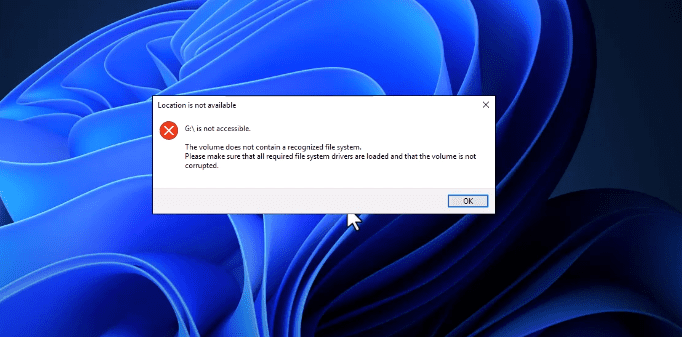
This article will guide you through the exact steps to resolve this problem using the built-in Command Prompt tool in Windows.
✅ What Causes This Error?
Before diving into the fix, here are a few common causes of this error:
- Improper ejection of the USB or external drive
- File system corruption (e.g., RAW file system)
- Virus/malware infections
- Power failure during read/write operations
🛠️ Steps to Fix “The Volume Does Not Contain a Recognized File System” Without Formatting
Follow the steps below carefully:
Step 1: Open Command Prompt as Administrator
- Press
Windows + Sto open the Search menu. - Type cmd.
- Right-click on Command Prompt and choose Run as administrator.
- If prompted by User Account Control, click Yes.
Step 2: Identify the Drive Letter
- Open File Explorer (
Windows + E). - Check the drive letter assigned to your problematic USB or external drive.
*For example: F:\ or G:*
Make sure to replace X in the upcoming command with your actual drive letter.
Step 3: Run CHKDSK to Scan and Fix the Drive
In the Command Prompt window, type the following command:
chkdsk X: /f /r
Replace
Xwith the correct drive letter of your USB or external drive.
For example, if your drive letter is F, the command will be:
chkdsk F: /f /r
Then press Enter.
You might see a prompt asking to schedule the volume check the next time the system restarts. Type Y and press Enter if prompted.
Step 4: Wait for the Process to Complete
The system will now scan your drive for errors and attempt to fix any bad sectors or corrupted file system issues. This may take some time depending on the size and condition of your drive.





Once done, you should see a summary of the fixes applied.
Step 5: Check Your Drive
After the CHKDSK process is complete:
- Close Command Prompt.
- Go back to File Explorer and try opening your USB or external drive.
- Your data should now be accessible without the file system error.
✅ Important Notes
- This method does not format your drive or delete your data.
- If CHKDSK is unable to fix the problem, you may need to use advanced tools like EaseUS Partition Master or MiniTool Partition Wizard.
- Always eject USB drives safely to prevent such issues.
🔗 Helpful Tools (Optional)
⚠️ Disclaimer
This method works in most cases, but if the drive has severe physical damage, recovery may not be possible with software solutions. Always maintain a backup of your important data to avoid data loss.
🏷️ Tags:
usb drive error, file system not recognized, fix chkdsk, windows cmd repair, raw drive fix, data recovery usb
🔖 Hashtags:
#USBErrorFix #FileSystemNotRecognized #CHKDSKFix #WindowsTips #USBDriveRepair #NoDataLoss #TechGuide
By following the above steps, you can safely fix the “volume does not contain a recognized file system” error without losing your precious data.








