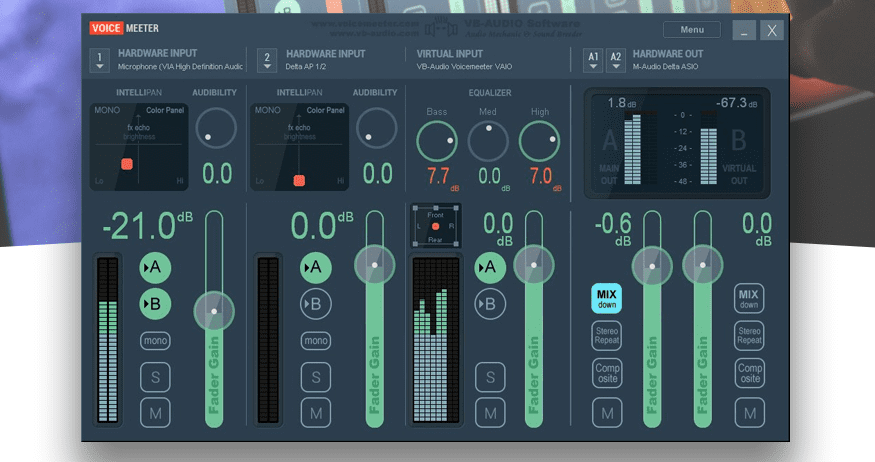
Voicemeeter is a powerful virtual audio mixer used by streamers, podcasters, musicians, and remote workers alike. It routes audio between apps like Zoom, Discord, Teams, DAWs (like Pro Tools), and more. However, it can occasionally run into driver conflicts, particularly when paired with USB audio interfaces like the Focusrite Scarlett 18i8.
One of the most frustrating errors users encounter is:
“Failed to open main output device A1 – device not ready or used by another process.”
This blog post details a step-by-step guide to resolve this issue, specifically when it involves Focusrite interfaces and sample rate mismatches, and how to get Voicemeeter functioning correctly again.
🧭 Understanding the Issue
When using Voicemeeter in conjunction with a DAW like Pro Tools, audio routing can sometimes fail, especially after closing the DAW. In many cases, Voicemeeter throws an error where the A1 output device (your hardware interface) isn’t recognized.
This typically means:
- The sample rate between your audio interface and Voicemeeter is mismatched.
- The audio driver is outdated or corrupted.
- Windows audio settings have changed unexpectedly.
🛠️ Step-by-Step Fix for Voicemeeter A1 Output Device Error
✅ Step 1: Identify the A1 Output Device in Voicemeeter
Open Voicemeeter and locate the A1 device under the “Hardware Out” section.
Make sure it’s set to your audio interface (e.g., Focusrite Scarlett 18i8).
Use the MME driver option for best compatibility if you’re unsure.
If the interface name appears in red or flashing, it signals a connection or driver issue.
✅ Step 2: Check and Match Sample Rates Across Windows and Focusrite Control
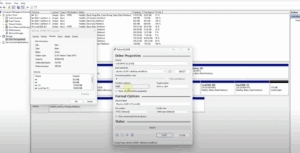
- Windows Sound Settings
- Go to
Control Panel > Sound > Playback - Select your Focusrite interface and click Properties
- Navigate to the Advanced tab
- Make sure the Default Format is set to
24-bit, 44100 Hz(or your preferred format)
- Go to
- Focusrite Control App
- Open Focusrite Control
- Check if the sample rate matches what is set in Windows
- Also check for the correct firmware and driver version via the gear icon
If Focusrite is set to 48000 Hz but Voicemeeter or your DAW is set to 44100 Hz, it will throw errors.
✅ Step 3: Update or Reinstall Focusrite Drivers
In case of driver mismatch or corruption:







- Uninstall:
- Focusrite Control
- Focusrite USB Audio Drivers
- This can be done via
Settings > Apps > Installed apps
- Restart your computer.
- Download the latest driver and control panel software from the official Focusrite website:
👉 https://focusrite.com/en/product-range/scarlett - Install the downloaded driver and restart again.
- After reboot, confirm:
- Focusrite Control is up to date (e.g., version 3.11)
- Sample rate and driver versions are correctly aligned with Voicemeeter
✅ Step 4: Reconfigure Voicemeeter
- Set A1 Output Device to the correct MME Focusrite driver
- Example:
Speakers (Focusrite USB Audio Interface)
- Example:
- Select appropriate mic or input sources as needed.
- If needed, reconfigure input options in your DAW to use Voicemeeter VAIO or Aux drivers.
✅ Step 5: Force the Correct Sample Rate via DAW (Pro Tools Hack)
If the system keeps reverting to an unwanted sample rate:
- Enable this setting in Windows Sound:
- Allow applications to take exclusive control of this device
- Open a Pro Tools session configured at
44.1 kHz - This can force the system to accept that sample rate
- After the system registers the sample rate:
- Close Pro Tools
- Restart your computer
- Recheck Voicemeeter and Focusrite settings
✅ Final Test: Run Voicemeeter + Zoom/DAW Together
Now test Voicemeeter with your DAW and a streaming/calling app (e.g., Zoom):
- Open Voicemeeter
- Launch Pro Tools or your DAW
- Confirm audio routing works
- Start a Zoom call to test live output
✅ Conclusion
Audio routing issues with Voicemeeter, especially involving Focusrite interfaces, can be tricky. But with the correct:
- Driver version
- Sample rate alignment
- System configuration
You can fix the “Failed to open A1 Output Device” error and get your setup back up and running.
If Voicemeeter is critical to your daily workflow—whether for podcasting, teaching, gaming, or professional audio production—keeping your drivers and sample rates in sync is essential for error-free performance.
🔖 Tags:
voicemeeter error fix, focusrite scarlett fix, audio driver troubleshooting, windows sample rate error, pro tools voicemeeter setup, voicemeeter mme output, scarlett 18i8 driver fix, voicemeeter failed to open output, audio routing error, voicemeeter configuration guide
🔗 Hashtags:
#Voicemeeter #Focusrite #AudioFix #Scarlett18i8 #ProTools #AudioDriverError #MMEDriver #ZoomAudioRouting #WindowsAudioSettings #VoicemeeterA1Error
⚠️ Disclaimer:
This guide is based on real-world user experience and applies primarily to Windows systems using Voicemeeter and Focusrite Scarlett interfaces. Always download software from official websites. Making changes to your audio configuration may affect other applications. If unsure, consult with a qualified technician or the support team of your audio interface manufacturer.








