If you’re one of the many users who upgraded to Windows 11 24H2 and suddenly found your taskbar missing, you’re not alone. Many users are reporting issues with the latest 24H2 build, including random glitches like the taskbar disappearing after updates.
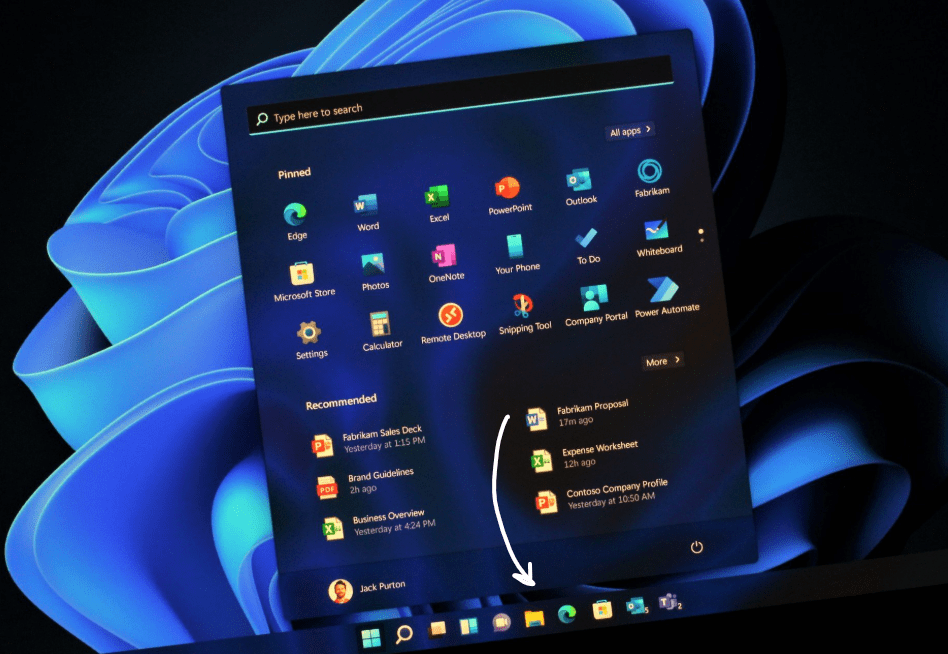
In this article, we’ll walk you through the troubleshooting steps to fix the missing taskbar issue in Windows 11 24H2. These are tried-and-tested solutions that can help you get your taskbar back—without needing to reinstall Windows, if possible.
Problem Overview
After a fresh installation of Windows 11 24H2, many users have noticed that the taskbar disappears unexpectedly, often after the system performs automatic background updates. Restarting the system or Windows Explorer doesn’t always bring it back.
Step-by-Step Troubleshooting Guide
Step 1: Try Restarting Windows Explorer
- Press
Ctrl + Shift + Escto open Task Manager. - Locate Windows Explorer under the “Processes” tab.
- Right-click it and select Restart.
If the taskbar still doesn’t appear, continue to the next step.
Step 2: Check for Recent Updates
- Right-click on the desktop and select Personalize.
- Navigate to Windows Update from the settings sidebar.
- Look for any recently installed updates, especially dated around the time the issue began.
- Click Uninstall updates to remove the problematic ones.
- Restart your PC after uninstalling.
Windows might try to reinstall the updates later. You can pause updates temporarily if needed.
Step 3: Check Taskbar Settings
- Go to Settings > Personalization > Taskbar.
- Ensure “Automatically hide the taskbar” is turned off.
- Try moving the taskbar position to left, center, or right to see if it reappears.
Step 4: Verify Display Settings
- Go to Settings > System > Display.
- Ensure the display resolution is set correctly for your monitor.
- Incorrect resolutions can sometimes cause UI elements to disappear.
Step 5: Manually Restart Explorer
- Open Task Manager (
Ctrl + Shift + Esc). - Click Run new task.
- Type
explorer.exeand hit Enter.
If this doesn’t help, move on to the next system repair steps.
Step 6: Run System File Checker (SFC)
- Open Task Manager > Run new task > Type
cmd. - Check “Create this task with administrative privileges”.
- Run the following command:
sfc /scannow - Wait for the scan to complete. If any issues are found and fixed, restart your PC.
Step 7: Use PowerShell to Reset System Components
- Open Task Manager > Run new task > Type
PowerShelland run as administrator. - Paste in system reset commands to refresh Windows components. (Advanced users only.)
You may see red error messages during this process—this is normal.
- Restart your system and check if the taskbar has reappeared.
Step 8: Use the “Fix Problems Using Windows Update” Tool
- Go to Settings > System > Recovery.
- Click Fix problems using Windows Update.
- This reinstalls the current version of Windows while preserving your files and apps.
- Let the system complete the process and restart.
If the issue still persists, your last resort is to reset the PC.
Step 9: Reset Windows While Keeping Your Files
- Go to Settings > System > Recovery > Reset this PC.
- Choose Keep my files to preserve personal files.
- Opt for Cloud download to get the latest version from Microsoft.
Note: This will remove your apps and settings.
After Resetting Windows
Once the reset is complete and the system reboots, your taskbar should be restored. You’ll need to reinstall your applications (like Camtasia, Steam, Discord, etc.) and reconfigure your settings.
Final Thoughts
Windows 11 24H2, although intended as a feature-rich update, seems to have introduced several bugs—one of the most disruptive being the vanishing taskbar. While Microsoft will likely patch these bugs in future updates, many users are facing issues in the meantime.








If none of the above steps resolve the issue, and you’re frequently encountering instability with Windows 11 24H2, consider reverting to a more stable version like 23H2 until Microsoft releases a fix.
Tags
windows 11 24h2, taskbar missing windows 11, fix windows explorer, windows 11 bugs, reset windows 11, troubleshoot windows 11, uninstall updates, windows sfc, powershell fixes, windows update repair
Hashtags
#Windows11 #TaskbarIssue #WindowsBug #TechSupport #Troubleshooting #MicrosoftWindows #PCFix #WindowsUpdate
Disclaimer
This article is intended for educational purposes only. Proceed with system-level changes at your own risk. Always back up important data before performing major updates or resets.








