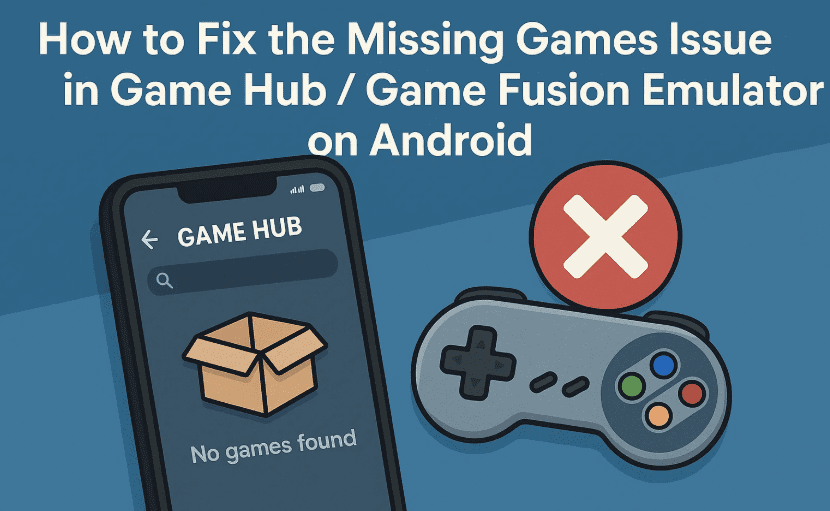
If you’ve recently launched the Game Hub or Game Fusion app on your Android device and suddenly noticed that your games aren’t showing up — don’t panic. You’re not alone. Many users have reported this issue where the app seems completely blank, with no access to their installed games or even basic features.
The good news? There’s a very simple fix for it — and in this guide, we’ll walk you through all the steps to get your Game Hub back to normal in minutes.
🧩 What’s the Problem?
Imagine opening Game Hub and finding everything broken:
- Home screen is empty
- No games appear under “My Games”
- Interface seems bugged or blank
You’ve probably tried reinstalling, restarting your phone, or even resetting the app — but nothing works.
The actual issue? It’s just a language setting bug.
🛠️ Let’s Fix It Step by Step
Alright, let’s move to the actual solution. This only takes a minute.
✅ Step 1: Open Game Hub Normally
- Launch the app like you usually do.
- Even if it looks broken, proceed.
✅ Step 2: Go to Settings
- Scroll to the bottom menu.
- Tap on “Settings” or the ⚙️ icon.
✅ Step 3: Change Language
- Find the option called “Language”
- By default, it may be set to “System Default” or something else.
- Change it to “English” (You can also try “Chinese” if English doesn’t work for you).
Once you change the language, the app will auto-restart or reload in the background.
✅ Step 4: Confirm Games Are Back
- Head over to the “My” section
- Then go to “Explore Games” and check if your games are now visible
- If everything’s back — great! 🎉
🎮 Adding and Testing a Game After the Fix
Now that your Game Hub is working again, let’s test by adding a game.
Step-by-Step:
- Tap on “My” → select “+ Add Game”
- Browse your internal storage for any Windows PC games (e.g., Resident Evil)
- Select the
.exefile of the game - Game Hub will now:
- Configure the runtime environment
- Download necessary files
- Automatically apply compatibility settings
After setup, click on the game icon to launch it.
💡 Bonus Tip: You can enable the FPS counter and on-screen gamepad from the emulator toolbar for performance testing and control.
✅ Real Test: Running Resident Evil
Here’s what happened in our test:







- The emulator correctly loaded the game without extra tweaking
- Even though the screen was slightly dark (which is normal for some games), the game launched successfully
- Touch controls and performance settings could be customized directly within the game
So far, so good!
❓ Frequently Asked Questions (FAQ)
Q: Why did my games disappear from Game Hub/Game Fusion?
A: It’s likely a UI bug triggered by the app’s system language mismatch. Switching to English often fixes it.
Q: Is Game Hub the same as Game Fusion?
A: Yes. They’re essentially the same emulator rebranded with different UI skins or updates.
Q: My game crashes after launch. What can I do?
A: Try switching the graphics renderer or tweaking settings in the app’s “Configuration” tab. Not all games are fully compatible.
Q: Do I need internet to run games after fixing this?
A: You only need the internet for the first setup or downloading game dependencies. Offline gameplay should work after that.
🔧 Additional Tips
If you’re still facing issues after changing the language:
- Clear app cache from Android settings
- Re-add your game files from the “My” section
- Use “Explore Games” to browse and test compatibility
🎯 Final Words
So far, we’ve done a great job uncovering and solving this weird blank-screen bug in Game Hub / Game Fusion. And the best part? You didn’t need to uninstall or lose your games — just a quick setting tweak and you’re back in business.
Whether you’re running heavy titles like Resident Evil or lighter PC games, this fix ensures you’re not locked out of your library.
🧩 Tags & Hashtags
Tags: game hub fix, game fusion emulator, android game emulator, fix missing games, resident evil android, game hub language bug, windows games on android, dxvk emulator android, game hub not loading
Hashtags:
#GameHub #GameFusion #AndroidEmulator #FixGameHub #ResidentEvilAndroid #GamingFix #EmulatorBugFix #PCGamesOnAndroid #DXVKAndroid








