Are you suddenly seeing a blue screen with a “MEMORY_MANAGEMENT” error on your Windows PC? Don’t worry — you’re not alone, and you’re certainly not out of options. This error is typically related to faulty RAM, corrupted system files, or outdated drivers. The good news is that it can often be resolved with some well-structured troubleshooting.
In this detailed guide, we’ll walk you through multiple solutions — from using Safe Mode and diagnostic tools to updating drivers and resetting your PC. Let’s fix that annoying crash and get your system running smoothly again!
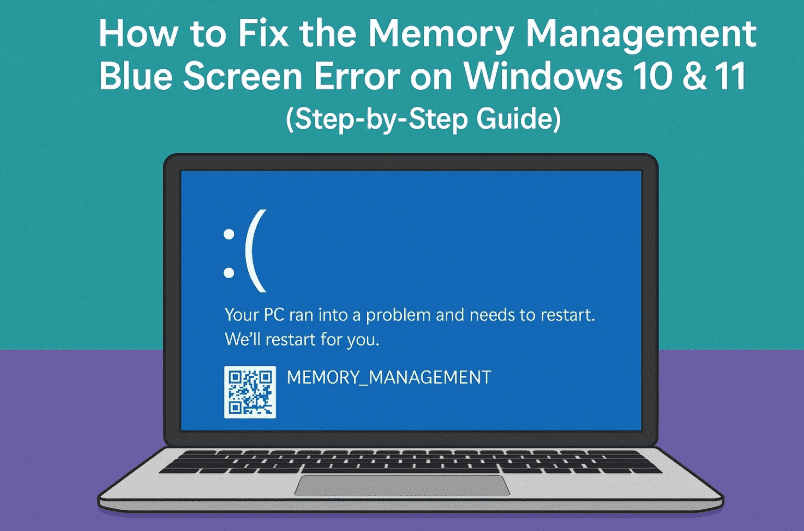
🧠 What is the MEMORY MANAGEMENT Error in Windows?
The MEMORY_MANAGEMENT blue screen error (commonly known as BSOD) typically occurs due to:
- Corrupt or failing RAM
- Driver conflicts or outdated drivers
- System file corruption
- Software conflicts or hardware failures
Let’s go step-by-step to troubleshoot and fix this.
🔁 Step 1: Boot into Safe Mode with Networking
Let’s begin with booting into Safe Mode so we can troubleshoot in a minimal environment.
Here’s how to do it:
- Restart your PC, but hold the Shift key while clicking Restart from the login screen’s power icon.
- When you see “Please wait”, release the Shift key.
- Click Troubleshoot > Advanced Options > Startup Settings.
- Click Restart.
- On the options screen, press F5 or the number 5 key to select Safe Mode with Networking.
You’ll now see a basic desktop with “Safe Mode” written in the corners. This is where you’ll begin diagnosing the memory error.
🧪 Step 2: Run Windows Memory Diagnostic Tool
So far, so good! Now let’s test your RAM for errors.
- Press the Windows key and type
Windows Memory Diagnostic. - Open it and select Restart now and check for problems.
- Your computer will restart and automatically start scanning your RAM.
If you see a message like:
“Hardware problems were detected”
…it likely means one or more of your RAM sticks is failing. In that case, consider:
- Reseating RAM sticks
- Testing RAM sticks one by one
- Replacing the faulty RAM module
Your system will reboot automatically once the scan completes. If no issues are found, move on to the next step.







🔄 Step 3: Update Device Drivers
Drivers are often the culprits behind BSODs. Let’s make sure yours are up-to-date.
Steps:
- Right-click the Start button and select Device Manager.
- Look for devices with a yellow exclamation mark ⚠️ — these usually indicate problematic drivers.
- Right-click and choose Update Driver.
- Even if no warnings are visible, it’s wise to update important categories manually:
- Display Adapters
- Network Adapters
- System Devices
Next, check Windows itself for updates.
🧰 Step 4: Install Windows Updates
- Press Windows key, search for
Check for Updates, and open it. - Click on Check for Updates.
- Install any available updates and restart your computer.
This ensures any known bugs or memory issues are patched through Microsoft’s latest fixes.
🛠 Step 5: Run System File Checker (SFC)
Sometimes corrupted system files cause memory-related issues. Let’s scan and repair them.
Here’s how:
- Search
cmdin the Start menu. - Right-click Command Prompt and choose Run as administrator.
- Type:
sfc /scannow - Press Enter.
This process may take some time. Let it complete fully. If it finds and fixes errors, restart your computer and see if the BSOD still appears.
🧹 Step 6: Reset Your PC (Last Resort)
If none of the above methods worked, resetting your PC while keeping your files intact may solve deeper problems.
Here’s what to do:
- Type
Reset this PCinto the search bar and select the option. - Click Reset PC and choose Keep my files.
- Follow the on-screen instructions.
This will remove apps and system settings but preserve your personal files like documents and photos.
❓Frequently Asked Questions (FAQs)
Q: What causes the MEMORY_MANAGEMENT blue screen in Windows?
A: Faulty RAM, outdated drivers, corrupted system files, or even a recent Windows update can trigger the error.
Q: Is the memory diagnostic tool reliable?
A: Yes, it’s a good first step. However, for more advanced results, tools like MemTest86 can provide deeper analysis.
Q: Can this error be fixed without replacing hardware?
A: Often, yes. Many users resolve the issue through driver updates, SFC scans, or OS resets without needing new RAM.
⚠ Disclaimer:
The steps in this article are intended for general troubleshooting. If your PC is under warranty or used for critical tasks, it is recommended to consult official support or a professional technician before replacing hardware.
📌 Tags:
memory management bsod, blue screen windows fix, ram error windows 10, windows memory diagnostic, windows 11 troubleshooting, how to fix memory error
📢 Hashtags:
#Windows10 #Windows11 #MemoryManagement #BSODFix #TechSupport #BlueScreenError #RAMTest
If one of these solutions helped you fix your system, feel free to leave a comment and let others know what worked for you. Stay safe and may your PC be forever crash-free! 💙








