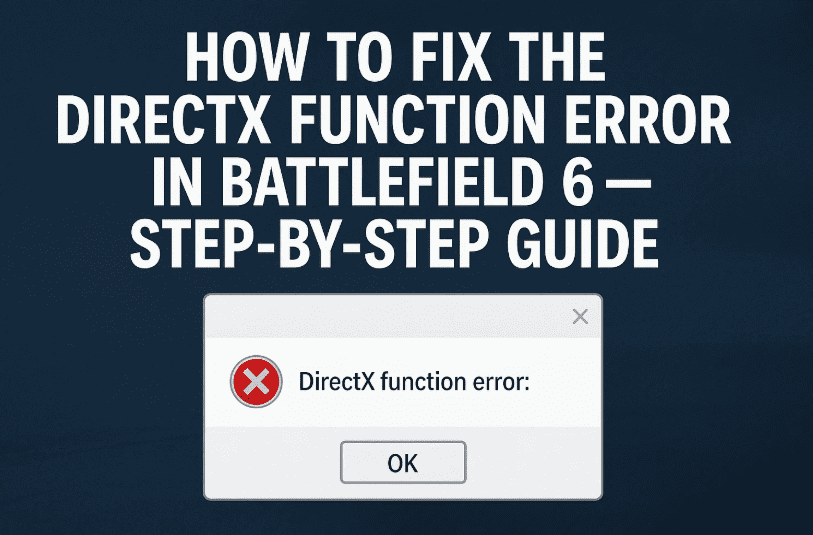
If you’ve been eagerly jumping into Battlefield 6 only to be stopped in your tracks by a frustrating DirectX function error with messages like:
coinitialize D3D12 CreateDeviceDXGI_ERROR_DEVICE_REMOVED
…you’re not alone. Many players face this issue, and it’s often linked to graphics driver problems, DirectX installation issues, or GPU instability.
The good news? In most cases, you can fix it at home without needing to reinstall your whole game or replace your GPU. This guide will walk you through every fix — from simple driver updates to reinstalling DirectX — so you can get back in the fight.
💡 What Causes the DirectX Function Error in Battlefield 6?
Before fixing anything, it’s worth understanding what’s going wrong. The DirectX function error occurs when your PC can’t correctly initialize or use DirectX 12 features that Battlefield 6 requires.
The main culprits usually are:
- Outdated graphics drivers that can’t fully support the game’s latest rendering features.
- Corrupted DirectX files, which prevent proper 3D rendering.
- Overclocked or overheating GPUs, which can cause device removal errors.
- Windows updates missing important compatibility patches.
Though the above problem are main causes but still there might be some other issues like
- How to Fix the DirectX Function Error in Battlefield 6 — Step-by-Step Guide
- “Please Update Your Nvidia GeForce Driver” Error in Battlefield 6 – Step-by-Step Guide
- How to Fix Battlefield 6 Secure Boot Error on PC – Complete Step-by-Step Guide
- or you can check the complete Battlefield Game related articles here!
🛠 Step 1: Update Your GPU Drivers via Device Manager
Sometimes, all it takes to solve this issue is a fresh driver update through Windows itself. Let’s start with that.
- Open Start Menu and type
Device Manager. - Press Enter to open Device Manager.
- Expand the Display adapters section.
- Right-click your GPU (e.g., NVIDIA GeForce RTX 3060 or AMD Radeon RX 6700 XT).
- Select Properties.
- Open the Driver tab.
- Click Update Driver.
- Choose Search automatically for drivers.
Windows will now look for updated drivers from Microsoft’s server and install them if available.
💡 Tip: While this is a good first step, Windows updates are often slower than official GPU manufacturer updates, so we’ll cover that next.
🛠 Step 2: Check for GPU Driver Updates via Windows Update
Windows Update sometimes includes graphics driver updates and game compatibility patches.
- Open Start Menu → type
Windows Update→ press Enter. - Click Check for updates.
- If you see a GPU driver update, install it.
- Restart your PC when prompted.
🛠 Step 3: Update NVIDIA Drivers Using the Official NVIDIA App
If you have an NVIDIA graphics card, the NVIDIA App (or GeForce Experience) provides the latest game-ready drivers.








Here’s how to do it:
- Open your browser and search NVIDIA App Download or go to NVIDIA’s official download page.
- Click Download Now and wait for the installer.
- Once downloaded, double-click the installer.
- If prompted, click Yes to allow changes.
- Accept the license agreement and click Agree and Continue.
- Open the Drivers tab inside the app.
- Click Check for Updates.
- If a new driver is available, click Download.
- When prompted, choose Express Installation.
- Wait for installation to finish, then click Close.
- Restart your PC.
💡 Pro tip for gamers: Always install Game Ready Drivers when available — they’re optimized for new releases like Battlefield 6.
🛠 Step 4: Install or Repair DirectX
If your DirectX installation is outdated or corrupted, Battlefield 6 may throw the DirectX function error.
To reinstall or repair DirectX:
- Go to Microsoft’s official DirectX End-User Runtime Web Installer.
- Click Download and save the installer.
- Double-click the downloaded file.
- When prompted, click Yes to allow changes.
- Accept the license terms and click Next.
- If offered extra software (like Bing Bar), choose No and click Next.
- Choose your installation folder (default is fine).
- Click Next and wait for installation to complete.
- Click Finish.
- Restart your PC.
💡 Why this helps: DirectX updates replace missing files and ensure you have all the latest features for DirectX 12, which Battlefield 6 uses.
🛠 Step 5: Extra Fixes if the Error Persists
If updating drivers and reinstalling DirectX didn’t fix the problem, try these additional solutions:
1. Disable GPU Overclocking
If you’ve overclocked your GPU, it may cause instability in Battlefield 6. Reset it to factory settings using tools like MSI Afterburner or your GPU’s control panel.
2. Set Battlefield 6 to Run in DX11 Mode
While the game is designed for DX12, running it in DX11 can bypass certain GPU issues.
- In Steam: Right-click game → Properties → Launch Options → type
-dx11
3. Lower Graphics Settings
Drop settings like Ray Tracing, Textures, and Shadow Quality to reduce GPU load.
4. Check for Windows Feature Updates
Some DirectX-related updates are included in optional Windows updates. Install them if available.
⚠ Safety Notes
- Always download GPU drivers and DirectX installers from official sources — avoid random file-sharing sites.
- Keep your GPU temperature under control while gaming (ideally below 85°C) to prevent hardware instability.
❓ Frequently Asked Questions
Q1: Why does Battlefield 6 show “DXGI_ERROR_DEVICE_REMOVED”?
This usually means your GPU driver crashed or restarted mid-game, often due to outdated drivers or unstable overclocks.
Q2: Can reinstalling the game fix this error?
It’s possible if the problem is due to corrupted game files, but usually, updating drivers and DirectX is enough.
Q3: Do I need DirectX 12 to play Battlefield 6?
Yes, Battlefield 6 is built on DirectX 12, though you can force DX11 mode for troubleshooting.
Q4: Will lowering resolution help?
Yes, reducing resolution and graphics settings can reduce GPU stress, helping avoid crashes on older cards.
🎯 Final Thoughts
The DirectX function error in Battlefield 6 is frustrating but rarely fatal to your PC. In most cases, a simple GPU driver update or DirectX reinstall will get you back in the game.
By following the steps in this guide — starting with driver updates, moving to DirectX repairs, and then tweaking graphics settings — you’ll tackle the issue from every angle.
Once you’re back in action, it’s worth keeping both Windows and your GPU drivers updated to avoid seeing this error in the future.
Tags: battlefield 6 directx error, dxgi error device removed, coinitialize d3d12 error, battlefield 6 crashing fix, update gpu drivers, reinstall directx windows 11, nvidia driver update battlefield, battlefield 6 dx12 fix, dxgi device removed fix, battlefield 6 troubleshooting
Hashtags: #Battlefield6 #DirectXError #PCGamingFix #DXGIError #GameCrashFix #PCGamingTips #NVIDIA #DirectX12 #GamingTroubleshooting #Battlefield6Fix







