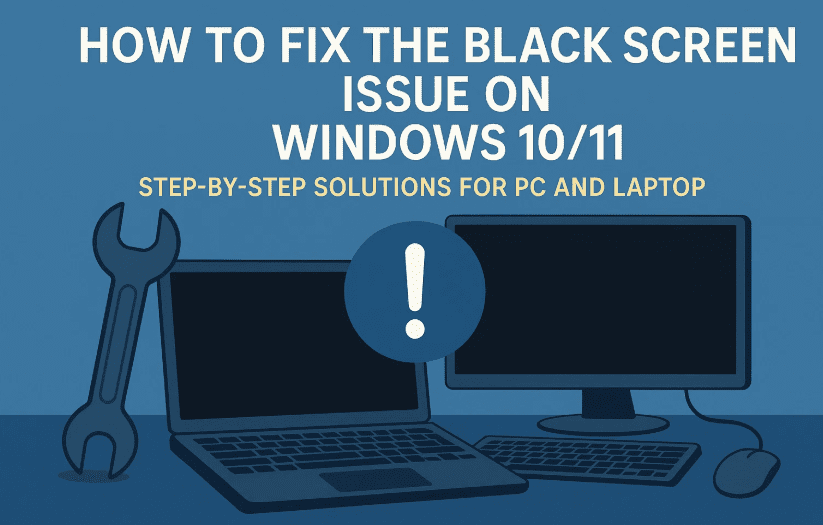
If you’ve suddenly encountered a black screen on your Windows 10 or Windows 11 PC or laptop, you’re not alone. This frustrating issue can strike at any moment—your computer powers on, but your display stays completely black, sometimes with a cursor and sometimes without one.
Instead of panicking or rushing to the nearest technician, this article offers a series of clear, effective, and human-tested solutions you can try on your own. These methods work across desktops and laptops and can resolve both temporary and persistent black screen problems.
So, without wasting time, let’s get straight to the fixes.
Step 1: Start With a Forceful Shutdown
Let’s begin with the simplest and often the most effective solution—a forceful reboot.
Here’s what to do:
- Press and hold the Power Button on your laptop or desktop until the system shuts down completely.
- Wait a few seconds, then turn it back on.
This method can fix temporary glitches in system bootup or display drivers. It works more often than you’d think, especially after a failed update or unexpected crash.
📝 Note: If the display comes back after this, you may still want to check your display driver and cable stability using the next steps.
Step 2: Restart the Graphics Driver via Shortcut
If the screen remains black after reboot, the issue might be with your graphics driver.
Windows provides a shortcut to refresh the graphics driver manually.
Here’s how:
- Press Ctrl + Shift + Windows + B on your keyboard simultaneously.
Your screen may flicker or you may hear a beep—this is normal. It means your GPU driver has restarted.
✅ This method is especially helpful when the system is running in the background, but the screen isn’t displaying properly due to a driver glitch.
Step 3: Check Your Video Cables (for PC Users)
If you’re using a desktop computer, loose or faulty video cables can be the silent culprit behind the black screen.





Do this:
- Ensure your HDMI, DisplayPort, or VGA cables are properly plugged in at both ends (monitor and PC).
- If you have a spare cable, try switching it.
- If your monitor has multiple input modes, make sure the correct one is selected (e.g., HDMI1 vs HDMI2).
📝 Tip for laptops: If using an external monitor, check the cable and the “Project” settings (Win + P).
Step 4: Use Ctrl + Alt + Delete to Access Task Manager
Still seeing a black screen? Let’s try to restart Windows Explorer, which manages your desktop environment.
Here’s how:
- Press Ctrl + Alt + Delete together.
- If a menu appears with options like Task Manager, Lock, etc., click on Task Manager.
- In Task Manager, click on File → Run new task.
- Type
explorer.exeand press Enter.
This will attempt to restart your Windows interface. If it succeeds, you should see your desktop and taskbar reappear.
Step 5: Boot into Safe Mode with Networking
If all else fails, Safe Mode can help isolate whether the problem is software or hardware related.
Follow these steps:
- Press Ctrl + Alt + Delete.
- Click the Power icon in the bottom-right corner.
- While holding Shift, click Restart.
- Wait for the system to boot into Advanced Startup Options.
- Choose Troubleshoot → Advanced options → Startup Settings → Restart.
- After reboot, press F5 to select Enable Safe Mode with Networking.
Once you’re in Safe Mode:
- Your screen should work.
- If it does, your hardware is likely fine.
- Now we can attempt further troubleshooting.
Step 6: Uninstall and Reinstall the Graphics Driver
Now that you’re in Safe Mode and can see the desktop, the likely cause is a faulty or outdated GPU driver.
Here’s how to reset it:
- Right-click on the Start menu → Select Device Manager.
- Expand Display Adapters.
- Right-click your GPU (e.g., Intel UHD, NVIDIA, AMD Radeon) → Select Uninstall device.
- Confirm and reboot your PC.
Windows will automatically reinstall the display driver during reboot.
📝 Optional Tip: You can also visit the manufacturer’s website (e.g., NVIDIA, AMD, or Intel) and download the latest drivers manually after reboot.
Step 7: Perform a Power Drain or “Power Flush”
This step is crucial when all software methods fail. Often, static electricity or residual charge can cause issues with display output.
Let’s move to this next-level fix.
For Desktop PCs:
- Turn off your PC completely.
- Unplug all cables including:
- Power cord
- Monitor cable (HDMI/DisplayPort)
- USB devices
- Press and hold the power button for 20–25 seconds.
- Wait another 10–20 seconds.
- Reconnect all cables and power it back on.
For Laptops:
- Shut down the laptop completely.
- Disconnect the charger and any external devices.
- Press and hold the power button for 20–25 seconds.
- Reconnect the charger and power it back on.
✅ This clears any residual power in the motherboard, which often resolves black screen, audio, Wi-Fi, or wake-up issues.
Recap of All Fixes in Order (Quick Summary)
Let’s now summarize all the steps covered so far for your reference:
- Force shutdown the system and reboot.
- Refresh GPU driver using Ctrl + Shift + Win + B.
- Check video cables (especially for desktops).
- Restart Windows Explorer via Task Manager.
- Boot into Safe Mode using Shift + Restart.
- Uninstall GPU driver in Safe Mode and reboot.
- Perform a Power Drain for desktop or laptop.
Try these one by one. It’s very likely that one of them will solve your problem without needing to reinstall Windows or replace hardware.
Frequently Asked Questions (FAQs)
Q1. What causes black screen issues in Windows 11/10?
Black screens may result from:
- Faulty graphics drivers
- Display cable or port issues
- Static charge buildup in motherboard
- Windows Explorer crashing
- Malware (rare, but possible)
Q2. Is Safe Mode safe to use?
Absolutely. Safe Mode loads Windows with minimal drivers and is designed for troubleshooting. No data loss occurs during Safe Mode.
Q3. Can a BIOS issue cause a black screen?
Yes, but it’s rare. Unless you’ve recently updated BIOS or changed hardware configurations, it’s more likely software-related.
Q4. My PC turns on, fans spin, but no display—is this the same issue?
Possibly. Try connecting another monitor, or booting into BIOS to confirm the system is working. If you get no display even in BIOS, it may be a GPU or motherboard hardware issue.
Q5. Do I need to reinstall Windows if none of these work?
Reinstalling should be your last resort. Most black screen issues are fixable using the methods shared in this guide.
Final Thoughts
Black screen errors can be scary—but with the right approach, they’re rarely permanent. By understanding what might be going wrong and applying targeted solutions—from refreshing drivers to performing power drains—you can bring your PC or laptop back to life without expert intervention.
If one method doesn’t work, keep moving down the list. The goal is to isolate the issue step-by-step until your system returns to normal. And remember—if your PC boots in Safe Mode, the problem is almost always fixable through software.
Stay patient, and stay informed.
Tags:
black screen fix windows, windows 11 troubleshooting, windows 10 graphics driver issue, pc no display issue, laptop screen black fix, safe mode windows 11, explorer.exe fix, static charge motherboard, gpu driver uninstall windows
Hashtags:
#Windows11 #BlackScreenFix #Windows10 #PCRepair #Troubleshooting #SafeMode #DisplayIssue #PowerDrain #TechTips #WindowsHelp








