Today, let’s tackle a frustrating yet very common issue that Windows users may encounter while trying to install applications outside the Microsoft Store. If you’ve ever seen the error message:
“The app you’re trying to install isn’t a Microsoft-verified app”
…don’t panic. It’s not a virus, and your computer isn’t broken. This is actually a Windows setting meant to protect your system by limiting app installations to only those from the Microsoft Store.
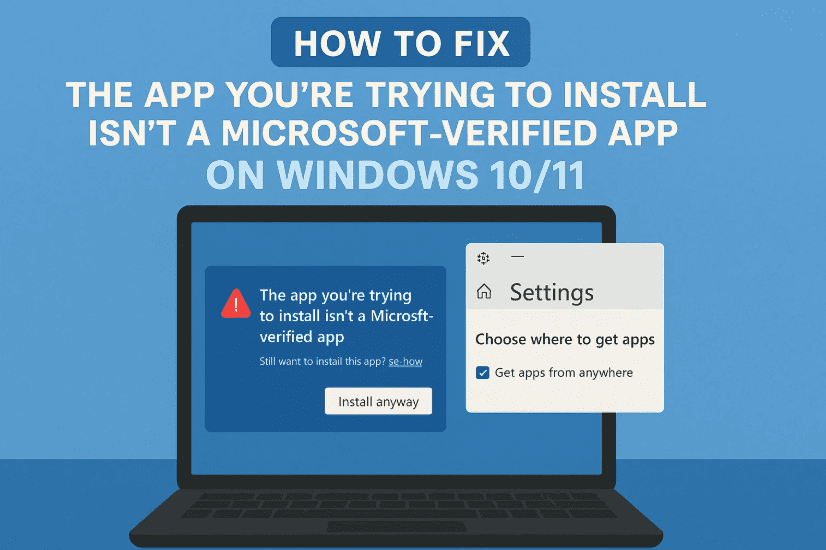
In this blog, I’ll walk you through the exact steps to fix this issue and explain what it means for your device’s security.
🧠 Why This Error Appears
Before we jump into the fix, let’s take a moment to understand why this message appears.
Microsoft wants to ensure that users, especially those who aren’t tech-savvy, install only verified and safe applications. By default (especially on newer versions of Windows), the system is set to only allow app installations from the Microsoft Store.
This can help reduce the risk of installing malicious apps, but it also restricts useful and completely safe software that is distributed through official websites (like Chrome, VLC Player, or Adobe apps).
If you’re confident in what you’re installing, you can easily disable this restriction—and I’ll show you how.
🛠️ Step-by-Step: Fix the Microsoft-Verified App Installation Restriction
Alright, let’s get to the steps! You only need to tweak one setting in your Windows device, and the error will disappear.
📌 Step 1: Open Windows Settings
- Click on the Start Menu (bottom-left of your screen).
- Then click on the Settings icon (⚙️ gear icon).
📌 Step 2: Go to the Apps Section
- In the Settings window, click on Apps.
- This will take you to the section where all app settings live.
📌 Step 3: Change the App Installation Setting
- At the top, under “Choose where to get apps”, you’ll see a dropdown menu.
- If it says “Microsoft Store only (recommended)”, this is what’s blocking your installation.
- Click on the dropdown and choose:
- ✅ Anywhere, or
- ✅ Anywhere, but let me know if there’s a comparable app in the Microsoft Store (this keeps a balance between security and flexibility)
And that’s it! 🎉
You can now install applications from third-party sources just like you used to.
⚠️ A Quick Word of Caution
While it’s great to have the freedom to install any app, this also comes with responsibility. Make sure to:

- Download software only from official or trusted websites
- Avoid suspicious links or cracked versions of software
- Always keep your antivirus and Windows Defender up to date
- Consider uploading downloaded files to VirusTotal before installing, just for an extra safety check
🛡️ Security Tip: If you’re setting this up for someone who is not tech-savvy (like a family member), consider leaving the setting on “Anywhere, but warn me” instead of disabling all warnings completely.
❓ Frequently Asked Questions (FAQ)
Q1: Will turning off Microsoft Store-only app installations make my PC unsafe?
A: Not directly. But it removes a layer of protection. So if you’re not careful with the sources of your downloads, you could end up installing malware or bloatware.
Q2: Can I still access the Microsoft Store after changing this setting?
A: Absolutely! You can still install apps from the Microsoft Store even if you allow other sources.
Q3: I don’t see this option in Settings. Why?
A: It may be disabled by your administrator (common in school or work devices). If that’s the case, you’ll need admin access to change it.
💬 Final Thoughts
So far, we’ve learned that this issue is just a preventive feature from Microsoft—and not a bug. With just a couple of clicks, you can regain full control over what you install on your PC.
Just remember to stay safe and always double-check the authenticity of the software source. That little bit of caution goes a long way in protecting your device and your data.
Let us know in the comments if this guide helped you or if you faced any trouble during the process. We’re here to help!
Until next time, stay smart and tech-savvy! 🚀
🔗 Useful Links
📌 Tags & Hashtags
Tags: windows error fix, microsoft verified app issue, install apps from anywhere, app installation blocked, windows 10, windows 11, microsoft store restriction
Hashtags:
#Windows10 #AppInstallationError #MicrosoftStoreFix #WindowsTips #TechHelp #FixWindowsIssue #TechBasedIn
⚠️ Disclaimer
This tutorial is intended for general educational purposes only. Changing security settings in Windows may expose your system to risks if you’re not careful with software sources. Always use trusted websites and security tools before installing third-party applications.








