If your Task Manager refuses to open, doesn’t respond, or gives you strange errors—especially after a potential malware attack—there’s a good chance that something has disabled it behind the scenes. This article will walk you through all the working solutions to restore Task Manager functionality in Windows.
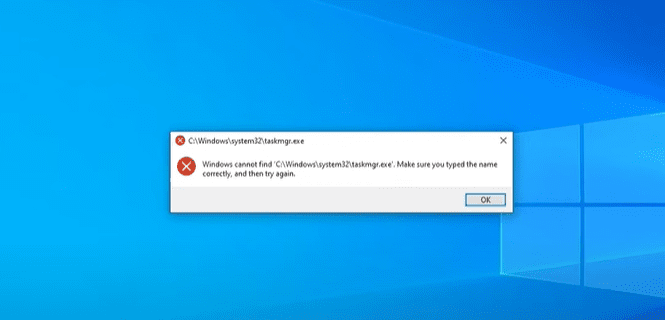
These steps work on Windows 10, Windows 11, and even some older versions. Let’s dive into it.
🛠 Why Task Manager Might Not Be Working
In many cases, Task Manager is disabled by:
- A virus or malware
- A registry tweak made by an attacker or software
- A Group Policy setting in managed environments
You might notice that pressing Ctrl + Shift + Esc or Ctrl + Alt + Delete does nothing or shows an error message. Here’s how to bring it back.
✅ Method 1: Use Registry Editor to Re-enable Task Manager
This is one of the most common and effective methods.
Steps:
- Press
Win + Rto open the Run dialog box. - Type
regeditand press Enter to open the Registry Editor. - Navigate to the following path:
HKEY_LOCAL_MACHINE\SOFTWARE\Microsoft\Windows NT\CurrentVersion\Image File Execution Options - Inside that folder, look for a subkey named
taskmgr.exe. - If you find it, right-click and delete the entire
taskmgr.exekey.
📝 This key is often created by malware to block Task Manager from launching.
- Close the Registry Editor and try launching Task Manager again. It should now work.
✅ Method 2: Use Group Policy Editor (For Windows Pro and Enterprise)
If you’re using Windows 10/11 Pro or Enterprise editions, try this:
Steps:
- Press
Win + R, typegpedit.msc, and hit Enter. - Navigate to the following path:
User Configuration > Administrative Templates > System > Ctrl+Alt+Del Options - On the right panel, double-click “Remove Task Manager”.
- Set it to Not Configured or Disabled.
- Click Apply and OK.
This will restore access to Task Manager via standard shortcuts.
✅ Method 3: Use a Task Manager Repair Tool (Re-Enable Utility)
If the above methods don’t work, or you want an easier option, you can use a free utility that restores Task Manager and other system functions.
What This Tool Does:
- Re-enables Task Manager, CMD, RegEdit, Control Panel, and more.
- Fixes most restrictions set by viruses or misconfigured system policies.
Steps:
- Go to the official Tips to Fix website and download the Re-Enable Tool.
- Run the utility.
- From the options, check “Task Manager”.
- Click “Re-Enable”.
- Restart your computer.
After rebooting, your Task Manager should now open and function normally.
⚠️ Extra Tip: Scan for Malware
If your Task Manager was disabled unexpectedly, it’s likely due to malware. Use a trusted antivirus or malware scanner (like Malwarebytes or Windows Defender) to perform a full system scan.










✅ Summary
If your Task Manager is not opening, try the following:
- Registry Editor – Delete the
taskmgr.exeblock. - Group Policy Editor – Disable restrictions under Ctrl+Alt+Del Options.
- Re-Enable Tool – Use a free repair utility to bring back system functionality.
These methods work even if your system is infected or corrupted, and they’re safe to follow for beginners and advanced users alike.
Tags:
task manager not opening, fix task manager, windows 11 task manager, task manager disabled, regedit fix, gpedit task manager, reenable utility, task manager virus fix, windows 10 task manager issue, restore task manager
Hashtags:
#TaskManagerFix #Windows11Help #RegeditFix #GroupPolicy #WindowsSupport #TaskManagerNotWorking #MalwareFix #PCRepair #WindowsTips #TechSupport








