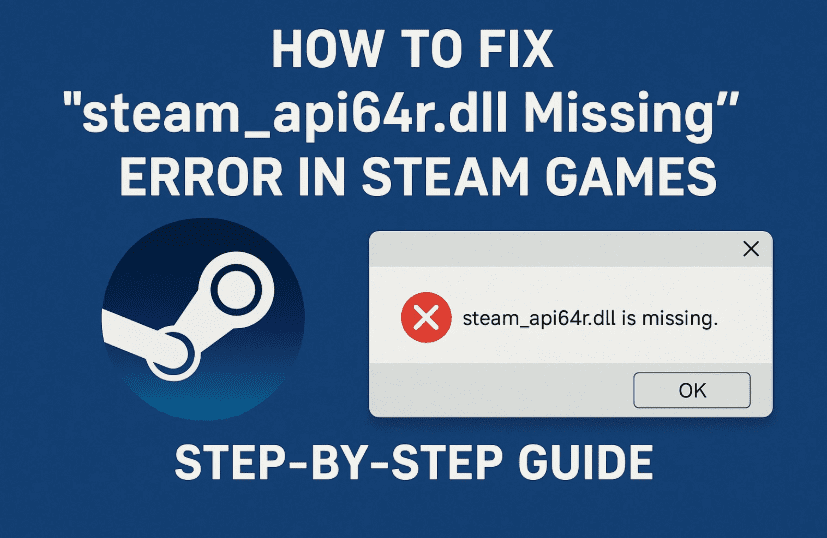
If you’re trying to launch a Steam game and suddenly run into an error message saying “steam_api64r.dll is missing”, don’t worry—you’re not alone. This is a common issue in games like Call of Duty: Black Ops, as well as many other titles that rely on Steam’s dynamic link library (DLL) files.
In this detailed blog post, we’ll go over:
- Why this DLL file goes missing
- Multiple proven solutions to restore the file
- When and how to manually download the DLL
- And a short FAQ to answer common doubts
Let’s walk through it step by step and get you back to gaming!
🧠 What Causes the steam_api64r.dll Missing Error?
This error typically appears when:
- The
steam_api64r.dllfile was accidentally deleted - It was flagged and removed by antivirus software
- The game files were corrupted or incomplete
- The game is pirated or cracked and doesn’t include proper DLLs (⚠️ we don’t support or recommend using unauthorized game versions)
This DLL is essential for enabling the Steam API, which allows games to communicate with the Steam client. Without it, the game won’t launch.
✅ Step 1: Use Steam to Verify Integrity of Game Files
Let’s start with the easiest and safest method.
So far, we’ve identified the problem—now let’s try Steam’s built-in repair tool.
📋 Steps:
- Open your Steam Client.
- In your Library, right-click the game showing the DLL error.
- Click Properties.
- Go to the Local Files tab.
- Click on “Verify integrity of game files”.
Steam will now scan your installation and compare it with the original game files on its servers. If it finds anything missing—including DLL files—it will automatically re-download and replace it.
🕒 This process may take a few minutes depending on game size.
Once done, try launching your game again. If it works—awesome! If not, let’s move to the next step.
🧭 Step 2: Check Local Files and Manually Replace the DLL
Sometimes the file may exist but is corrupted or incorrectly placed. Let’s dive into the game folder and check things ourselves.



Steps:
- Right-click the game again in Steam → go to Properties.
- In the Local Files tab, click “Browse”.
- This will open the folder where your game is installed.
- Look for
steam_api64r.dllorsteam_api64.dll.
If You Find the File:
- If it’s there but the game still throws the error, delete the file. It’s likely corrupted.
- We’ll download a fresh version in the next step.
🌐 Step 3: Download a Fresh DLL File (Trusted Source)
If verifying files didn’t work or you deleted the corrupted DLL, here’s how to safely download and replace it.
⚠️ Important Disclaimer: Only download DLL files from trusted sources. Do not use shady sites that bundle files with malware.
✅ Safe Source:
👉 https://www.dll-files.com/steam_api64r.dll.html
Steps:
- Visit the DLL-Files website.
- In the search box, type
steam_api64r.dll. - You’ll find different versions—choose the latest version that matches your system (usually 64-bit).
- Click Download.
- Extract the
.zipfile using built-in Windows tools or 7-Zip. - You’ll get the actual DLL file inside.
Where to Paste the DLL:
- Paste it into your game’s root folder (the one you opened with “Browse Local Files”).
- If your system also requires it globally, copy it into:
C:\Windows\System32(for 64-bit)C:\Windows\SysWOW64(for 32-bit)
💡 Tip: Always restart your PC after replacing DLL files to ensure the system registers them properly.
❓ Frequently Asked Questions (FAQ)
Q1: Can I trust DLL-Files.com?
A: Yes, it is a reputable source, but always scan downloads with an antivirus as a precaution.
Q2: Is this error related to pirated games?
A: Yes, cracked versions often miss official Steam DLLs. We recommend playing genuine games to avoid such issues and support developers.
Q3: My antivirus keeps deleting the DLL. What should I do?
A: Some antivirus software may flag DLLs falsely. If you’re sure the file is safe:
- Add it to your antivirus exclusion list.
- Or turn off real-time protection temporarily while installing it (then turn it back on).
🕹️ Final Thoughts
So far, we’ve covered everything you need to know to fix the steam_api64r.dll missing error. Whether it’s through Steam’s file repair or manual DLL replacement, these steps should help you get your game back up and running.
If this guide helped you, share it with others who might be struggling with the same issue. And remember—always play legit to avoid DLL drama!
Until next time, this is Emanuel from Tech Based In, signing off. Happy gaming!
🔗 Useful Links
📌 Tags & Hashtags
Tags: steam_api64r.dll missing, steam dll error, game won’t start, fix dll error, dll file download, call of duty black ops fix, verify integrity steam, steam file repair
Hashtags:
#SteamError #DLLFix #steam_api64r #GamingSupport #FixYourGame #Windows10Error #TechBasedIn #SteamGameFix
⚠️ Disclaimer:
This tutorial is for educational purposes only. Always download DLL files from trusted sources and never disable your antivirus unless you understand the risks. We in any way does not encourage downloading or using pirated software.








