Is your Start menu or Search bar not responding in Windows 10 or 11? You’re not alone. This frustrating issue can stop you from accessing key system tools or even launching basic apps. But don’t worry — in this detailed blog post, I’ll walk you through several proven methods to fix this problem, starting from basic to advanced steps.
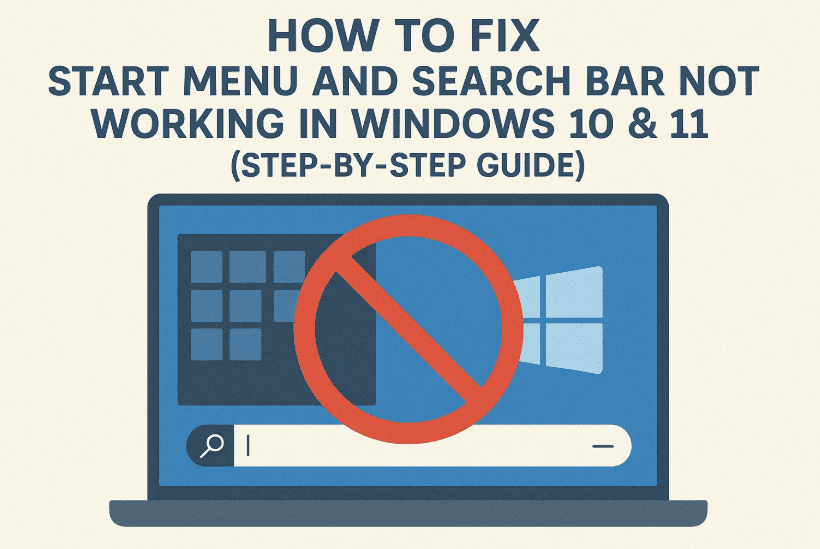
Let’s get started with some easy fixes before moving on to deeper solutions.
⚠️ Important Note
These fixes will not delete your personal files, but a few of them involve restarting Windows Explorer or resetting system files. Please save your work before proceeding.
🛠️ Method 1: Restart Windows Explorer
Sometimes the problem is just a frozen Windows Explorer session. Restarting it can refresh the user interface.
Let’s go step by step:
Step-by-Step:
- Press
Ctrl + Shift + Escto open Task Manager. - Scroll down and locate Windows Explorer in the list.
- Right-click on it and click Restart.
💡 If your taskbar isn’t responsive, you can also right-click on the Start button (or press Ctrl + Alt + Del → Task Manager).
After restarting Explorer, check if the Start menu or search bar is working again. If not, proceed to the next method.
🔁 Method 2: Manually Restart Explorer.exe via Task Manager
If the quick restart doesn’t help, let’s try ending the process and starting it again manually.
Here’s how to do it:
- Open Task Manager using
Ctrl + Shift + Esc. - Look for Windows Explorer, right-click, and select End task.
- Once the desktop turns blank or UI disappears temporarily, click File > Run new task in Task Manager.
- Type
explorer.exe, check Create this task with administrative privileges, and click OK.
This will restart your desktop environment.
🧰 Method 3: Use CMD to Run System File Checker (SFC) and DISM
Sometimes the issue is due to corrupted system files. Let’s fix them using built-in tools.
Follow these steps:
- Open Task Manager → Click File → Run new task.
- Type
cmd.exe, check Create this task with admin privileges, then click OK.
In the Command Prompt that opens, type the following one by one:







sfc /scannow
Wait until the scan reaches 100%. Then run:
DISM /Online /Cleanup-Image /RestoreHealth
This will scan and repair system image files. Both commands may take time to complete.
Once done:
- Restart your system using:
shutdown /r /t 0
- Or simply press
Ctrl + Alt + Deland restart.
🧠 Method 4: Troubleshoot Windows Search with Indexing Options
If the search bar still doesn’t work, the problem may be with Windows Indexing.
Let’s move to the next step:
Here’s how:
- Press
Windows + R, typecontrol, and press Enter to open Control Panel. - Switch to Large icons view.
- Click Indexing Options.
- Click Advanced.
- In the new window, click Troubleshoot search and indexing.
- Follow the wizard to check for common problems.
Still Not Working? Try Rebuilding the Search Index:
If troubleshooting doesn’t help, rebuild the search index.
- In the Advanced Options, click Rebuild under Troubleshooting.
- This will take 15–30 minutes depending on your system and number of files.
- After the rebuild completes, restart your PC.
🔁 Method 5: Reset Windows (Last Resort)
If none of the above methods work, your final option is to reset Windows while keeping your personal files.
Let’s see how:
- Press
Windows + R→ typecontrol→ open Control Panel. - Go to Recovery.
- Click Open System Restore (optional), or click Reset this PC.
- Select Keep my files.
- Choose Cloud Download (requires ~4GB data) — this will install a fresh Windows copy from Microsoft.
- Follow the prompts and ensure your laptop is plugged in.
💡 This is safe for your personal files but removes installed programs and drivers.
❓ Frequently Asked Questions (FAQ)
Q1. Will resetting Windows delete my files?
A: No, if you choose “Keep my files” during the reset process, your files will be safe. However, programs will be removed.
Q2. How long does indexing rebuild take?
A: It may take 15 to 30 minutes depending on the number of files and system speed.
Q3. What if Task Manager doesn’t open at all?
A: You can press Ctrl + Alt + Del and try launching it from the security screen.
Q4. Are SFC and DISM safe?
A: Yes, these are official Microsoft tools used to repair corrupted or missing system files.
🔚 Final Words
If you followed all the methods in this guide, your Start menu and search bar should now be working perfectly again. Most of the time, restarting Windows Explorer or running SFC fixes the issue. For persistent problems, resetting Windows is the ultimate fix.
You don’t need to reinstall Windows manually or call for tech support — just try these safe and effective steps at home.
🔗 Useful Links
🏷️ Tags:
start menu fix, Windows search bar not working, Windows 10 issues, Windows 11 bugs, sfc, DISM, task manager, explorer.exe, indexing, reset windows
📣 Hashtags:
#WindowsTips #SearchBarFix #StartMenuNotWorking #Windows10 #Windows11 #SystemRestore #IndexingOptions #SFCScan #DISMTool
Enjoying smoother performance now?
If this article helped you, feel free to share it with others who might be struggling with the same annoying problem. A few minutes of tweaking can save hours of frustration!








