If you’re trying to launch Starfield on your Windows 10 or 11 PC and are encountering the error 0xc0000001D, don’t worry—it’s a common problem related to missing system components. This guide will walk you through a complete step-by-step solution to resolve the issue using Microsoft’s .NET Framework and System File Checker (SFC) tools.
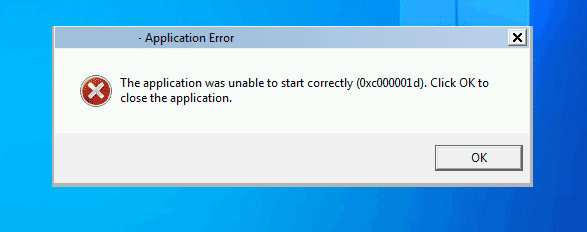
🔧 Step-by-Step Guide to Fix Starfield Error 0xc0000001D
✅ Step 1: Install the Latest .NET Framework
One of the most common reasons for the 0xc0000001D error is a missing or outdated .NET Framework. Here’s how to install it:
- Open your preferred web browser (Google Chrome, Microsoft Edge, Firefox, etc.).
- In the search bar, type:
NET Framework 2022 - Press Enter and look for the official Microsoft website—the link should be:
https://dotnet.microsoft.com - Once you’re on the site, look for the Latest supported .NET Framework Runtime (e.g., .NET Framework 4.8.1 or newer).
- Click to download the runtime version (not the developer pack).
- Once downloaded, locate the installer file (typically in your Downloads folder).
- Double-click the file to run the installer.
- If prompted by User Account Control, click Yes.
- Follow the on-screen instructions:
- Click Continue
- Accept the license agreement
- Let the installation complete
💡 Note: If the .NET Framework is already installed, the installer will notify you. In such a case, you can proceed to the next step.
✅ Step 2: Run System File Checker (SFC) Scan
Corrupted or missing system files can also trigger the error. You can fix this using the built-in System File Checker.
- Click the Start Menu and type:
CMD - From the search results, right-click on Command Prompt and select:
Run as administrator - If prompted by the User Account Control, click Yes.
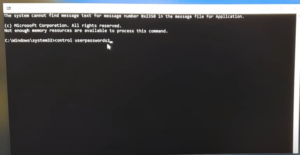
- In the command prompt window, type the following command:
sfc /scannow - Press Enter to initiate the scan. This process may take several minutes, depending on your system.
- Wait for the scan to complete. If any corrupted files are found, Windows will attempt to repair them automatically.
- Once finished, close the Command Prompt window.
- Restart your computer to apply the changes.
🚀 You’re Done!
After following the above steps, try launching Starfield again. The error 0xc0000001D should now be resolved, and your game should work as expected.
🔗 Useful Links
⚠️ Disclaimer
This guide is intended for educational purposes only. Always download software from official sources to avoid malware or security risks. The solution provided is based on standard troubleshooting practices for Windows-based systems.
🏷️ Tags
Starfield error fix, Windows 10 troubleshooting, Windows 11 game error, 0xc0000001D fix, .NET Framework download, SFC scan tutorial, game not launching fix, Microsoft tools
📢 Hashtags
#StarfieldError #Windows10Fix #Windows11Gaming #0xc0000001D #DotNetFramework #SFCTool #GameTroubleshooting #PCGamingFix #MicrosoftSupport #WindowsTips