If you’re using Windows 10 or 11 and you’ve seen the message:
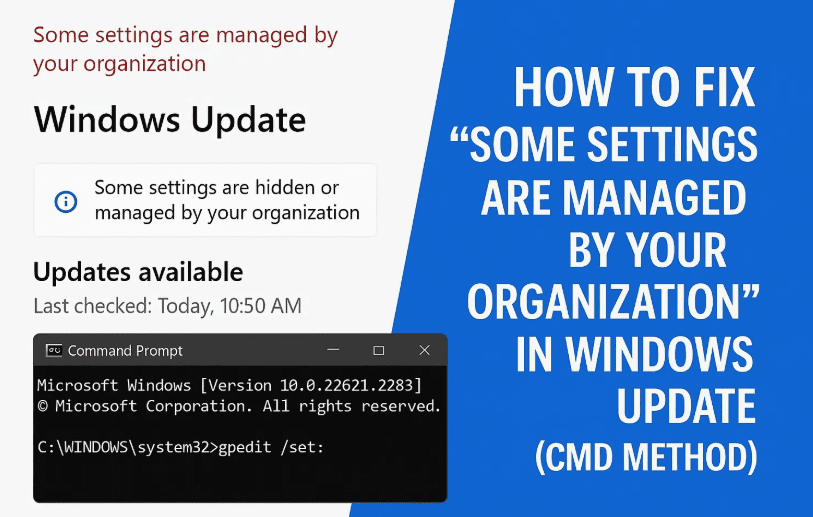
“Some settings are managed by your organization”
…on your Windows Update settings page, don’t panic. This isn’t a critical system error—but it can restrict your ability to install updates, change privacy settings, or configure system options normally available to all users.
In this article, I’ll walk you through a quick and effective fix using Command Prompt (CMD). You don’t need any third-party software—just a few simple commands that clear certain registry values which may have been modified due to group policies, third-party apps, or manual changes.
So far, so good? Let’s move to the next step and resolve it.
🧠 Why Does This Message Appear?
The “Some settings are managed by your organization” message typically appears when:
- Group Policy settings have been modified manually or by another program.
- Registry values have been altered (intentionally or unintentionally).
- You’ve used a third-party privacy tool or optimization software that changes system policies.
- You’re part of a business or school domain with restrictions (in which case, only your IT admin can change policies).
For personal PCs, this is often fixable by removing a few registry keys. Let’s do just that!
🛠️ Step-by-Step: Remove the Message Using Command Prompt
🧩 Step 1: Open Command Prompt as Administrator
First, we’ll open an elevated Command Prompt window to ensure we have the correct privileges to make registry changes.
- Click the Search box in the taskbar and type:
cmd - Right-click on Command Prompt and select:
Run as administrator - Click Yes on the User Account Control prompt.
You should now see a black command window open with administrative privileges.
📋 Step 2: Enter the Registry Delete Commands
Here comes the magic part. You’ll be entering several commands that remove specific registry keys related to update and group policy restrictions.
💡 Don’t worry if you see messages like “The system was unable to find the specified registry key or value” — it just means that key doesn’t exist on your system, and that’s perfectly okay.



Here are the commands to enter one by one (press Enter after each):
REG DELETE "HKCU\Software\Policies\Microsoft\Windows\WindowsUpdate" /f
REG DELETE "HKLM\Software\Policies\Microsoft\Windows\WindowsUpdate" /f
REG DELETE "HKCU\Software\Microsoft\Windows\CurrentVersion\Policies\WindowsUpdate" /f
REG DELETE "HKLM\Software\Microsoft\Windows\CurrentVersion\Policies\WindowsUpdate" /f
REG DELETE "HKCU\Software\Microsoft\Windows\CurrentVersion\Policies\Explorer" /f
REG DELETE "HKLM\Software\Microsoft\Windows\CurrentVersion\Policies\Explorer" /f
REG DELETE "HKLM\Software\Policies\Microsoft\Windows\System" /v AllowTelemetry /f
You may also see:
Delete request is partially completed– This means only part of a registry key was deleted.The system was unable to find the specified registry key or value– This means it’s already clean. Good news!
Just continue entering each command, regardless of whether errors appear.
🔁 Step 3: Restart Your PC
Once all commands have been executed:
- Close Command Prompt
- Restart your computer
After the restart, go to Settings → Update & Security → Windows Update and check again. The “Some settings are managed by your organization” warning should be gone!
You should now be able to:
- Access all update-related settings
- Install all available updates without restrictions
- Regain full control over your system’s privacy and telemetry options
❓ Frequently Asked Questions
Q1: Is it safe to run these commands?
A: Yes. These commands only delete optional policy keys from the Windows registry. They don’t touch your files, installed apps, or critical system components.
Q2: What if I’m using a work or school PC?
A: If your device is managed by an IT administrator or domain, these settings may reappear after a reboot. You’ll need to contact your IT department in that case.
Q3: Will this affect my other system settings or software?
A: No. These specific registry entries relate only to Windows Update and Explorer policy settings.
✅ Final Thoughts
So far, we’ve done a solid job fixing this issue using nothing but a few simple commands. Whether you stumbled upon the warning by accident or your system actually blocked updates, this quick CMD fix will help you regain full control over your update settings.
If this guide helped you out, be sure to share it with others who might face the same issue. And of course, feel free to leave a comment if you ran into any trouble—we’re happy to help.
Until next time, this is Emanuel from Tech Based In, wishing you a smooth and restriction-free Windows experience!
🔗 Useful Resources
📌 Tags & Hashtags
Tags: windows update warning, some settings are managed, group policy fix, registry fix, windows 10 updates not working, fix update settings, command prompt registry delete, cmd tricks, windows admin fix
Hashtags:
#WindowsUpdateFix #CMDCommands #TechBasedIn #Windows10Tips #RegistryFix #GroupPolicyError #WindowsAdmin #FixWindowsUpdate #SomeSettingsManaged
⚠️ Disclaimer:
This guide is intended for educational purposes only. Modifying the Windows registry should be done with caution. If you’re unsure, create a system restore point before proceeding.








