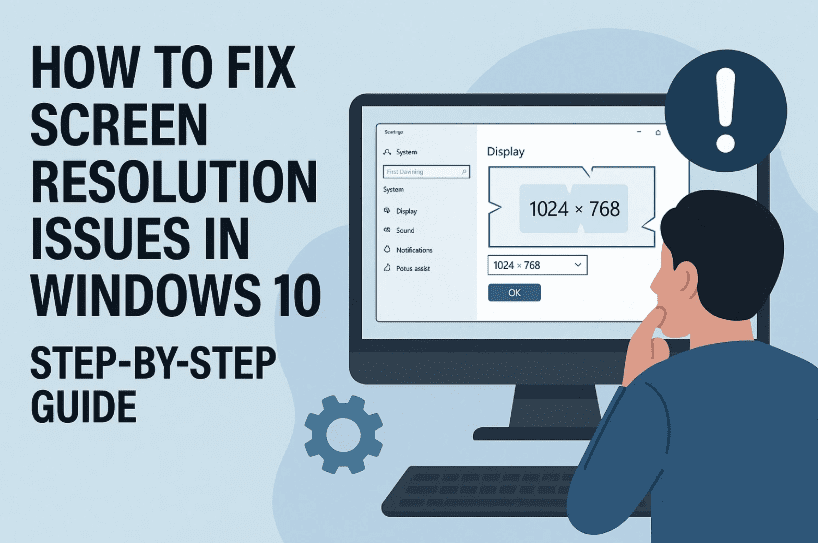
If you’re experiencing screen resolution problems in Windows 10 — like blurry visuals, limited resolution options, or improper scaling — you’re in the right place. These issues are common, especially after Windows updates or when you’re using older hardware. But the good news is: this issue can be fixed manually without any advanced tools or technical experience.
Let’s walk through this together, step-by-step. By the end of this guide, you’ll have a smoother and clearer display experience. So grab a cup of tea, stay with me, and let’s solve this!
✅ Step 1: Check Your Installed Graphics Driver
The most common cause of resolution problems is either a missing or outdated display driver.
Let’s check what’s installed on your system:
- Click the Search Bar in your taskbar.
- Type Task Manager and open it.
- Maximize the window and go to the Performance tab.
- If you don’t see any GPU or display adapter listed, that’s a sign your driver may not be properly installed.
If your graphics details are missing here, no worries. Let’s try another method.
🔍 Step 2: Open Device Manager
Now we’ll look into Device Manager to see if your display driver is recognized.
- Press Windows + S, type Device Manager, and open it.
- Expand the Display adapters section.
- You’ll likely see something like Mobile Intel 4 Series Express Chipset Family or similar based on your hardware.
- Right-click on the listed adapter and choose Update Driver.
- Select Search automatically for drivers.
If it says the best driver is already installed but the problem continues, don’t panic — we’ll try another method next.
🛠️ Step 3: Adjust Display Settings from Windows Settings
Let’s now explore the display settings panel, where many resolution and scaling issues can be resolved.
- Click Search and type Settings.
- Go to System > Display.
- Scroll down and click Advanced scaling settings.
- Make sure “Let Windows try to fix apps so they’re not blurry” is turned ON.
This ensures better scaling, especially if some apps appear fuzzy.
📺 Step 4: Open Advanced Display Settings
To control resolution and refresh rate:
- Stay in System > Display.
- Scroll down and click on Advanced display settings.
- Here, verify your Refresh Rate. For example, if it shows 60.029 Hz, keep it that way unless your monitor supports higher rates.
Now let’s dig deeper into driver properties.


🚀 Step 5: Manually Select or Roll Back Driver
Sometimes, even if a driver is installed, it may not be the best version for your system.
- From Advanced display settings, click Display adapter properties for Display 1.
- In the new window, switch to the Driver tab.
- If Roll Back Driver is enabled, you can click it to revert to a previous version — this often solves newly introduced issues.
- If it’s grayed out, click Update Driver instead.
- Choose Browse my computer for drivers.
- Then select Let me pick from a list of available drivers.
- Pick the most compatible version and click Next.
Once installed, your resolution problem should be resolved instantly.
🔄 Step 6: Restart Your System
After successfully installing the correct display driver:
- Close all open windows.
- Restart your PC or laptop.
- Upon reboot, check the resolution again via Settings > Display.
- You should now have access to the proper resolution options, smooth visuals, and improved performance.
❓FAQs
Q1: Why am I not seeing any GPU listed in Task Manager?
This usually happens when your graphics driver is not installed or is corrupted. Use Device Manager to update or reinstall the driver manually.
Q2: What if my driver still doesn’t install correctly?
Try downloading the correct driver from your manufacturer’s official website (e.g., Intel, AMD, or NVIDIA). Always install using the latest compatible version for your hardware.
Q3: Can I use a third-party tool to update drivers?
You can, but manual installation gives more control and avoids unnecessary bloatware. Tools like Driver Booster or Snappy Driver Installer are available but use them cautiously.
🔚 Conclusion
So far, we’ve:
- Identified the missing or faulty display driver
- Manually updated or rolled back the driver
- Adjusted advanced display and scaling settings
- Restarted the system to apply changes
And that’s it! You’ve successfully resolved the screen resolution issue in Windows 10 without relying on any paid or risky third-party tools.
Enjoy your crisp, sharp display now!
🔗 Useful Links
- Intel Driver Support: https://www.intel.com/content/www/us/en/support/detect.html
- NVIDIA Driver Downloads: https://www.nvidia.com/Download/index.aspx
- AMD Drivers: https://www.amd.com/en/support
🏷️ Tags:
screen resolution issue windows 10, fix blurry display windows, intel chipset resolution fix, update display drivers, windows 10 resolution bug
🔖 Hashtags:
#Windows10 #DisplayFix #ResolutionProblem #IntelDrivers #DeviceManager #ManualFix #ScreenResolution #TechTips
Let us know in the comments if this guide helped, or if you’re facing a different display issue. Happy computing!







