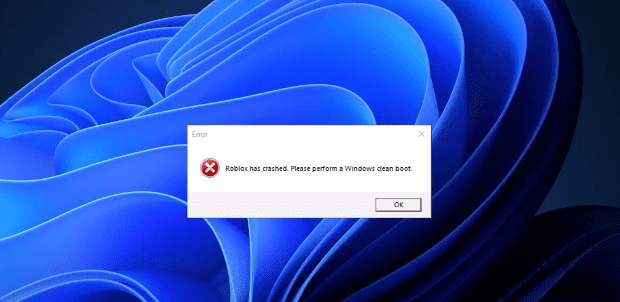
If you are seeing the error “Roblox has crashed. Please perform via Windows clean boot” on your computer, don’t worry—this guide will walk you through the complete step-by-step method to fix this issue.
This problem often arises due to conflicting startup programs or background services that interfere with Roblox. Performing a clean boot helps in identifying and isolating such conflicts so that Roblox can run without interruptions.
🛠️ What is a Clean Boot?
A clean boot starts Windows with a minimal set of drivers and startup programs. It is a diagnostic tool that helps identify background applications that might be causing software conflicts.
✅ How to Perform a Clean Boot to Fix Roblox Crash
Step 1: Open System Configuration
- Click on the Start Menu or press
Windows + S. - Type System Configuration and select Open.
Step 2: Hide Microsoft Services
- In the System Configuration window, go to the Services tab.
- Check the box that says Hide all Microsoft services.
- Click on the Disable all button to turn off all third-party services.
Step 3: Re-Enable Essential Services
Now, you need to manually enable important services related to your system’s hardware to ensure basic functionality.
- Graphics Card Services:
- If you use an NVIDIA graphics card, enable all services related to NVIDIA.
- If you use AMD, enable AMD-related services.
- Audio Services:
- Enable the Realtek Audio Service or the one matching your sound hardware.
- Processor-Related Services:
- If you have an Intel processor, enable Intel-related services.
- If you have an AMD processor, enable relevant AMD services.
Scroll through the list and double-check that only the required services are enabled. All others should remain disabled.
Step 4: Manage Startup Programs
- Now switch to the Startup tab in System Configuration.
- Click Open Task Manager.
- In the Task Manager, look under the Startup Impact column.
Disable all programs listed as High Impact:
- Right-click on each high impact program.
- Select Disable.
This step will help reduce unnecessary load during system startup, which might be interfering with Roblox.
Step 5: Apply and Restart
- Close the Task Manager window.
- Back in the System Configuration window, click Apply, then OK.
- When prompted, click Restart to reboot your computer.
Once your system restarts, try launching Roblox again. The issue should now be resolved.
🧩 Why This Fix Works
By performing a clean boot and only enabling essential hardware services (like graphics and audio), you remove third-party applications that might be interfering with Roblox. Many crash issues are caused by background software or drivers starting automatically with Windows.
🔗 Useful Links
- Roblox Official Website
- NVIDIA Official Site
- AMD Official Site
- Realtek Official Site
- Intel Official Site
🛡️ Disclaimer:
This guide is for informational and educational purposes only. Always make sure to back up your data before making system changes. If you’re unsure, consult a professional technician.
🏷️ Tags:
Roblox crash fix, Windows clean boot, System configuration, Task Manager startup, Roblox error, Nvidia services, AMD services, Realtek audio, Intel processor fix, Roblox troubleshooting







📢 Hashtags:
#RobloxCrash #CleanBoot #WindowsFix #GamingPC #RobloxErrorFix #NVIDIA #AMD #RealtekAudio #IntelSupport #PCGamingHelp







