Right-click not working on your Windows 11 computer or laptop? Whether you’re using a physical mouse or a touchpad, this issue can seriously interrupt your productivity. The right-click function is essential for context menus, file options, and more.
Thankfully, this problem is often related to driver glitches, misconfigured settings, or temporary system bugs—and can be resolved with a few smart steps.
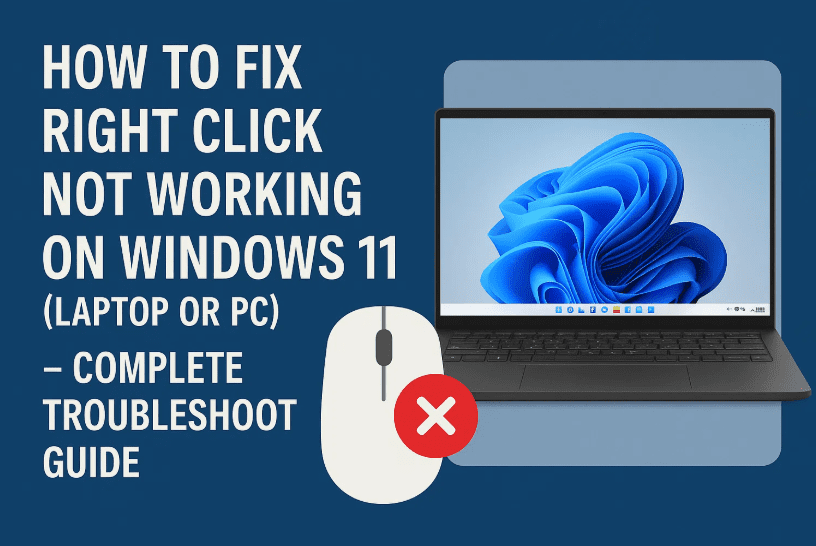
In this article, we’ll walk you through step-by-step solutions to get your right-click working again on Windows 11.
🧠 Common Reasons Why Right-Click Stops Working
Before jumping into the fixes, here are a few typical causes:
- Outdated or corrupted mouse drivers
- USB port malfunctions
- Windows touchpad settings misconfigured
- Recent Windows updates
- Temporary glitches or system file errors
Let’s begin with the first fix and work our way down.
🔧 Step 1: Update Mouse or Touchpad Driver from Device Manager
Let’s start with updating the driver. Often, an outdated or missing mouse driver is the culprit.
Here’s how to do it:
- Press
Windows + Rto open the Run dialog box. - Type:
devmgmt.mscand press Enter to open Device Manager. - Expand the section “Mice and other pointing devices”.
- Right-click on your mouse or touchpad device listed there and choose:
- Update Driver
- First, try Search automatically for drivers.
- If no updates are found, click Browse my computer for drivers.
- Choose Let me pick from a list of available drivers.
- Select the latest compatible hardware driver, click Next, then Apply and Close.
🔄 After installation, restart your PC and check if the right-click is working.
🖥️ Step 2: Scan for Hardware Changes
Still not fixed? Let’s refresh your device settings manually.
- In Device Manager, click on your computer name at the top.
- From the top menu, click Action > Scan for hardware changes.
- Wait for the refresh process to complete.
⚠️ If your mouse driver reappears or updates, it likely was missing or misconfigured.
🔌 Step 3: Try a Different USB Port or Mouse
If you’re using a wired or wireless USB mouse:
- Unplug it from the current USB port.
- Plug it into another USB port.
- Try both USB 2.0 and 3.0 ports.
If you’re on a laptop, use two fingers on the touchpad to perform a right-click gesture. Some touchpads support tap with two fingers as a right-click alternative.
🔄 Step 4: Check for Windows Updates
Sometimes, right-click issues arise after or before a system update. Keeping your Windows version up-to-date can fix compatibility bugs.
Update your system:
- Press
Windows + Ito open Settings. - Go to Windows Update.
- Click Check for updates.
- If any pending updates appear, Download and Install them.
- Restart your PC afterward.
🎯 Step 5: Adjust Touchpad & Mouse Settings
If you’re using a laptop, incorrect touchpad settings can disable right-click functionality.
Adjust settings here:
- Press
Windows + Ito open Settings. - Go to Bluetooth & Devices > Touchpad.
- Make sure Touchpad is ON.
- Enable the “Touch Indicator” setting.
- Go to “Three and Four Finger Gestures”, and ensure they’re set to default or to Right-click.
For external mice:
- Search for Mouse settings in Windows Search.
- Click on Additional mouse settings.
- Under the Buttons tab, ensure Right-click is set as the Secondary Button.
🎯 You can also reset all settings to default if something seems off.
🧰 Step 6: Use Troubleshooter for Hardware
Windows 11 includes built-in troubleshooters that can automatically detect and fix hardware issues.
Launch the troubleshooter:
- Press
Windows + Sand type Troubleshoot Settings, then press Enter. - Click on Other Troubleshooters.
- Run the Bluetooth and Hardware & Devices troubleshooters (if available).
- Follow the on-screen prompts.
🧹 Step 7: Run System File Checker (SFC)
System corruption might affect mouse functions too. Let’s scan and repair system files using a built-in command-line tool.
Here’s how:
- Press
Windows + S, search for CMD, right-click on Command Prompt, and choose Run as administrator. - Type the following command:
sfc /scannow - Press Enter and let the scan complete.
- Once done, restart your PC.
🛠️ This tool will automatically replace any corrupt or missing Windows system files that could be interfering with mouse operations.
💡 Step 8: Hardware Diagnosis
If nothing has worked so far, it’s time to test the hardware.
Try the mouse on another computer:
- If the right-click still doesn’t work on a different PC, your mouse is likely faulty.
- If it works elsewhere, then your Windows installation or drivers are the issue.
❓ Frequently Asked Questions (FAQs)
Q1: Why does my touchpad right-click not work on my laptop?
A: Your touchpad settings may be misconfigured, or the touchpad driver is outdated. Try enabling two-finger tap or updating the driver from Device Manager.
Q2: How do I change right-click to the left button?
A: Go to Settings > Bluetooth & Devices > Mouse and set the Primary button to Right if you’re left-handed.
Q3: Could a recent Windows update break my mouse?
A: Occasionally, updates might conflict with existing drivers. Reinstalling or rolling back a driver can fix this issue.
📌 Tags & Hashtags
Tags: windows 11 mouse fix, right click not working, touchpad right click, update mouse driver, fix mouse settings, sfc scan, mouse troubleshoot, usb port test, windows 11 touchpad issue
Hashtags:
#Windows11 #MouseFix #RightClickNotWorking #TouchpadIssue #PCTroubleshooting #MouseDriver #SFCScan #WindowsUpdate #LaptopTips #TechSupport
⚠️ Disclaimer:
This guide is for informational and troubleshooting purposes only. Always ensure your device is backed up before applying advanced changes or driver updates. If hardware is damaged, consider seeking professional help.
That’s it! Hopefully, one of these methods helped you fix your right-click issue on Windows 11. Whether it was a driver glitch, hardware problem, or just a system hiccup—your mouse or touchpad should now be functioning as expected.
For more useful troubleshooting tutorials, visit dtptips.com – your hub for Windows solutions and tech insights! 🖱️💻








