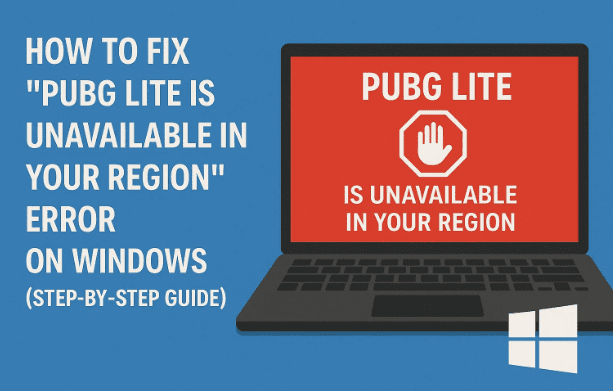
Online multiplayer games often rely heavily on proper synchronization between your system’s settings and the game servers. If you’ve tried to launch PUBG Lite and received the frustrating message “PUBG Lite is unavailable in your region”, don’t worry — this guide will walk you through the exact steps to fix the issue.
Many players encounter this problem not because the game is truly blocked, but due to incorrect system time, date, or network cache issues. Let’s go through the process systematically and fix it once and for all.
1. Understanding the Cause of the Error
Before diving into the solution, it’s important to understand why this happens. The error “PUBG Lite is unavailable in your region” generally occurs because:
- Your system clock or time zone does not match your actual geographical location.
- Your DNS cache is holding onto outdated or incorrect server data.
- Your Windows network configuration might be corrupted or misaligned.
Fixing these three issues will help you regain proper access to the servers and launch PUBG Lite successfully. Let’s begin step by step.
2. Step 1 – Check and Confirm Your Time Zone
Let’s start by ensuring your PC is using the correct time zone. Even a minor mismatch can prevent the game from verifying your location correctly.
Here’s what you need to do:
- Open any web browser (like Chrome or Edge).
- In the search bar, type “what is my time zone” and press Enter.
- Note down your correct time zone displayed by Google (for example, “Asia/Kolkata” or “GMT+05:30”).
Now that you know your actual time zone, we’ll match it inside Windows settings in the next step.
3. Step 2 – Verify Windows Date and Time Settings
Next, we’ll make sure that your system clock is configured properly.
Follow these steps:
- Click on the Search icon (🔍) in your taskbar.
- Type Date and Time Settings and open it.
- Under the “Time zone” section, ensure that it matches the one you found earlier (e.g., Asia/Kolkata).
- Turn Set time automatically to On.
- Also, make sure Set time zone automatically is enabled (if available).
💡 Tip: Some Windows builds hide this setting — if that’s the case, just select your correct time zone manually.
Now, let’s move to syncing your clock with the online time servers.






4. Step 3 – Sync Your Clock with Internet Time Servers
Even if your system shows the correct time, sometimes it may not be synchronized with the world clock. This can still trigger region or authentication issues in games.
Here’s how to fix that:
- Scroll down in the same Date & Time Settings window.
- Find the option “Sync now” under Additional settings.
- Click on Sync now.
You’ll see a small message that says “Your clock was successfully synced.”
This ensures your PC’s internal clock matches the game server’s clock — a simple but crucial fix.
5. Step 4 – Flush DNS Cache
Sometimes, your computer stores old or incorrect DNS (Domain Name System) entries that can prevent connection to PUBG Lite’s servers. Flushing them forces Windows to re-fetch the latest data.
Let’s do this carefully:
- Click on the Search bar again and type cmd.
- Right-click on Command Prompt and choose Run as administrator.
- When prompted by UAC, click Yes.
Now, in the Command Prompt window, type the following command and press Enter:
ipconfig /flushdns
You should see this message:
“Successfully flushed the DNS Resolver Cache.”
This clears all temporary DNS data and refreshes your connection to the game’s servers.
6. Step 5 – Reset Windows Network Stack
The next step is to reset the Windows network stack, which helps fix deeper network misconfigurations. This step resets Winsock — a part of Windows that manages how apps like PUBG connect to the internet.
Steps:
- Keep your Command Prompt (Admin) window open.
- Type this command and hit Enter:
netsh winsock reset
- Wait for a confirmation message like:
“Successfully reset the Winsock Catalog. You must restart the computer in order to complete the reset.”
This command clears any network adapters or settings that may have been modified by VPNs, proxies, or other network tools.
7. Step 6 – Restart Your PC
Now comes the simplest yet most important step — restart your computer.
Rebooting applies all the changes we made:
- Your time and region settings are now synced.
- The DNS cache and network configuration are reset.
- The system is ready for a fresh, clean connection to the game servers.
After restarting, launch PUBG Lite again. In most cases, the “Unavailable in your region” message should disappear, and you’ll be able to play normally.
8. FAQ: Common Questions About PUBG Lite Region Issues
Let’s answer a few common questions that players often ask when facing this problem.
Q1. Why does PUBG Lite show a region error even when I’m in a supported country?
This often happens because of misconfigured date, time, or DNS cache, not necessarily because the region is blocked. Servers verify your system time for login authentication.
Q2. Can a VPN fix the issue?
While some players use VPNs, it’s not always necessary. In fact, VPNs can sometimes make it worse by changing your region dynamically. Always try syncing your system first before resorting to VPNs.
Q3. Will reinstalling the game help?
Reinstalling may fix corrupted files but won’t solve the problem if it’s caused by your network or time settings. It’s better to perform the steps in this article before reinstalling.
Q4. Should I disable firewall or antivirus temporarily?
No, that’s not recommended unless you’re sure the firewall is blocking the connection. Instead, just make sure PUBG Lite is allowed through your Windows Firewall.
Q5. Does this fix work for other games too?
Yes! These steps (especially flushing DNS and resetting Winsock) can fix network region issues for many online games like Valorant, Apex Legends, and Fortnite.
9. Disclaimer
This article is meant for educational and troubleshooting purposes only. PUBG Lite’s regional availability may vary depending on official policies. These steps help solve region errors caused by system misconfiguration, but they do not bypass official game restrictions. Always comply with the game’s Terms of Service.
✅ Final Thoughts
If you’ve followed every step carefully, your Windows system should now be correctly synchronized, and the “Unavailable in your region” error in PUBG Lite should be gone.
It’s surprising how often simple things like incorrect date/time or cached DNS entries cause major connection issues in games. Taking a few minutes to fix these can save hours of frustration.
If the issue persists even after these steps, try contacting PUBG Lite Support via the official site:
🔗 https://lite.pubg.com
Tags
PUBG Lite, region error fix, Windows troubleshooting, flush DNS, network reset, time zone fix, gaming connectivity, date and time settings
Hashtags
#PUBGLite #WindowsFix #GamingError #DNSFlush #NetworkReset #Troubleshooting #PCGaming #PUBG








