Seeing the message “Preparing Automatic Repair” or “Startup Repair couldn’t repair your PC” can be frustrating, especially when your system is stuck in a loop and you can’t boot into Windows. But don’t worry — you’re not alone, and this article will guide you step-by-step to fix the issue effectively.
Whether you’re on Windows 10 or Windows 11, the solutions are similar and straightforward. So grab a cup of coffee and let’s walk through each fix together, like a friend helping you troubleshoot your PC.
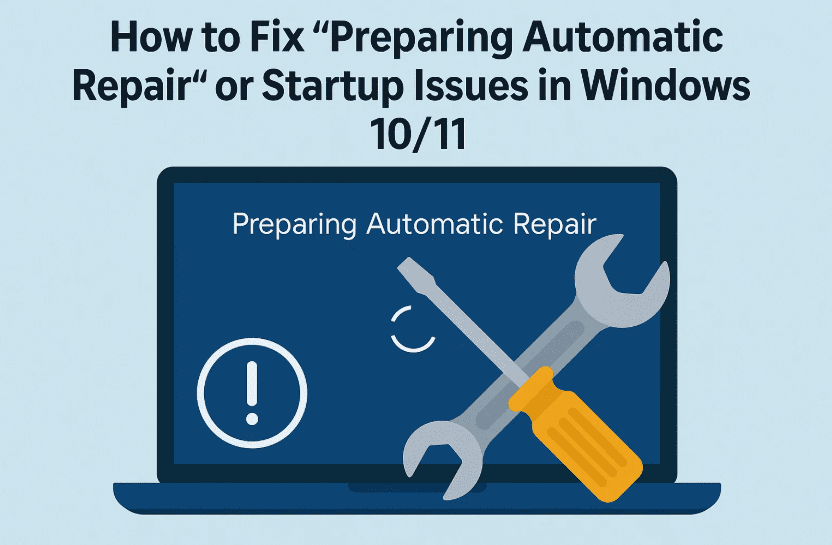
🛠️ What Is “Preparing Automatic Repair” in Windows?
Before we jump into the solutions, it’s important to understand what’s happening.
Windows automatically enters Startup Repair mode when it fails to boot properly. While it often resolves the issue on its own, sometimes it gets stuck, loops indefinitely, or fails to repair the problem. This can happen due to:
- Corrupt system files
- Damaged bootloader
- Bad sectors on the drive
- Recent Windows update issues
🧩 Step 1: Use System Restore from Recovery Options
Let’s begin with the simplest and safest option — System Restore. This rolls back your PC to a previous working state without affecting your personal files.
Steps:
- When you see “Automatic Repair” or “Startup Repair”, wait until the Advanced options screen appears.
- Click on Advanced options > Troubleshoot > Advanced options.
- Select System Restore.
- Choose the latest restore point when your system was working fine.
- Click Next, then Finish, and finally confirm with Yes.
💡 If no restore points are available, don’t worry — continue with the next steps.
🛠️ Step 2: Run Startup Repair Manually
If System Restore isn’t available or doesn’t fix the issue, the next method is to run Startup Repair manually from the same advanced options screen.
Here’s what to do:
- Go to Advanced options > Troubleshoot > Advanced options.
- Click on Startup Repair.
- Let the system attempt to fix any startup issues.
⚠️ This may take a few minutes. If the repair is successful, your system should reboot into Windows automatically.
🔧 Step 3: Use Command Prompt for Deep Repair
Still stuck? Let’s go a little deeper using Command Prompt. This step will scan and repair corrupt system files and hard drive errors.
Launch Command Prompt:
- From Advanced options, click on Troubleshoot > Advanced options > Command Prompt.
- In the terminal window, type the following command and press Enter:
sfc /scannow- This command scans for system file corruption and repairs them.
- Once completed, run the next command:
chkdsk C: /f /r- This checks the disk for bad sectors and repairs them.
- If your Windows is installed on a different drive (like D:), replace
C:with that drive letter.
💡 You can repeat the chkdsk command for each partition (D:, E:, etc.) to ensure full system integrity.
- Once all scans complete, close the Command Prompt window and shut down the PC.
- Now power it on and check if the issue is resolved.
🔁 Bonus: What If It Still Doesn’t Work?
If none of the above steps solve the issue:











- Try booting into Safe Mode from Advanced options > Startup Settings.
- Use a bootable USB to reinstall or repair Windows.
- Contact a technician if the drive is failing physically (especially after multiple
chkdskerrors).
You might be intrested in these topics too!
- How to Boot Windows 11 into Safe Mode (2025 Guide): Step-by-Step for Beginners and Experts
- Fixyfier: The All-in-One Free Windows Repair Tool for Everyone
- The Ultimate Guide to Troubleshooting 30 Common Desktop PC Problems
- 5 Best Way to Automatic Repair Loop and “Startup Repair Couldn’t Repair Your PC” Error
- How to Debloat Windows 10 and 11 Without Any Third-Party Software
🤔 FAQs
Q1: What causes the “Preparing Automatic Repair” loop?
It’s usually caused by corrupt system files, disk errors, or interrupted Windows updates.
Q2: Will System Restore delete my files?
No, System Restore only affects system files and settings — not your personal data.
Q3: Can I run these commands from a bootable USB?
Yes, if you can’t access the recovery options, boot from a USB and select Repair your computer > Command Prompt.
Q4: My system doesn’t show Advanced Options. What do I do?
Try forcing Windows into recovery by turning it off during boot 3 times. This should trigger recovery mode automatically.
✅ Conclusion
So far, we’ve explored all the essential ways to fix the “Preparing Automatic Repair” or “Startup Repair loop” issue on Windows 10 and 11. Whether you restored the system, ran Startup Repair, or used the command-line tools, one of these solutions should bring your PC back to life.
These recovery tools are powerful — and now you know how to use them like a pro.
📌 Tags:
windows 10 startup repair, windows 11 preparing automatic repair, fix boot loop windows, sfc scannow, chkdsk repair, advanced recovery windows, system restore not working, troubleshoot boot issues
🔖 Hashtags:
#Windows11 #StartupRepair #AutomaticRepair #BootLoopFix #TechSupport #Windows10Fix #CommandPromptFix
🛑 Disclaimer: The steps provided in this article are intended for educational and troubleshooting purposes. Always back up important data when performing system repairs, especially when using System Restore or Disk Check utilities. If you’re unsure, consult a certified technician.








