Nothing is more frustrating than sitting down to enjoy a brand-new game—like Battlefield 6—only to be greeted by a driver error that halts your excitement. One of the most common issues players have reported lately is this error message:
“Please update your Nvidia GeForce driver. Required version: 576.88 or later.”
If you’ve encountered this, you’re not alone. The good news? This is a quick and easy fix—no complex tweaking required. In this article, we’ll walk you through every step of the process to update your Nvidia driver using the new official Nvidia App, ensuring you can jump back into the game with no further interruptions.
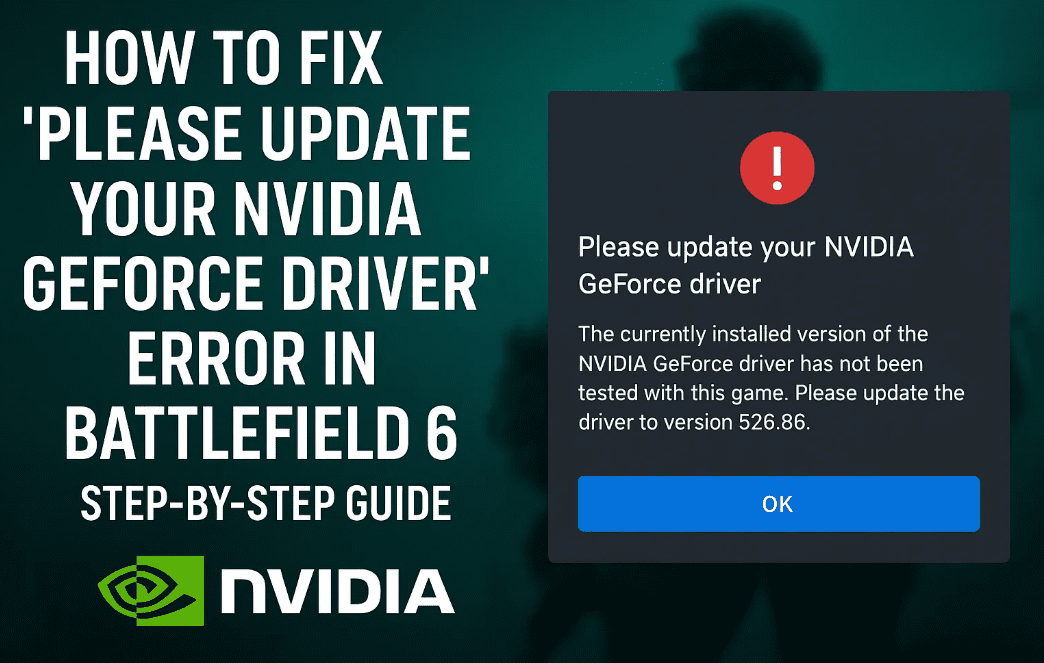
Let’s go step by step, and we’ll also answer some frequently asked questions at the end.
🛠️ Step 1: Download the Official Nvidia App
Before we begin updating the driver, you’ll need to download the Nvidia App, which has now replaced the older “GeForce Experience” for driver management and updates.
Here’s what you need to do:
Let’s first visit the official website to get the installer:
- Open any web browser (Chrome, Edge, Firefox—your choice).
- Go to Google and type:
Nvidia App download - From the search results, click on the official Nvidia link (usually the first one).
- Look for the “Download Now” button and click it.
This will start downloading the installer for the Nvidia App.
👉 Note: Always make sure you’re downloading from the official Nvidia website:
https://www.nvidia.com/en-us/geforce/app/
💾 Step 2: Run the Nvidia App Installer
Once the file finishes downloading:
- Double-click the downloaded installer file (usually named something like
NVIDIA_App_Setup.exe). - If a User Account Control (UAC) prompt appears asking “Do you want to allow this app to make changes to your device?”, click Yes.
Now the setup wizard will begin. Wait for a few seconds as the files are extracted and prepared.
✅ Step 3: Install the Nvidia App
When the setup screen loads:







- Click “Agree and Continue” to accept the license terms.
- The app will now install itself. It usually takes less than 2 minutes on most systems.
- Once completed, the Nvidia App will launch automatically.
🧭 Step 4: Navigate to the Drivers Section
Now that the app is open, let’s check for and install the latest driver.
- At the top of the Nvidia App window, click on the “Drivers” tab.
- Then press the “Check for Updates” button.
The app will connect to Nvidia servers and show the latest available driver version compatible with your graphics card.
⬇️ Step 5: Download the Latest GeForce Driver
After checking for updates:
- The latest driver version (at or beyond 576.88) will appear.
- Click on “Download”.
The download size can range between 600MB to 900MB, depending on your GPU model.
While this downloads, try not to run heavy apps in the background to prevent any interruptions.
🔧 Step 6: Install the Driver (Express Installation)
Once the driver download is complete:
- Click on “Install”.
- You’ll be given two options:
- Express Installation (Recommended)
- Custom Installation (For advanced users)
- Choose “Express Installation” and click “Continue”.
Now wait for the driver to be installed. This process will:
- Uninstall the older driver (if applicable)
- Install the new one
- Optimize system performance
🔁 Step 7: Restart Your PC
Once the installation completes:
- You may be prompted to restart your system.
- If not prompted, it’s still a good idea to manually reboot your PC to ensure the new driver is properly initialized.
🎮 Step 8: Launch Battlefield 6 Again
After rebooting your computer:
- Open Battlefield 6 again from your game launcher (e.g., EA App or Steam).
- The “Please update your Nvidia GeForce driver” error should now be gone.
- Enjoy smooth gameplay without any compatibility issues!
❓ Frequently Asked Questions
Q1: Why does Battlefield 6 require driver version 576.88 or newer?
Battlefield 6 is a next-gen game optimized for the latest graphics features, such as DLSS, ray tracing, and new shader models. Older drivers may lack critical updates needed to render the game properly or avoid performance bugs.
Q2: I installed the driver but the error still appears—what should I do?
- Make sure the correct GPU is being used (especially on laptops with integrated + dedicated GPUs).
- Check in Device Manager > Display Adapters to ensure your Nvidia GPU is listed and has the correct version.
- Use NVIDIA Control Panel or Windows Graphics Settings to set Battlefield 6 to run on the high-performance GPU.
Q3: Can I use GeForce Experience instead of the new Nvidia App?
Nvidia is gradually phasing out GeForce Experience in favor of the Nvidia App, which combines performance tuning, overlay tools, and driver management in one place. While GeForce Experience still works, it’s recommended to switch to the Nvidia App for future support and updates.
Q4: How can I check my current driver version?
- Right-click on your desktop > click NVIDIA Control Panel.
- Go to Help > System Information.
- Look for Driver Version at the top.
You can also open the Nvidia App and check the installed version under the Drivers tab.
🧠 Final Thoughts: Keep Your Drivers Updated
This issue reminds us how important it is to keep GPU drivers regularly updated, not just for compatibility with new games like Battlefield 6, but also for:
- Improved game performance
- Stability and crash fixes
- Access to new features like DLSS 3 and Reflex
- Security enhancements
If you’re a gamer, make it a habit to check for driver updates once a month using the Nvidia App.
🏷️ Tags:
nvidia driver update, battlefield 6 error fix, geforce driver 576.88, update nvidia app, game driver issue, battlefield 6 nvidia crash, graphics card update tutorial, fix pc game errors
📢 Hashtags:
#NvidiaDriver #Battlefield6 #GamingFix #GeForceUpdate #NvidiaApp #PCGaming #DriverErrorFix #Battlefield6Error
Disclaimer:
All driver version numbers, release timelines, and compatibility details mentioned in this article are accurate as of writing but may change based on future Nvidia updates or Battlefield 6 patches. Always verify with Nvidia’s official website and your game launcher for the most up-to-date requirements.








