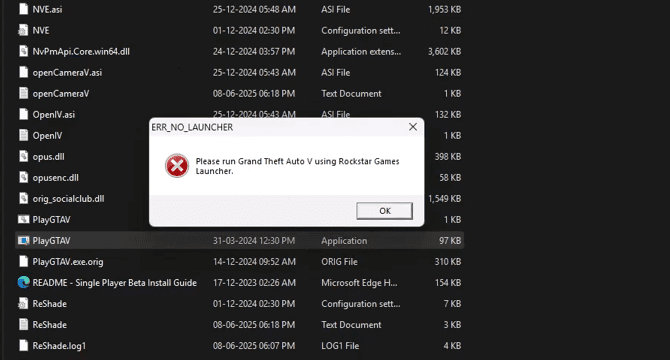
If you’re trying to play GTA V using a FitGirl Repack version and encounter the error:
“Please run Grand Theft Auto V using Rockstar Games Launcher”,
don’t worry—this guide will walk you through a simple and working method to bypass this issue.
This error typically appears because the game tries to validate through Rockstar’s official launcher, which doesn’t recognize the repacked files. Let’s fix it with a few important steps using Windows Security settings and the correct launcher file.
🛠 Step-by-Step Guide to Fix the Rockstar Games Launcher Error
Step 1: Exclude the Game Folder from Windows Security (Defender)
Many repacked games trigger false positives in Windows Security. To prevent your system from blocking or deleting essential files, you need to add the GTA V installation folder to the exclusion list:
- Open Windows Security
- Press the Windows key, type Windows Security, and click Open.
- Go to Virus & Threat Protection
- From the left-side menu, click Virus & threat protection.
- Access Manage Settings
- Scroll down and click Manage settings under “Virus & threat protection settings”.
- Add an Exclusion
- Scroll to the bottom and click Add or remove exclusions.
- Click on Add an exclusion → Choose Folder.
- Navigate to your GTA V FitGirl installation folder.
- Select the folder and confirm.
🔐 Why this is important: Excluding the folder ensures Windows Defender doesn’t block or delete the
.batlauncher file or other critical game files, which might be misidentified as threats.
Step 2: Launch GTA 5 with the BAT File
Once the folder is excluded from security scans, follow these steps to properly launch the game:
- Open the GTA V installation folder.
- Locate a file named Play GTA 5.bat or similar.
- Double-click the
.batfile. - When prompted by User Account Control, click Yes.
This will launch the game without triggering the Rockstar Launcher error.
Step 3: Fix Windowed Mode and Switch to Fullscreen
When the game launches, it may start in windowed mode. Here’s how to change it:
- Press the Esc key to open the in-game menu.
- Go to Settings → Select Graphics.
- Locate the option labeled Screen Type or Display Mode.
- Change the value to Fullscreen.
- Use the arrow keys or your mouse to confirm the selection.
- When prompted, click Yes to save and apply the new resolution settings.
Your game should now run in full screen and play without any issues.
✅ Final Results After Fix
By following the steps above:
- The Rockstar Launcher error will be bypassed.
- Windows will no longer interfere with the game files.
- The game will launch via
.batfile. - You’ll enjoy smooth gameplay in fullscreen mode.
⚠️ Disclaimer
Disclaimer: This article is intended for educational purposes only. FitGirl Repacks are modified game files that may not be legal in your jurisdiction. Please ensure you own a legitimate copy of Grand Theft Auto V before using any unofficial repacks. The author assumes no responsibility for any damage or legal issues that may arise from misuse of this content.
🔗 Useful Resources
🏷️ Tags
GTA 5 error fix, FitGirl repack launcher error, Rockstar Games Launcher bypass, GTA 5 not launching, fullscreen GTA 5, game folder exclusion, Windows Security, Play GTA 5 bat file, GTA V 2025 fix




🔖 Hashtags
#GTA5Fix #FitGirlRepack #RockstarLauncherError #GTA5PC #WindowsSecurityFix #GameExclusion #GTA5Fullscreen #GTA5NotLaunching #GamingFix2025
Let us know if this guide helped you get back into Los Santos! Happy gaming. 🎮








