If you own a Sony VAIO laptop and are suddenly greeted with the message “Operating System Not Found” on startup, don’t panic. This guide will walk you through diagnosing and fixing the issue by reinstalling Windows, specifically using a bootable USB drive.

Disclaimer: Reinstalling Windows will erase all existing data on the internal hard drive. Make sure to back up your files if possible before proceeding.
What Does “Operating System Not Found” Mean?
The error “Operating System Not Found” typically appears when your laptop is unable to locate the Windows installation required to boot up. This may be due to:
- A corrupt Windows installation
- A failing hard drive or SSD
- Incorrect boot priority settings in BIOS
In most cases, the solution is to reinstall Windows on the internal storage device.
Tools You’ll Need
- A bootable USB drive with Windows installation files (preferably Windows 7 or Windows 10)
- A working Sony VAIO laptop
- A bit of patience and attention to detail
You can download the official Windows installation media from Microsoft’s website here:
👉 https://www.microsoft.com/software-download/windows10
Step-by-Step Instructions
Step 1: Power Off the Laptop
Hold the power button for a few seconds until the Sony VAIO laptop shuts down completely.
Step 2: Insert the Bootable USB Drive
Plug in the USB flash drive that contains the Windows installation files into any USB port of the laptop.
Step 3: Enter BIOS Setup
To access the BIOS settings:
- Turn on your Sony VAIO laptop.
- Immediately press the
F2key repeatedly until you enter the BIOS screen.
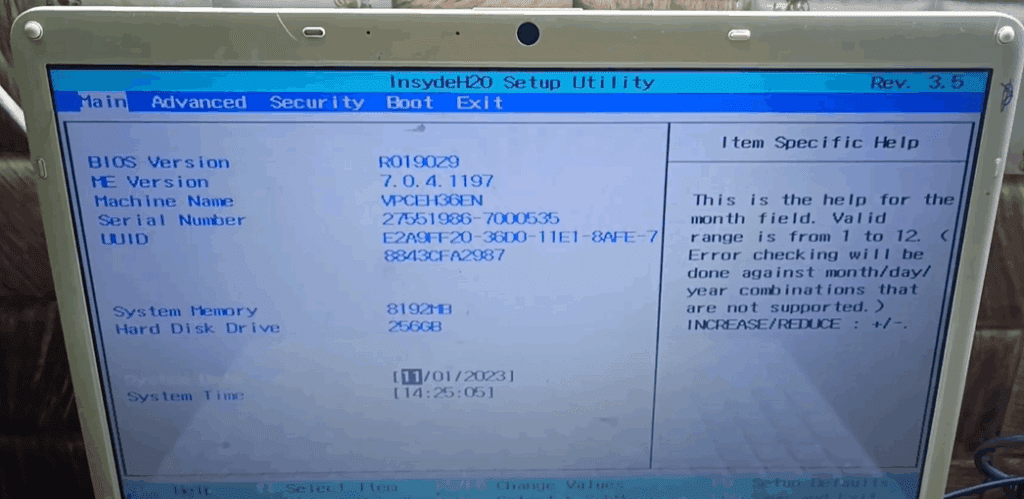
Step 4: Change Boot Priority
Once in BIOS:
- Use the right arrow key to go to the “Boot” tab.
- Under Boot Priority, locate External Device/USB.
- If it’s not already at the top, use the
F5andF6keys to move the external device to 1st Boot Priority. - Once set, press
F10to Save and Exit. - Choose Yes when prompted to confirm changes.
Step 5: Boot from USB and Begin Windows Installation
The system will now boot from the USB drive:
- Wait for the Windows setup screen to appear.
- Select your language, time, and keyboard format, then click Next.
- Click Install Now.
- Choose your preferred version (e.g., Windows 10 Home or Pro).
- Accept the license agreement and click Next.
- On the next screen, choose Custom: Install Windows only (advanced).
Step 6: Create or Select Partition
- If there are existing partitions, delete them if you want a clean install.
- Click New to create a new partition.
- Set the desired partition size and click Apply, then OK.
- Choose the partition where you want to install Windows and click Next.
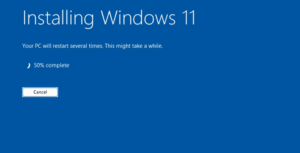
Windows installation will now begin and may take several minutes.







Step 7: Remove USB and Reboot
Once installation reaches 100%, the laptop will prompt for a restart.
At this point:
- Remove the USB drive
- Let the laptop restart automatically
The system will now boot from the freshly installed Windows on the hard drive.
Step 8: Verify the Error is Resolved
After installation:
- The laptop should no longer display “Operating System Not Found”
- You should see the Windows setup screen to configure your new OS (language, account, Wi-Fi, etc.)
Final Thoughts
Reinstalling Windows is often the quickest and most effective fix for the “Operating System Not Found” error on Sony VAIO laptops. If the issue persists after reinstalling Windows, you may be dealing with a failing hard drive or damaged motherboard, and further diagnosis may be necessary.
You can always visit the official Sony website for drivers or product-specific information:
👉 https://www.sony.co.in/electronics/support
Tags:
sony vaio, operating system not found, sony vaio bios settings, reinstall windows on sony laptop, bootable usb, windows installation, bios boot priority, fix os not found error, sony vaio troubleshooting
Hashtags:
#SonyVAIO #OperatingSystemNotFound #WindowsInstallation #BIOSSettings #LaptopRepair #TechSupport #USBBoot #FixLaptop #WindowsError #ComputerHelp








