If you’ve encountered the “No valid QR code detected” error while trying to log into WhatsApp Web using your smartphone, you’re not alone. This issue affects both Android and iPhone users and usually occurs when trying to scan the QR code from a desktop browser to connect WhatsApp to your computer.
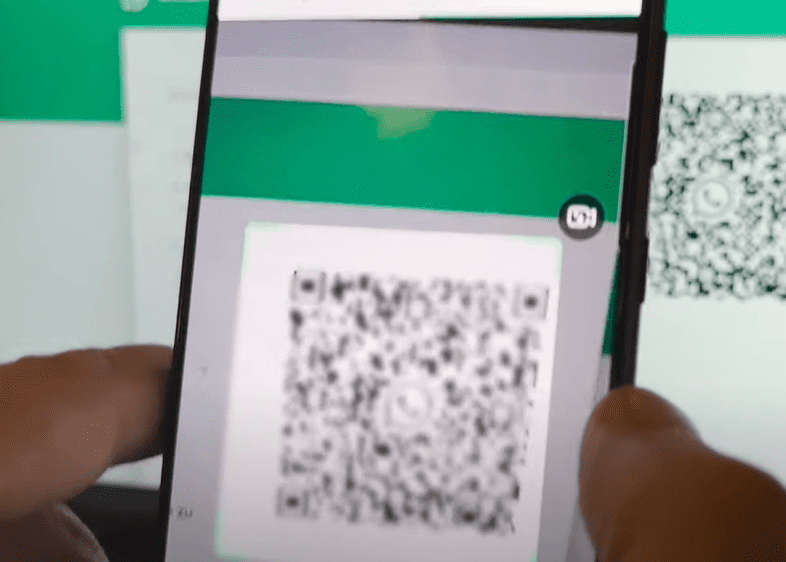
In this article, we’ll walk you through all the proven methods to fix this issue—starting with the one that worked best for us.
✅ Method 1: Use the Correct Way to Link Devices
One of the most common reasons for the QR code error is attempting to scan the code directly from the WhatsApp camera, which isn’t the correct method.
For Android Users:
- Open WhatsApp on your phone
- Tap the three dots in the top-right corner
- Select Linked Devices
- Log out from any old or inactive devices
- Tap Link a Device
- Now scan the QR code displayed on your computer screen
For iPhone Users:
- Open WhatsApp
- Go to Settings
- Tap Linked Devices
- Log out of all old devices
- Tap Link a Device
- Scan the QR code shown on your computer
Important: Do not try to scan the QR code using the default camera or the “Scan QR Code” option unless you’re in the Linked Devices section. Doing so often results in the “No valid QR code detected” error.
Once you use the correct method, WhatsApp Web should load your chat screen instantly.
🔄 Method 2: Clear Browser Cache and Cookies
If the QR code still isn’t detected, your browser may be holding onto outdated or corrupted data.
Steps:
- Open your browser (e.g., Chrome)
- Click the three-dot menu in the top-right corner
- Go to Settings > Privacy and Security
- Click on Clear browsing data
- Set the Time Range to All time
- Check the boxes for:
- Cookies and other site data
- Cached images and files
- Click Clear Data
- Close and restart the browser
🌐 Method 3: Update Your Browser
Using an outdated browser can prevent proper QR code rendering or scanning.
To Update Google Chrome:
- Open Chrome
- Go to Settings > Help > About Google Chrome
- Chrome will automatically check for updates and install them
- Restart Chrome once the update is complete
This helps ensure compatibility with WhatsApp Web.
📱 Method 4: Update WhatsApp
Sometimes the issue lies in the app itself.
- Visit the Google Play Store or Apple App Store
- Search for WhatsApp
- Tap Update if an update is available
Keeping WhatsApp up to date ensures all bug fixes and compatibility features are in place.
🔁 Method 5: Reinstall WhatsApp (Without Deleting Data)
If nothing else works, reinstalling WhatsApp might solve the issue.







Steps:
- Uninstall WhatsApp from your device
- During uninstallation, choose to keep your data (if prompted)
- Reinstall WhatsApp from the Play Store or App Store
- Open WhatsApp and try linking the device again via the proper method
⚠️ Important: Ensure your chats are backed up to Google Drive (Android) or iCloud (iPhone) before uninstalling.
📝 Conclusion
The “No valid QR code detected” issue when using WhatsApp Web can be frustrating, but it’s usually fixable by following the correct linking method and troubleshooting steps.
Start with using the Linked Devices feature the right way, then move on to browser fixes or app updates as needed. These methods should resolve the issue for most users, allowing you to connect your WhatsApp account to your computer without errors.
Tags:
whatsapp qr code fix, whatsapp web login error, no valid qr code whatsapp, whatsapp linking device error, browser cache whatsapp issue, update whatsapp app, chrome whatsapp web, ios whatsapp qr code, android whatsapp web login
Hashtags:
#WhatsAppWeb #QRCodeError #FixWhatsApp #TechTips #BrowserFix #WhatsAppLogin #LinkedDevices #Android #iOS #TipsToFix







