Encountering a “No Operating System Found”, “No Bootable Device”, or similar error when starting your Windows PC can be frustrating. This issue prevents your computer from loading Windows, leaving you stuck at the BIOS screen or a blank prompt.
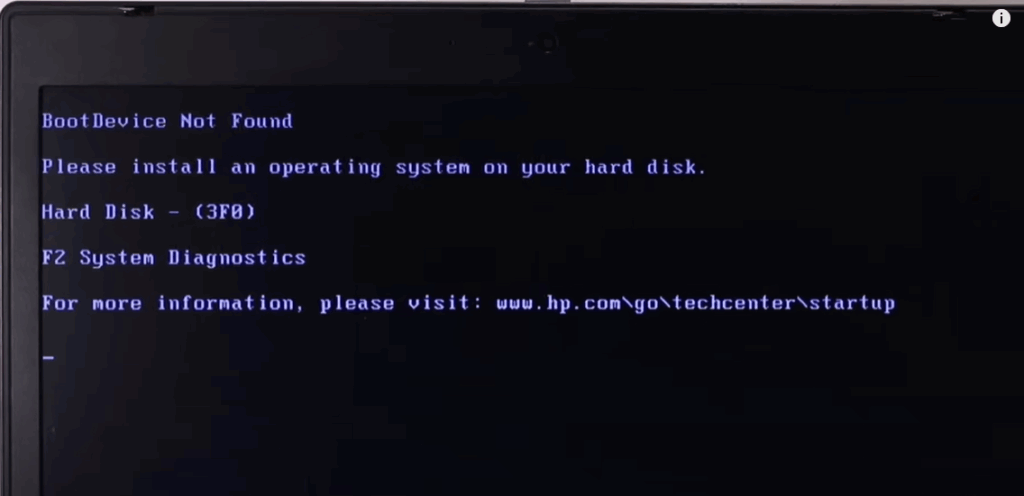
This guide walks you through step-by-step solutions to fix this problem, whether it’s caused by hardware issues, incorrect BIOS settings, or corrupted boot files.
Possible Causes of “No Operating System Found” Error
🔹 Loose or disconnected hard drive
🔹 Incorrect boot order in BIOS
🔹 UEFI/Legacy boot mode mismatch
🔹 Corrupted boot sector or missing system files
How to Fix “No Operating System Found” Error
1. Check Hard Drive Connections (Physical Fix)
A loose or disconnected hard drive is a common cause of this error.
Steps:
- Power off your laptop/desktop.
- Open the back panel (for laptops) or the side panel (for desktops).
- Locate the hard drive/SSD (refer to your device’s manual if unsure).
- Reseat the drive:
- Disconnect and reconnect the SATA/power cables (for desktops).
- Remove and reinsert the drive firmly (for laptops).
- Power on the PC and check if Windows boots.
⚠ Note: Some laptops require removing the keyboard to access the hard drive—try other fixes first if this seems complex.
2. Adjust Boot Order in BIOS
If the BIOS is trying to boot from the wrong device (e.g., USB instead of the hard drive), you’ll see this error.
Steps to Enter BIOS & Change Boot Order:
- Restart your PC.
- Press the BIOS key repeatedly (common keys: F2, F12, DEL, ESC—check your laptop’s manual).
- Navigate to the “Boot” or “Boot Priority” menu.
- Move your hard drive/SSD to the top (use F5/F6 or +/- keys depending on BIOS).
- Save changes (F10) and exit.
✅ If successful, Windows should now boot normally.
3. Switch Between UEFI and Legacy Boot Mode
If your hard drive is formatted for Legacy (CSM) but BIOS is set to UEFI (or vice versa), Windows won’t load.
Steps to Change Boot Mode:
- Enter BIOS (as shown above).
- Find “Boot Mode” or “UEFI/Legacy” settings (usually under Advanced or Startup).
- Toggle between UEFI and Legacy:
- If set to UEFI only, try Legacy (CSM).
- If set to Legacy, try UEFI.
- Some BIOS allow “Both”—select this if available.
- Save changes (F10) and restart.
4. Repair Boot Sector Using Windows Installation USB
If the above steps fail, your boot sector may be corrupted. Use a Windows installation USB to fix it.
Steps:
- Create a bootable Windows USB (use Microsoft’s Media Creation Tool).
- Boot from the USB (select it in BIOS or press F12/F8 for boot menu).
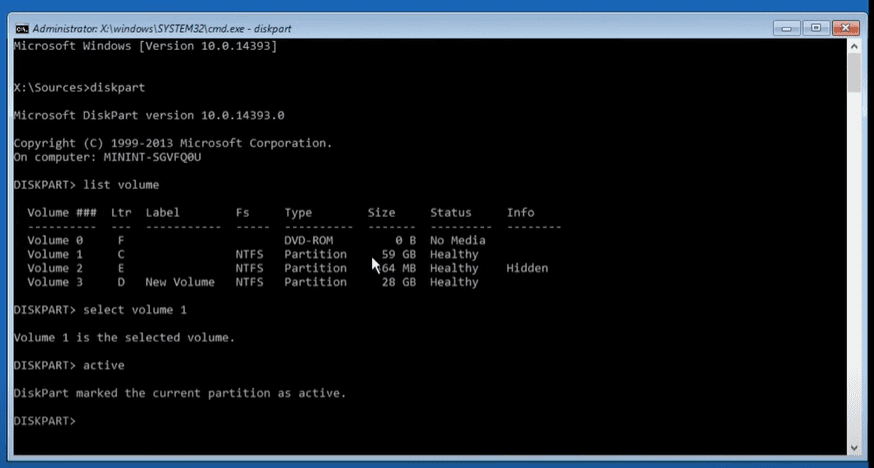
- Select “Repair your computer” > Troubleshoot > Command Prompt.
- Run these commands:
   diskpart
   list volume          (Identify the Windows partition, usually "C")
   select volume 1      (Replace "1" with your Windows volume number)
   active               (Marks partition as bootable)
   exit
   bootrec /fixmbr      (Repairs Master Boot Record)
   bootrec /fixboot     (Fixes boot sector)
bootrec /rebuildbcd (Rebuilds Boot Configuration Data)- Restart and remove the USB.
Final Fix: Reinstall Windows (Last Resort)
If none of the above works, your OS may be severely corrupted. Backup data (if possible) and reinstall Windows using the bootable USB.
Prevent Future Issues
✔ Regularly back up your data (use OneDrive or external drives).
✔ Avoid sudden power-offs (can corrupt system files).
✔ Check disk health using CrystalDiskInfo (Download Here).








Conclusion
The “No Operating System Found” error can usually be fixed by:
- Checking hard drive connections.
- Adjusting BIOS boot order.
- Switching UEFI/Legacy mode.
- Repairing the boot sector via Command Prompt.
If you’ve tried all steps and still face issues, your hard drive may be failing—consider replacing it.
🔗 Need help? Visit Microsoft Support for further assistance.
Tags:
No operating system found, Windows boot error, fix Windows startup, BIOS boot order, UEFI vs Legacy, repair Windows boot
Hashtags:
#WindowsFix #NoOperatingSystem #BIOS #TechSupport #Windows10 #PCTroubleshooting








