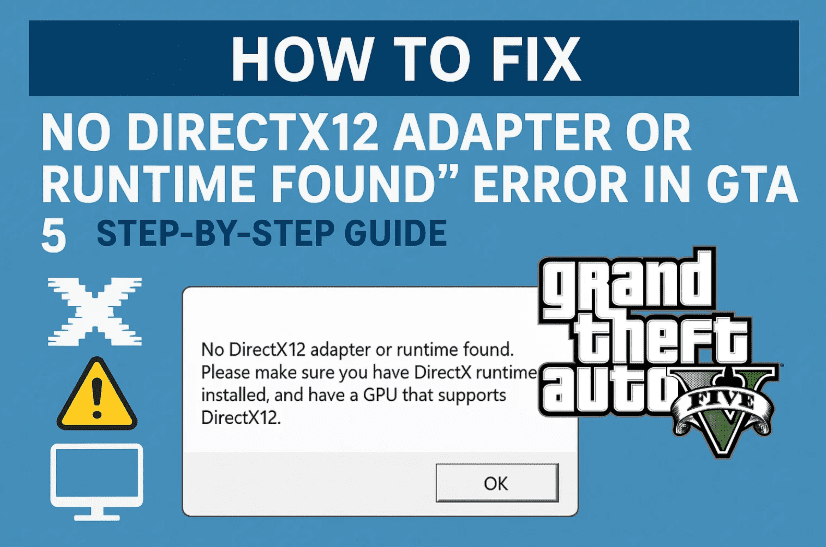
If you’re trying to launch GTA 5 and seeing the error message:
“No DirectX12 adapter or runtime found. Please install the latest DirectX runtime or install a compatible DirectX video card,”
— don’t panic. You’re definitely not alone.
This issue has become quite common among gamers, especially after OS or GPU driver changes. In this detailed blog post, we’ll walk you through several tested fixes to get GTA 5 running again without errors. So grab your mouse, take a deep breath, and let’s tackle it one step at a time!
🛠️ What Causes the DirectX12 Error in GTA 5?
Before we jump into the solutions, it’s important to understand the reason behind this issue. Some common causes include:
- Missing or outdated DirectX runtime libraries.
- Incorrect or missing
settings.xmlconfiguration file. - Incompatible or unrecognized GPU drivers.
- System settings not supporting DX12 graphics properly.
- GTA 5 forcing DX12 when your card or system prefers DX11.
✅ Step-by-Step Fixes for DirectX12 Adapter Error
Let’s move to the first and most basic fix — updating your DirectX.
🔧 Step 1: Download and Install the Latest DirectX Runtime
Sometimes the solution is as simple as making sure your system has the latest DirectX components.
Here’s how to do it:
Before we begin, make sure you’re connected to the internet.
- Open your browser and search:
DirectX End-User Runtime Web Installer
Or click this direct Microsoft official link - Select your language and click Download.
- Once downloaded, right-click the installer and choose Open.
- Accept the license terms, click Next.
- Uncheck the “Install the Bing Bar” option.
- Click Next and let the installer complete its task.
- Once done, click Finish and restart your PC.
Now try launching GTA 5. If the error persists, don’t worry — we’re just getting started!
🧾 Step 2: Replace or Add the Missing settings.xml File in GTA 5
Sometimes GTA 5 throws DirectX errors simply because the config file that stores GPU information is missing or corrupted.
Let’s fix that.
Follow these steps:
- Open File Explorer and go to:
Documents > Rockstar Games > GTA V - If the file
settings.xmlis missing, download a pre-configured version of it. - After downloading, right-click on the file > Copy.
- Go back to the
GTA Vfolder in Documents, then Paste it there.
Download Settings.xml zip file.
Edit the file:
- Right-click on
settings.xml> Open with Notepad. - Scroll down and look for the
<VideoCardDescription>tag. - Replace the existing value with the exact name of your GPU, for example:
<VideoCardDescription>NVIDIA GeForce GTX 1660</VideoCardDescription> - Press Ctrl + S to save the file and close Notepad.
Try launching GTA 5 again.








🧰 Step 3: Install “Graphics Tools” Optional Feature in Windows
Still getting the same error? Let’s make sure your system has proper graphics diagnostics tools enabled.
Here’s how:
- Open Settings from Start Menu.
- Go to System > Optional Features.
- Click on View Features.
- Type Graphics Tools in the search box.
- Once found, check the box and click Next > Add.
- Wait for installation to complete and then restart your PC.
Now try launching the game again.
🛠️ Step 4: Force GTA 5 to Use DirectX11 Instead of DirectX12
If your hardware doesn’t support DX12 well, you can force GTA 5 to use DirectX11 — which often works flawlessly.
Let’s do that with a simple DLL file tweak.
Follow the steps:
- Visit the relevant GitHub page (make sure the source is trustworthy).
- Download the ZIP file with the DX11 compatibility DLL.
- Extract the contents using Right click > Extract All.
- Inside the folder, locate the
.dllfile. - Copy this
.dllfile. - Now navigate to your GTA 5 installation folder, typically:
C:\Program Files\Rockstar Games\GTA V - Paste the DLL file into the game folder (root directory).
This will override DirectX12 with DirectX11 and often resolves adapter errors.
🔄 Restart and Verify
Once you’ve done all the above steps:
- Restart your PC.
- Try launching GTA 5.
- If everything went right, you should be able to launch the game without the DirectX error.
🧠 FAQs About the DirectX12 Adapter Error in GTA 5
Q: Is it safe to download a settings.xml file from the internet?
A: Yes, as long as it’s from a trusted community source or GitHub. Always scan files before use.
Q: Can I just reinstall the game to fix this?
A: Reinstalling may help, but it often doesn’t solve the DX adapter issue unless your system’s DirectX and GPU settings are fixed first.
Q: I don’t know my GPU name. What do I enter in settings.xml?
A: Open Task Manager > Performance > GPU tab. You’ll see your GPU name there.
Q: My GPU supports DX12. Why do I still get this error?
A: The game might not be detecting it correctly due to a missing config or old driver. That’s why replacing settings.xml or using a DLL override helps.
🛡️ Final Thoughts and Pro Tip
So far, we’ve done a great job walking through every possible fix. From updating DirectX to editing config files and tweaking system settings — all these steps are safe, reversible, and widely used by the community.
But here’s a pro tip:
Keep your GPU drivers updated from official sources (like NVIDIA or AMD). That alone solves many DirectX issues.
And of course, always backup your game saves before making config changes.
🔗 Useful Links
- 🔹 Download DirectX Runtime from Microsoft
- 🔹 Rockstar Games Official Support
- 🔹 GitHub – DirectX11 DLL Patch for GTA 5
⚠️ Disclaimer
This guide is for educational purposes only. Make sure you only download DLLs or config files from trusted sources. Always scan files for malware and avoid using cracked or pirated software versions.
🏷️ Tags & Hashtags
Tags: GTA 5 DirectX12 error, DirectX runtime fix, settings.xml GTA5, DirectX adapter missing, GTA 5 won’t launch, DX11 vs DX12 GTA, Rockstar Games errors, GTA5 graphics fix, how to fix GTA errors
Hashtags:
#gta5 #directx12error #gamingfix #gta5troubleshooting #rockstargames #gpuerror #directx #pcgaming #gtavfix #windowsgaming
Got stuck or still facing issues? Feel free to leave a comment or drop your question — we’re always here to help fellow gamers. Happy gaming! 🎮








