If you’re trying to install MSI App Player and you’re seeing an error like “Installation Failed – Code L40”, you’re not alone. Many users encounter this issue while setting up MSI’s Android emulator. This article will walk you through the step-by-step methods to fix this problem so that you can get MSI App Player running smoothly on your Windows PC.
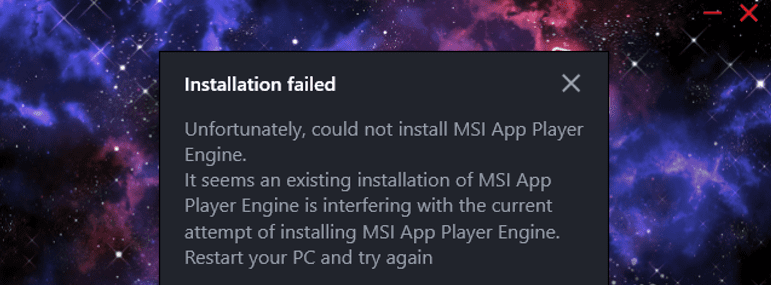
🔧 These fixes are applicable for both Windows 10 and Windows 11.
✅ Step-by-Step Fix for MSI App Player Error Code L40
1. Check System Requirements
Before anything else, ensure that your PC meets the minimum system requirements to run MSI App Player:
- Windows 10/11 (64-bit)
- 4GB RAM (8GB recommended)
- At least 5GB free disk space
- Virtualization enabled in BIOS
- Updated graphics drivers
If your system doesn’t meet these, MSI App Player may fail to install or work properly.
2. Run Installer as Administrator
Right-click the installer file and select “Run as Administrator.”
This gives the installer proper permissions to make changes to your system, which often resolves unexpected installation failures.
3. Disable Antivirus or Windows Defender Temporarily
Sometimes, antivirus software or Windows Defender may block installation processes. Follow these steps:
- Go to Settings > Privacy & Security > Windows Security > Virus & threat protection.
- Disable Real-time protection temporarily.
- Try installing MSI App Player again.
⚠️ Warning: Don’t forget to re-enable your antivirus after the installation is complete.
4. Update Windows
Make sure your operating system is up-to-date:
- Go to Settings > Windows Update.
- Click Check for updates.
- Download and install any pending updates.
- Restart your PC.
This ensures compatibility with the latest app versions and drivers.
5. Clear Temporary Files (Temp)
Temporary files can interfere with installations. Clear them using these commands:
- Press
Win + R, typetemp, and hit Enter. Delete all files shown. - Again press
Win + R, type%temp%, and delete those files. - Finally, press
Win + R, typeprefetch, and clear those files too.
These steps free up disk space and remove potential file conflicts.




6. Enable Virtualization in BIOS
MSI App Player relies on virtualization. Check if it’s enabled:
- Press
Ctrl + Shift + Escto open Task Manager. - Go to Performance > CPU.
- Check if Virtualization says Enabled.
If it’s Disabled, you’ll need to:
- Restart your PC.
- Enter BIOS (usually by pressing
DelorF2during boot). - Enable Intel VT-x/AMD-V.
- Save and exit BIOS.
7. Download the Latest MSI App Player Version
Older installers may be corrupt or outdated. Always use the latest version from the official MSI website:
🔗 https://www.msi.com/Landing/appplayer
8. Reinstall Using Fresh Installer
If you’ve already tried installing once, the existing setup might be corrupted. Do the following:
- Uninstall MSI App Player.
- Reboot your PC.
- Download a fresh copy from the official website.
- Run the installer as administrator again.
9. Perform a Clean Boot
Clean Boot disables non-essential background services. Here’s how:
- Press
Win + R, typemsconfig, and press Enter. - Go to Services tab.
- Check Hide all Microsoft services, then click Disable all.
- Click OK, then Exit Without Restart.
- Restart your PC manually and try the installation again.
10. Reinstall or Repair Your Graphics Drivers
Faulty or outdated GPU drivers can block emulator installations.
- NVIDIA Users: https://www.nvidia.com/Download/index.aspx
- AMD Users: https://www.amd.com/en/support
- Intel Users: https://www.intel.com/content/www/us/en/download-center/home.html
You can either reinstall or use the repair option provided by these manufacturers.
✅ Final Thoughts
By following these steps in order, you should be able to resolve the MSI App Player Error Code L40 issue. Always keep your system updated, and ensure you download software only from official sources.
🔒 Disclaimer:
This article is for educational purposes only. Disabling antivirus or modifying system configurations is done at your own risk. Make sure to re-enable security settings once your task is complete.
🔖 Tags:
msi app player, error code l40, installation failed, fix bluestacks alternative, android emulator, virtualization error, clean boot, temp files clear, windows update, graphics driver fix
🔗 Hashtags:
#MSIAppPlayer #ErrorCodeL40 #WindowsFix #AndroidEmulator #Virtualization #BluestacksAlternative #CleanBoot #GraphicsDriverFix #Windows11 #TechTutorials








