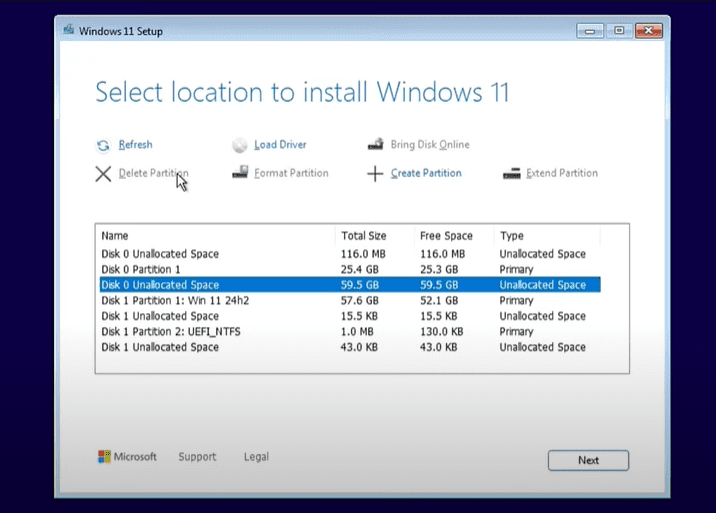
Are you trying to perform a clean installation of Windows 11 or 10 but not seeing the option to choose between Home, Pro, or other editions? This common issue occurs when creating bootable USBs with Rufus or Ventoy, where the installer skips the edition selection and defaults to Windows Home.
In this guide, we’ll show you two simple methods to force Windows Setup to display the edition selection screen—one for Rufus-created USBs and another for Ventoy.
Why Doesn’t the Edition Selection Appear?
When using Rufus or Ventoy, Windows Setup sometimes automatically selects an edition based on the ISO file. This happens because the installer detects a default configuration and skips the selection step.
Solution 1: For Rufus-Created Bootable USB
If you used Rufus to create your bootable USB, follow these steps:
- Create a Text File
- Right-click on your desktop → New → Text Document.
- Open the file and paste the following code:
[Channel] _Default [VL] 0
- Save as
ei.cfgin the USB’ssourcesFolder
- Click File → Save As.
- Navigate to your bootable USB drive → sources folder.
- Set the filename to
ei.cfg. - Change “Save as type” to “All Files”.
- Click Save.
- Boot & Install Windows
- Restart your PC and boot from the USB.
- Now, Windows Setup will show the edition selection screen.
Solution 2: For Ventoy Bootable USB
If you’re using Ventoy, the process is slightly different:
- Create the
ei.cfgFile
- Follow the same steps as above to create a text file with the same code.
- Save it as
ei.cfgon your desktop (not directly on the USB).
- Use AnyBurn to Modify the ISO
- Download AnyBurn (free tool).
- Open AnyBurn → Click Edit Image File.
- Select your Windows ISO (e.g.,
Windows11_24H2.iso). - Navigate to the
sourcesfolder inside the ISO. - Click Add and select the
ei.cfgfile from your desktop. - Click Next → Rename the new ISO (e.g.,
Windows11_24H2_New.iso). - Click Create Now and wait for the process to finish.
- Replace the Old ISO in Ventoy
- Copy the newly created ISO to your Ventoy USB.
- Boot from Ventoy and select the modified ISO.
- Now, Windows Setup will display the edition selection screen.
Final Thoughts
By adding a simple ei.cfg file, you can force Windows Setup to show the edition selection instead of defaulting to Home. This works for both Windows 10 and 11, regardless of whether you use Rufus or Ventoy.
🔹 Tags:
Windows 11, Windows 10, Clean Install, Rufus, Ventoy, Bootable USB
🔹 Hashtags:
#Windows11 #CleanInstall #Rufus #Ventoy #TechGuide