Have you ever tried launching a PC game—like Grand Theft Auto V—only to see a popup saying:
“The program can’t start because XINPUT1_3.dll (or another .dll file) is missing from your computer”?
This frustrating message stops the game from starting and usually suggests reinstalling the program. But reinstalling rarely works because the actual problem lies in a missing or corrupted Dynamic Link Library (DLL) file — an essential piece of code that helps your game communicate with Windows.
In this detailed guide, we’ll cover every reliable method to fix missing DLL errors for any game or software. We’ll explain what DLL files are, why they go missing, and how to restore them safely — step by step.
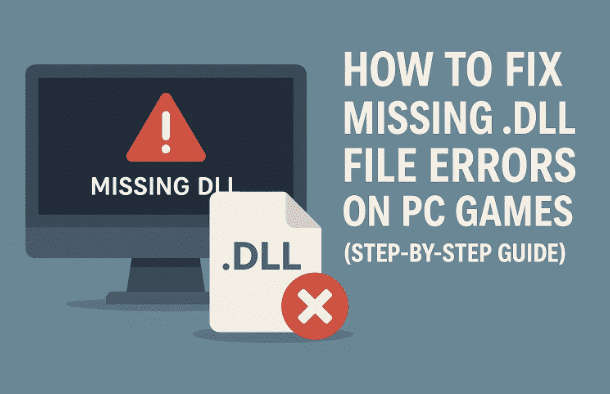
🧩 1. Understanding DLL Files and Why They’re Important
DLL stands for Dynamic Link Library — a shared file used by multiple applications in Windows. Think of it as a toolkit containing prewritten code that programs use to perform common tasks (like rendering graphics, playing audio, or connecting controllers).
Games, for instance, often rely on files like:
- XINPUT1_3.dll – handles Xbox controller input
- D3DX9_43.dll – part of DirectX graphics rendering
- MSVCP140.dll – used by Visual C++ runtime
If one of these files goes missing, your game fails to launch because it can’t find the tool it needs to start properly.
⚠️ 2. Common Causes of Missing DLL Errors
Missing DLL files can occur for several reasons. Understanding the root cause can help you prevent future issues:
- Corrupted game or software installation
- Windows update removed or replaced critical files
- Antivirus software deleted a shared DLL
- Manual deletion by mistake
- Driver or DirectX installation failure
Now that we know why it happens, let’s move step-by-step through fixing it.
🔍 3. Step 1: Identify Which DLL File Is Missing
The first step is to check the error message carefully. When you try to launch the game, you’ll see something like:
“The code execution cannot proceed because XINPUT1_3.dll was not found.”






Write down or copy the exact file name. This is the DLL file you’ll need to restore.
If multiple errors appear (for example, XINPUT1_3.dll, D3DX9_43.dll, or MSVCP140.dll), you’ll need to repeat the following steps for each one.
🌐 4. Step 2: Download the Correct DLL File from a Trusted Source
There are hundreds of sites claiming to provide missing DLLs — but many of them distribute malware. Always choose reliable sources such as:
- DLL-Files.com – reputable and frequently updated
- Microsoft DirectX End-User Runtime – for DirectX-related DLLs
- Microsoft Visual C++ Redistributable – for Visual C++ runtime DLLs
Downloading from DLL-Files.com
- Open your browser and visit dll-files.com.
- In the search bar, type the missing file name (e.g.,
xinput1_3). - Press Enter or click Search DLL file.
- Scroll through the results and look for the latest version (highest number).
- Check your system type — if you’re using 64-bit Windows, download the 64-bit version; otherwise, get the 32-bit one.
- Click Download and save the ZIP file.
Once it’s downloaded, you’re ready to extract and place it in the correct system folder.
💻 5. Step 3: Find Your System Type (32-bit or 64-bit)
Before copying the DLL, you must confirm whether your PC runs a 32-bit or 64-bit version of Windows.
Here’s how:
- Press Win + E to open File Explorer.
- Right-click on This PC and select Properties.
- Under System Type, you’ll see either:
- 64-bit Operating System
- 32-bit Operating System
This detail ensures you copy the DLL to the correct location.
🧱 6. Step 4: Place the DLL File in the Correct Folders
Now that you’ve downloaded and extracted the DLL, it’s time to put it in the proper Windows directories.
Step-by-Step Instructions
- Open your Downloads folder and locate the extracted DLL (e.g.,
xinput1_3.dll). - Right-click the file → Copy.
- Navigate to:
C:\Windows\System32(This is for 64-bit DLLs; 32-bit users can also use this path.) - Right-click in a blank space and select Paste.
- If prompted for administrator access, click Continue.
Next, repeat the process for the second directory:
- Go to:
C:\Windows\SysWOW64 - Right-click → Paste → Continue.
You’ve now restored the missing DLL files to both required system folders.
🔁 7. Step 5: Replace Other Missing DLL Files (if prompted)
In some cases, fixing one DLL may lead to another error — for example:
“The program can’t start because D3DX9_43.dll is missing.”
This happens because your game depends on multiple runtime libraries. Don’t worry — simply repeat the same process for each missing file.
Here are a few common DLLs often required by games:
- D3DX9_43.dll – DirectX 9 component
- MSVCP140.dll – Visual C++ Redistributable
- VCRUNTIME140.dll – another Visual C++ dependency
- XINPUT1_3.dll – controller input library
Alternatively, you can install the Microsoft DirectX End-User Runtime and Visual C++ Redistributables, which include most of these files automatically.
These official packages are safer and ensure long-term stability.
🔄 8. Step 6: Restart and Test the Game
After copying all DLLs or installing the required runtimes, restart your PC.
Then, try launching your game again. If everything was placed correctly, the error message should no longer appear — your game will start normally.
If a new DLL error shows up, note its name and repeat the earlier steps. After two or three iterations, all dependencies are usually restored.
🧠 9. Alternative Fixes: System File Checker and Reinstalling Software
If the DLL fixes didn’t solve your problem, there might be a deeper system issue. Let’s look at two more reliable solutions.
Option 1: Use System File Checker (SFC)
SFC is a built-in Windows tool that scans and repairs missing or corrupted system files.
- Press Win + S, type
cmd, and right-click Command Prompt → Run as administrator. - Type the following command and press Enter:
sfc /scannow - Wait for the scan to complete (it may take 10–15 minutes).
- Once done, restart your computer.
This tool automatically replaces any damaged or missing DLLs from the official Windows repository.
Option 2: Reinstall the Game or Software
If the error persists only in one program, the issue could be with the game’s own installation.
- Go to Settings → Apps → Installed Apps.
- Find the game or application.
- Click Uninstall and confirm.
- After removal, reinstall it using the official installer (not a cracked or third-party copy).
This ensures the software restores its required files properly.
❓ 10. Frequently Asked Questions
Q1. Is it safe to download DLLs from the internet?
Only if it’s from reputable sources like DLL-Files.com or official Microsoft packages. Avoid random websites, as they can distribute malware.
Q2. Why does every game ask for a different DLL?
Games are built using different engines and frameworks, each depending on specific versions of DirectX, Visual C++, or other libraries.
Q3. Can I copy DLLs from another computer?
Yes, but both computers must run the same version of Windows (32-bit or 64-bit). Otherwise, compatibility errors may occur.
Q4. What if even SFC doesn’t work?
Run DISM (Deployment Image Servicing and Management) using this command:
DISM /Online /Cleanup-Image /RestoreHealth
This repairs Windows Update and system corruption issues.
Q5. Do I need to restart after every DLL fix?
Yes. Restarting ensures Windows reloads its registry and recognizes the new system files.
Disclaimer:
This guide is for educational purposes only. Always use DLLs from verified and official sources. Do not modify or replace core system files from untrusted locations, as this may harm your operating system or compromise security.
#Windows10 #DLLFix #GamingErrors #DirectX #VCRuntime #TechGuide #DLLRepair #PCGaming #Troubleshooting #WindowsFix








