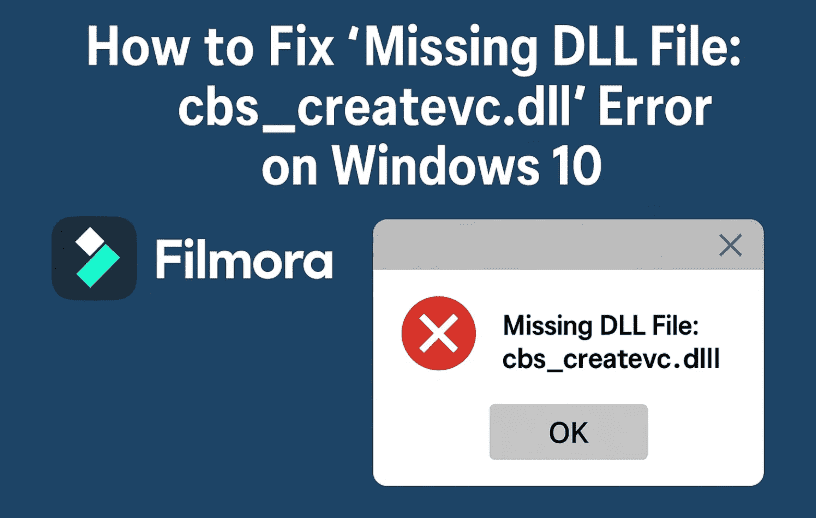
Have you recently encountered an error saying that cbs_createvc.dll is missing when starting up your Windows 10 PC? You’re not alone—and the good news is, it’s fixable.
DLL errors can be scary, especially when you don’t know why they appear or how they’re affecting your system. But don’t worry. In this detailed guide, I’ll show you two proven ways to fix the missing DLL file issue, whether it’s related to system files or third-party software like Wondershare Filmora.
Let’s take this step-by-step so you can understand and fix the issue confidently.
🔍 What Is the cbs_createvc.dll Error?
The cbs_createvc.dll is a dynamic link library file that may be associated with certain third-party applications—most commonly Wondershare Filmora. When this file is missing, your system might display an error message at startup or when launching the software, such as:
“The program can’t start because cbs_createvc.dll is missing from your computer.”
This error can happen due to:
- A corrupted installation of the associated software
- Manual file deletions
- Windows system file corruption
- Antivirus software mistakenly deleting the DLL
🛠️ Method 1: Use System File Checker (SFC) to Scan and Repair Windows
Let’s start with a built-in and safe method using Command Prompt. This tool scans and restores missing or damaged system files.
So far, so good? Let’s move to the next step.
📋 Steps to Use SFC (System File Checker):
- Press the Windows Key, then type
cmdin the Start Menu. - Right-click on Command Prompt and select Run as administrator.
- In the black terminal window, type the following command:
sfc /scannow
- Press Enter and let the scan begin.
👉 This process will take a few minutes, depending on your system speed. It’ll show a progress percentage like “Beginning verification phase…”.
- Once it’s complete, you’ll get a result indicating whether Windows found any corrupted files and if it successfully repaired them.
- Restart your PC after the scan finishes.
💡 SFC is great to run periodically—not just when errors pop up—because it can proactively catch issues before they become bigger problems.
If this fixes the error, you’re all set! But if you still see the missing DLL error, let’s try a manual approach.












🧰 Method 2: Manually Download and Replace the DLL File
Now for the second method: if the SFC scan didn’t work or if the error is tied to third-party software like Filmora, you may need to manually download the missing DLL file.
Here’s how you can do it safely.
⚠️ Important Disclaimer:
Only download DLL files from trusted websites. We recommend DLL-Files.com — a well-known, reliable source for DLL replacements.
🔎 Step-by-Step Instructions:
Step 1: Identify the location of the missing DLL
- Read the full error message; it will usually show the path (e.g.,
C:\Program Files (x86)\Wondershare\Filmora). - This helps you know exactly where to paste the DLL once downloaded.
Step 2: Visit DLL-Files.com
- Open your browser (like Edge or Chrome).
- Search for
cbs_createvc.dll site:dll-files.comor go directly to https://www.dll-files.com. - Use the search bar to look for
cbs_createvc.dll.
Step 3: Download the DLL File
- Select the version that matches your Windows architecture (32-bit or 64-bit).
- Click the Download button.
- Save the .zip file to your desktop or Downloads folder.
Step 4: Extract the DLL File
- Right-click the downloaded
.ziparchive and select Extract All. - Open the extracted folder and locate the
cbs_createvc.dllfile inside.
Step 5: Copy the DLL File to the Error Location
Now comes the most important step:
- Open File Explorer and navigate to the location where the error message pointed you (e.g.,
C:\Program Files (x86)\Wondershare\Filmora). - If Filmora is installed, you’ll find the Wondershare folder there.
- Drag and drop the
cbs_createvc.dllfile into that folder.
Step 6: Restart Your PC
After copying the file, reboot your computer. When you next start your system or open Filmora, the error should be gone.
🔄 Alternate Tip: Reinstall Wondershare Filmora
If the error keeps appearing even after replacing the DLL, you may want to completely uninstall and reinstall Wondershare Filmora to ensure all necessary files are restored.
- Go to Control Panel > Programs and Features.
- Uninstall Wondershare Filmora.
- Re-download the latest version from the official Wondershare website.
- Install it and check if the issue is resolved.
❓ FAQ Section
Q1: Is it safe to download DLL files from third-party websites?
A: As long as you use reputable websites like dll-files.com, it’s generally safe. However, always scan downloaded files with antivirus software before opening or copying them.
Q2: Can I use this method on Windows 11 too?
A: Yes, the same approach works for Windows 11 if the DLL error is software-related.
Q3: Will replacing a DLL fix other app crashes too?
A: It depends. If the app is crashing due to a missing DLL, yes. If it’s crashing due to internal bugs, reinstalling the app is usually better.
🎉 Final Thoughts
So far, we’ve walked through two solid methods to fix the missing cbs_createvc.dll error on Windows:
- System File Checker (SFC) for general system issues
- Manual DLL replacement for third-party app errors like Filmora
Errors like these can feel intimidating, but as you’ve seen, the fixes are often easier than they appear. Just remember to always use trusted sources and back up your system if you’re unsure.
Let us know in the comments if this guide helped you—or if you have any other fixes or questions!
Until next time, stay smart and keep your system healthy. ✌️
🔗 Useful Links
📌 Tags & Hashtags
Tags: missing dll fix, cbs_createvc.dll, dll error windows 10, sfc scan, wondershare filmora error, how to fix dll, filmora crash fix, windows error guide
Hashtags:
#Windows10Fix #DLLMissingError #TechTips #FilmoraError #FixDLL #SystemFileChecker #TechBasedIn #WondershareFilmora #VideoEditingFix
⚠️ Disclaimer:
This article is intended for educational purposes only. Download DLLs only from trusted sources. Modifying system files can affect your system stability—always create a system restore point or backup before making such changes.








