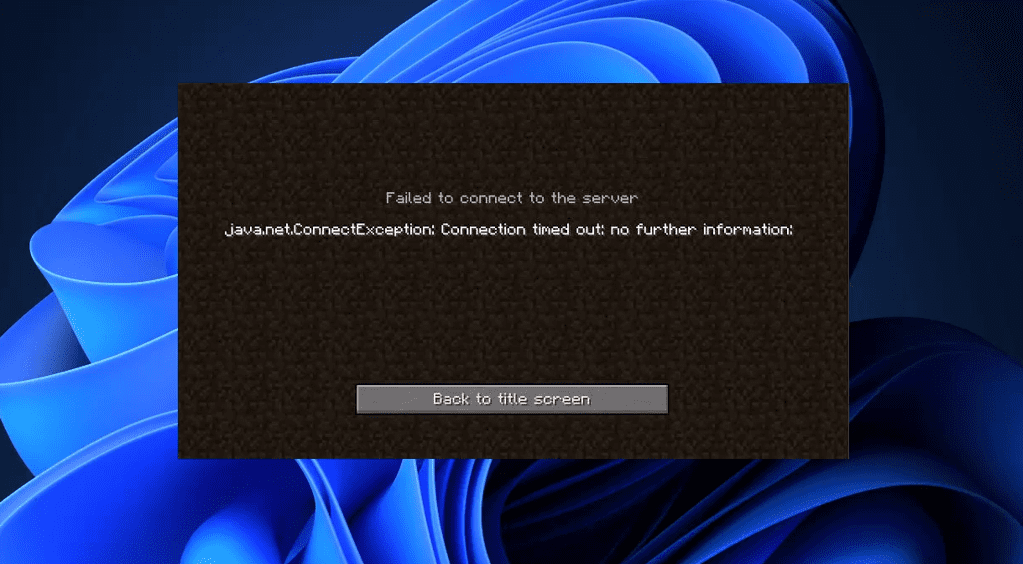
If you’re a Minecraft fan using TLauncher, you may have encountered the frustrating error:
“Connection Timed Out – No Further Information.”
This issue can stop you from joining multiplayer servers and enjoying the game with friends. Fortunately, this article walks you through step-by-step solutions to fix this error on Windows-based systems.
Whether you’re experiencing this for the first time or it’s been a recurring problem, follow this detailed guide to resolve the issue once and for all.
✅ Solution 1: Install or Update Java
Minecraft relies on Java to run correctly. Outdated or missing Java installations often lead to connection issues in TLauncher.
Steps:
- Open Chrome and search for “Java Download”.
- Go to the official Oracle Java site: https://www.oracle.com/java/technologies/javase-downloads.html
- Click on “Download Java for Desktops”.
- Download the installer and run it.
- Complete the installation by following the on-screen instructions.
- Once installed, close the setup window.
✅ Solution 2: Allow Java and TLauncher Through Windows Firewall
To avoid connection blocks, you need to manually add Java and TLauncher to the firewall exceptions list.
Steps:
- Open the Start menu and type
Allow an app through Windows Firewall. - Click “Change Settings”, then select “Allow another app…”.
- Press
Win + S, typejava, and right-click to “Open file location”. - Again, right-click the Java shortcut and choose “Open file location” until you find
javaw.exe. - Copy the file path from the address bar.
- In the Firewall window, click “Browse”, paste the path, and select
javaw.exe, then click Add. - Check both Private and Public boxes, then click OK.
Now repeat these steps for TLauncher:
- Search for
TLauncherin the Start menu, right-click and open its file location twice. - Copy the path where the TLauncher executable is located.
- Go back to the Firewall settings, click “Allow another app”, and use “Browse” to select the TLauncher
.exefile. - Again, check both Private and Public options and click OK.
✅ Solution 3: Flush DNS and Reset TCP/IP with Command Prompt
Sometimes, network settings can interfere with Minecraft server connections. Resetting your IP and flushing DNS helps restore proper connectivity.
Steps:
- Search
cmdin Start Menu. - Right-click on Command Prompt and select “Run as Administrator”.
- Paste the following commands one by one and hit Enter after each:
netsh int ip reset ipconfig /flushdns
✅ Solution 4: Change DNS Server Settings
Switching to Google’s public DNS servers can help resolve Minecraft server errors caused by poor DNS resolution.
Steps:
- Open the Control Panel.
- Click “Network and Sharing Center” > “Change adapter settings”.
- Right-click your active connection (Wi-Fi or Ethernet) and select Properties.
- Uncheck “Internet Protocol Version 6 (TCP/IPv6)”.
- Select “Internet Protocol Version 4 (TCP/IPv4)” and click Properties.
- Choose “Use the following DNS server addresses” and enter:
- Preferred DNS server:
8.8.8.8 - Alternate DNS server:
8.8.4.4
- Preferred DNS server:
- Click OK, then close all settings and restart your PC.
✅ Solution 5: Reset Network Settings
If all else fails, resetting your network settings might do the trick.
Steps:
- Open Start Menu and search “Network Reset”.
- Click on “Reset now”.
- Confirm by clicking Yes.
- Restart your PC to apply the changes.
Conclusion
If you’ve followed all the above steps carefully, your “Minecraft Connection Timed Out” error on TLauncher should now be fixed. These fixes target everything from firewall permissions to DNS conflicts—ensuring that Minecraft can access the internet properly.
By configuring your firewall and network settings correctly and ensuring Java is properly installed, you can get back to exploring, crafting, and surviving in Minecraft without connection interruptions.
Useful Links:
- Download Java from Oracle
- Download TLauncher (Unofficial Minecraft Launcher) (Use at your own discretion)
Tags:
minecraft connection timeout fix, tlauncher minecraft error, java minecraft issues, windows firewall minecraft, dns settings minecraft, reset network settings windows, fix minecraft server issue, java installation for minecraft, firewall exception minecraft, tlauncher setup guide





Hashtags:
#MinecraftFix #TLauncher #ConnectionTimeout #MinecraftJava #FirewallFix #DNSFix #JavaDownload #MinecraftErrors #WindowsSettings #NetworkReset
Disclaimer:
TLauncher is an unofficial Minecraft launcher and is not endorsed by Mojang or Microsoft. Use it at your own risk. This article is for educational purposes only and assumes the reader takes full responsibility when using third-party software. Always ensure you download files from official or reputable sources.








