If Microsoft Edge is not opening, freezing, or failing to respond on your Windows PC, you’re not alone. It’s a common issue faced by many Windows users, especially after updates or file corruption.
In this guide, we’ll walk you through five detailed methods to fix Microsoft Edge using native Windows tools—no third-party software required.
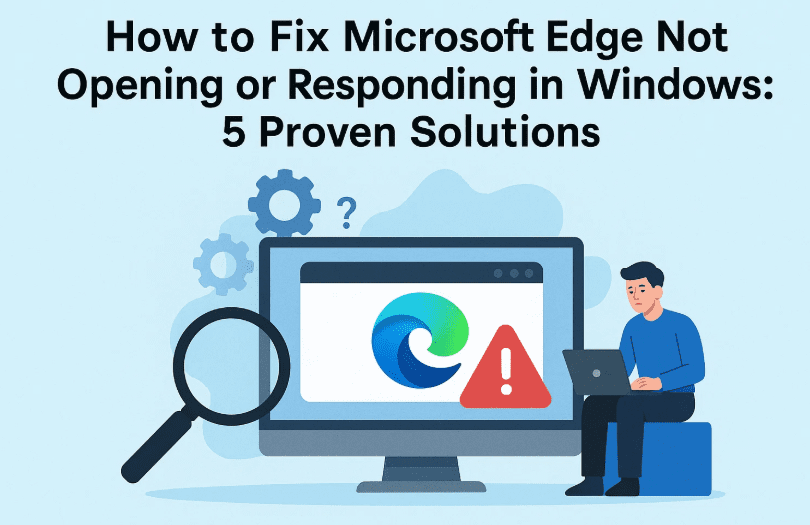
Let’s get started with step-by-step solutions you can follow even if you’re not tech-savvy.
✅ Step 1: Simple Restart to Fix Temporary Glitches
Before diving into more technical fixes, begin with the basics:
- Click on the Start Menu.
- Select the Power icon and click Restart.
- Once your PC restarts, try opening Microsoft Edge again.
📝 Why this helps: Temporary glitches or locked memory processes often get cleared during a full restart. You’d be surprised how many issues this simple step can fix.
If Edge still doesn’t open, continue to Step 2.
🛠 Step 2: Repair Microsoft Edge from Settings
- Open the Start Menu and go to Settings.
- On the left panel, click on Apps.
- Scroll down and click on Installed Apps (or “Apps & Features”).
- Find Microsoft Edge from the list.
- Click the three-dot menu beside it, then choose Modify.
- In the pop-up window, select Repair.
After the repair is complete:
- Restart your system again.
- Then, open Microsoft Edge to check if it works.
If it still doesn’t respond, proceed to the next step.
🗂 Step 3: Create a Fresh Shortcut Manually
Sometimes the existing shortcut becomes corrupt. Here’s how to manually create a new one:
- Right-click on your Microsoft Edge icon.
- Choose Open file location.
- Once inside the folder, find the main Edge executable (you may see it as
msedge.exe). - Right-click on it > Choose Create Shortcut.
- When prompted, allow it to create the shortcut on the desktop.
- Refresh your system and try launching Edge using the new shortcut.
Still no luck? Try the system restore method below.
🧰 Step 4: Use System Restore from Control Panel
If Edge stopped working after a recent update or change, a System Restore may help:










- Open Start Menu > type Control Panel, then open it.
- Switch the View by option to Large Icons.
- Click on Recovery.
- Select Open System Restore.
- Choose a restore point from before the problem started (e.g., one or two days ago).
- Select your C Drive, click Next, then Finish.
Windows will now revert system files and settings to that date.
📝 Note: This won’t delete personal files, but recently installed apps may be removed.
📁 Step 5: Delete Corrupted Microsoft Edge User Files
This step manually removes corrupted user data for Edge.
- Open This PC > Go to your C Drive.
- Navigate to C:\Users[Your Username].
- If you don’t see AppData, click the View tab and enable Hidden Items.
- Open:
AppData > Local > Microsoft - Inside the Microsoft folder, look for the Edge folder.
- Try deleting the Edge folder.
- If it says the folder is in use, do the following:
Kill Edge Background Processes:
- Right-click the Taskbar, open Task Manager.
- Find any running process named msedge.exe or similar.
- Right-click and select End Task.
- Now go back and delete the Edge folder.
Finally, refresh your desktop, restart your PC, and launch Microsoft Edge again. This clean start should fix your issue.
Chrome Browser Not Opening in Windows 11? Here’s How to Fix It Step-by-Step
Firefox’s Future at Risk: How Google’s Antitrust Troubles Could Lead to the End of Mozilla’s Browser
❓ Frequently Asked Questions (FAQs)
Q. Will deleting the Edge folder remove my bookmarks or saved passwords?
A. No, unless you have not synced your data with your Microsoft account. Ensure sync is enabled for backup.
Q. Is System Restore risky?
A. Not really. It doesn’t affect your personal files—only system configurations and recently installed apps.
Q. Can I reinstall Edge from scratch?
A. Microsoft Edge is a built-in app in Windows. It can be repaired or reset, but not fully uninstalled. If all else fails, you can download it again from the official site:
🔗 Download Microsoft Edge
🔐 Disclaimer
This article is intended for educational purposes only. System Restore and registry-level fixes should be applied carefully. Always back up your files before performing major system changes.
🔖 Tags & Hashtags
Tags: Microsoft Edge not opening, Edge browser fix, Windows system restore, app data hidden folder, Chrome alternative browser, fix unresponsive Edge, Microsoft Edge troubleshooting
Hashtags:
#MicrosoftEdge #EdgeNotOpening #WindowsFix #BrowserError #FixEdgeBrowser #Windows10 #Windows11Tips #EdgeRepair #TechSupport #WindowsHelp
🧰 Looking for an alternative lightweight browser? Try Brave or Vivaldi for a smoother experience.
💻 Want to back up your PC before trying these steps? Use Macrium Reflect Free.
Have you faced similar issues with Microsoft Edge? Share your experience or solutions in the comments below—your tip might help someone else!








