If you’re trying to join an online meeting, record a voiceover, or chat with friends and your microphone suddenly stops working, it can be incredibly frustrating. But don’t worry — this guide is here to help you troubleshoot and fix microphone issues on Windows 11 step-by-step.
Whether you’re using a USB microphone, a 3.5mm headset, or a built-in laptop mic, we’ll walk through all possible causes — from simple hardware checks to privacy settings and driver updates — so you can get your mic up and running again.
🧰 Let’s Begin with the Basics
Before diving into advanced fixes, let’s take a moment to cover a few simple things that often go overlooked.
Quick Checks You Shouldn’t Skip:
- ✅ Check connection: Make sure your microphone is properly plugged in. If you’re using a 3.5mm jack, verify it’s connected to the mic input, not the headphone jack.
- ✅ USB Mic? Try plugging it into a different USB port.
- ✅ Mute Button? Many mics have a physical mute button — ensure it’s switched off.
If everything looks fine physically but your mic still isn’t working, let’s move on to deeper troubleshooting.
🛠 Step 1: Enable the Microphone in Device Manager
Sometimes, Windows may disable the microphone by default. Here’s how to fix that.
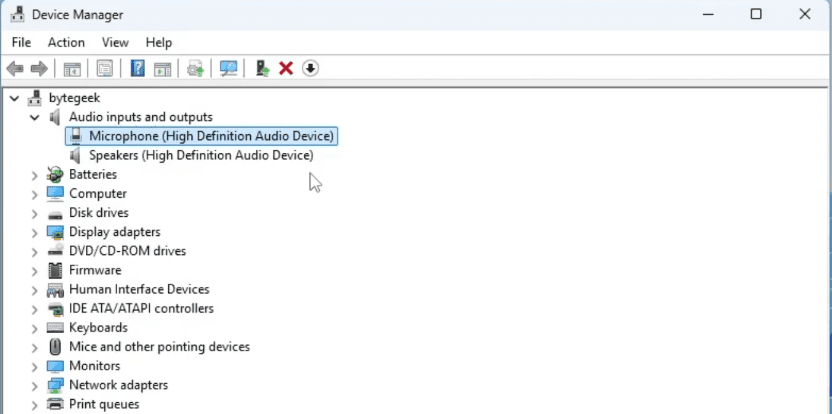
Follow these steps:
- Right-click on the Start button.
- Select Device Manager.
- Expand Audio inputs and outputs.
- Right-click your microphone and select:
- Enable device, if it’s disabled.
- If it says Disable device, that means it’s already enabled.
- You can also disable it and then enable again to refresh it.
This step ensures your microphone is recognized and active in Windows.
🔄 Step 2: Update the Microphone Driver
Old or corrupted drivers may prevent your microphone from functioning correctly.
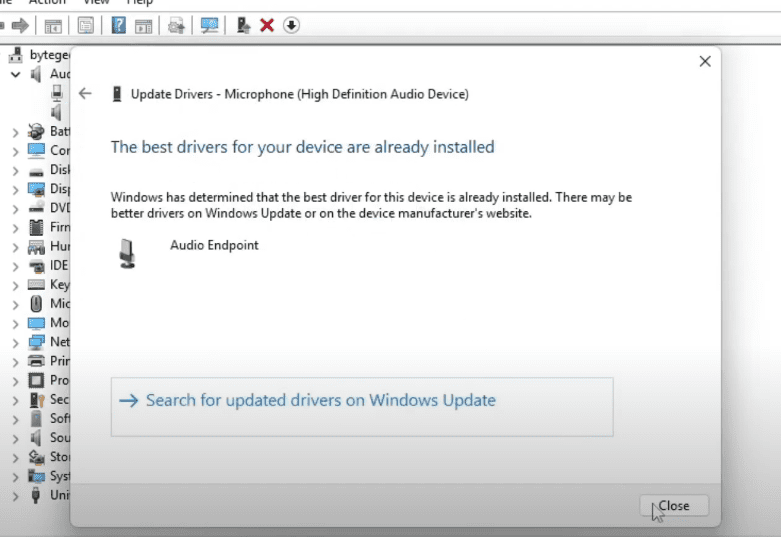
Here’s what to do:
- In Device Manager, right-click on your microphone.
- Select Update driver.
- Choose Search automatically for drivers.
If no updates are found, visit your PC or microphone manufacturer’s official website to download the latest driver manually.
Updating drivers keeps your device compatible with the latest Windows 11 features and reduces audio glitches.
🎙️ Step 3: Set the Microphone as Default Input Device
Sometimes Windows selects the wrong device. Let’s make sure the correct mic is being used.
Follow these steps:
- Press Windows key, search for
Change system soundsand open it. - Go to the Recording tab.
- Find your microphone, right-click on it and select Properties.
- At the bottom under Device usage, ensure it’s set to Use this device (enable).
- Click Apply, then OK.
This step is crucial, especially if you have multiple mics or a webcam with a built-in mic.








🔐 Step 4: Check Microphone Privacy Settings
Even if your mic is enabled, apps may not have permission to use it.
Let’s fix that:
- Open Settings > Privacy & Security.
- Scroll down to App permissions > Click Microphone.
- Ensure Microphone access is turned ON.
- Review the list of apps and enable access for the ones you trust (like Zoom, Microsoft Teams, or Audacity).
These settings help secure your privacy and ensure the apps you use can access the mic.
🧪 Step 5: Use the Built-in Audio Troubleshooter
When in doubt, let Windows try to fix the issue.
Here’s how:
- Right-click on the sound icon in the taskbar.
- Select Troubleshoot sound problems.
- Windows will scan for audio issues and offer automatic fixes.
This tool is simple but surprisingly effective!
🔁 Step 6: Restart the Windows Audio Service
Sometimes background services stop responding. A quick restart can help.
To restart the audio service:
- Press Windows key, type
Services, and open it. - Scroll down to Windows Audio.
- Right-click on it and select Restart.
This can fix hidden conflicts affecting microphone performance.
🧠 Frequently Asked Questions (FAQs)
Q: Why is my microphone detected but not capturing any sound?
A: It could be muted at the hardware level, set to low levels in system settings, or not selected as the default input device.
Q: How can I test if my mic is working?
A: Go to Settings > System > Sound, and under Input, speak into the mic — if the volume meter moves, it’s working.
Q: Do I need third-party software to fix mic issues?
A: Not usually. Windows 11 includes built-in tools like Device Manager and Troubleshooters that handle most problems.
⚠ Disclaimer
This tutorial is for informational purposes. If your microphone is physically damaged or still not working after trying all methods, contact the device manufacturer or a certified technician.
🔗 Helpful Resources
- Download latest Android Studio: https://developer.android.com/studio (If you’re developing apps and testing mic input)
- Windows official support: https://support.microsoft.com
📌 Tags:
microphone not working windows 11, fix mic issues windows 11, audio troubleshooting, enable mic device, microphone privacy settings, usb mic issue, windows audio service restart
📢 Hashtags:
#Windows11 #MicrophoneFix #AudioTroubleshooting #MicNotWorking #WindowsHelp #DeviceManager #TechSupport
If one of these methods helped restore your microphone, feel free to leave a comment and share your experience. Stay tuned for more troubleshooting tutorials and tech fixes. Until next time, happy talking! 🎤💻








