If you’re trying to upgrade from Windows 7 to Windows 10 using the Media Creation Tool and encounter the error:
Error Code: 0x80072F8F - 0x20000
You’re not alone. This error typically occurs due to security or permission settings on the system that prevent the tool from running correctly. Fortunately, this issue can be resolved with a few simple steps.
This article provides a step-by-step guide to fix the Media Creation Tool error and continue your upgrade process smoothly.
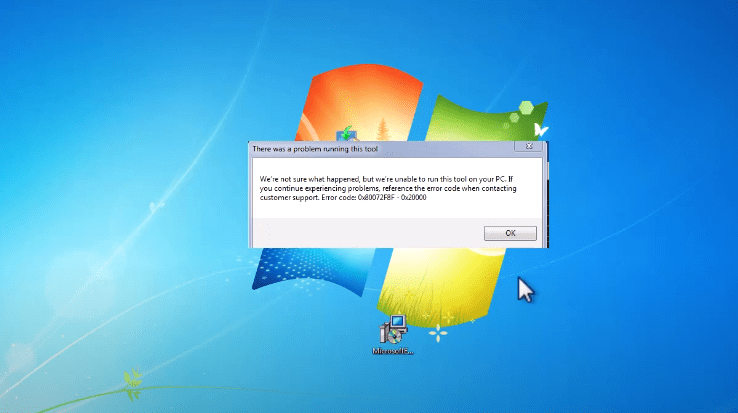
What Causes the 0x80072F8F – 0x20000 Error?
The error is usually caused by:
- Security restrictions on downloaded files
- Missing updates or certificates
- File not being properly unblocked by Windows
Let’s walk through the fix.
Step-by-Step: Fix the Media Creation Tool Error
Step 1: Unblock the Media Creation Tool
- Locate the
MediaCreationTool.exefile that you’ve downloaded. - Right-click on the file and select Properties.
- At the bottom of the General tab, you’ll see an option called Unblock (if it’s blocked by Windows).
- Check the box next to Unblock.
- Click Apply, then OK to save the changes.
This step removes Windows’ security restrictions on the file that may prevent it from launching correctly.
Step 2: Download and Run Required Fix Tool
You’ll need to download a small helper tool to ensure your system has the required compatibility settings to run the Media Creation Tool.
- Click here to download the required fix tool – This is a trusted open-source script hosted on GitHub.
- Once downloaded, double-click the file to run it.
- Accept any prompt that appears by clicking I Agree and then Next.
- When prompted, click Yes to allow the process.
- Once the tool completes its actions, click Close.
This tool will enable required settings and certificates necessary for the Media Creation Tool to function properly on Windows 7.
Step 3: Launch the Media Creation Tool Again
- Now go back to the original
MediaCreationTool.exe. - Double-click to launch it.
- If prompted, click Yes to allow changes.
- Wait for about 1 minute for the tool to initialize.
You should now be able to proceed with the Windows 10 upgrade process without encountering the 0x80072F8F – 0x20000 error.
Final Notes
Once the Media Creation Tool launches properly:
- Choose to Upgrade this PC now if you’re working directly on the system.
- Alternatively, you can create installation media using a USB or ISO file.
Tags:
media creation tool error fix, Windows 7 to Windows 10 upgrade, error 0x80072F8F fix, unblock media creation tool, Windows upgrade troubleshooting, Windows 10 installer not working, how to use MediaCreationTool.bat, fix Windows 10 installation error




Hashtags:
#Windows10 #UpgradeWindows #MediaCreationTool #ErrorFix #WindowsSupport #TechTips #WindowsUpgrade #MicrosoftFix
Disclaimer
Disclaimer: This article is for educational purposes only. The MediaCreationTool.bat linked above is hosted on GitHub and widely used in the community. However, always ensure you’re downloading from trusted sources and review any code or executable before running on your system. Upgrading your system involves changes that should be performed with caution and after backing up important data.








