Few things are more frustrating for a gamer than getting ready to play a new title and finding out it won’t even launch — or worse, it keeps crashing without warning. If you’re facing this issue with Mage Arena on your Windows PC, you’re not alone.
The good news? Many players have resolved the problem with a few straightforward fixes. In this article, we’ll go through five proven solutions in detail. I’ll explain not just what to do, but why each step matters, so you can troubleshoot similar problems in the future.

⚠ Disclaimer
Before we begin, make sure any downloads you perform are only from the official websites linked in this article. Installing drivers or system files from unverified sources can harm your PC or expose it to security risks.
Solution 1: Verify Integrity of Game Files in Steam
Sometimes game files become corrupted or partially missing — which can happen after an interrupted update or a system crash. Steam has a built-in tool to check and repair these files automatically.
Here’s how to do it:
- Open Steam.
- Go to your Library and locate Mage Arena.
- Right-click the game title and choose Properties.
- In the left menu, select Installed Files.
- Click Verify Integrity of Game Files.
Steam will now scan all the files for Mage Arena and replace any missing or damaged ones.
This process might take several minutes depending on your storage speed. Once it’s done, try launching the game again.
💡 Why this works: Corrupted or incomplete files are one of the most common causes of launch failures. This step ensures you’re starting with a clean, verified install.
Solution 2: Adjust Compatibility and Admin Settings
If Mage Arena isn’t launching due to permission conflicts or fullscreen optimization issues, adjusting compatibility settings can help.
Step-by-step:
- Open Steam again, right-click Mage Arena, and select Properties.
- In the left menu, choose Installed Files.
- Click Browse Local Files — this opens the game’s installation folder.
- Locate Mage Arena.exe, right-click it, and select Properties.
- Go to the Compatibility tab.
- Check:
- Run this program as an administrator
- Disable fullscreen optimizations
- Click Apply, then OK.
Now relaunch Mage Arena from Steam.
💡 Why this works:
Running as administrator gives the game elevated permissions to access necessary system files. Disabling fullscreen optimizations can prevent Windows from interfering with the game’s rendering process.




Solution 3: Update Your Graphics Drivers via Device Manager
Outdated GPU drivers can cause incompatibility with new games, leading to crashes or failed launches. Updating through Device Manager ensures Windows looks for the latest version available in its update channel.
Here’s how:
- Press Windows + S, type Device Manager, and open it.
- Expand the Display Adapters section.
- Right-click your graphics card (GPU) and choose Update Driver.
- Select Search automatically for drivers.
If Windows finds a newer version, it will install it. Restart your PC afterward.
💡 Extra tip: While Device Manager works, it may not always have the very latest driver — especially for gaming GPUs. That’s why Solution 4 is worth checking.
Solution 4: Install the Latest GPU Drivers from the Manufacturer
For the best performance and compatibility, download the latest drivers directly from your GPU manufacturer.
For NVIDIA users:
- Open the Start Menu, type NVIDIA App, and launch it.
- Go to the Drivers tab.
- Click Check for Updates and install any available drivers.
- Restart your PC after installation.
Download NVIDIA App Here
For AMD users:
Download AMD Drivers
For Intel Graphics users:
Download Intel Graphics Drivers
💡 Why this works: Manufacturer drivers often contain game-specific optimizations and bug fixes that aren’t yet available through Windows Update.
Solution 5: Install the Latest Microsoft Visual C++ Redistributables
Some games rely on Microsoft Visual C++ runtime libraries to function. If these files are missing or outdated, the game may fail to launch.
Steps:
- Visit the official Microsoft Visual C++ Redistributable download page:
Latest Visual C++ Redistributables - Scroll down to Visual Studio 2015, 2017, 2019, and 2022 section.
- Download both:
- VC_redist.x64.exe (for 64-bit systems)
- VC_redist.x86.exe (for 32-bit components)
- Locate the downloaded files.
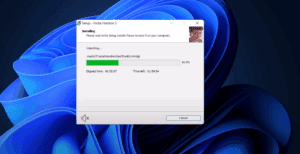
- First, double-click VC_redist.x64.exe:
- Click Yes.
- Accept the terms.
- Click Install (or Repair if already installed).
- Click Close.
- Repeat the process for VC_redist.x86.exe.
- Restart your PC.
💡 Why this works: Many games use Visual C++ components compiled in different architectures. Installing both x64 and x86 ensures compatibility.
Bonus Tip: Check for Windows Updates
Even if your GPU drivers are up-to-date, other system updates can improve compatibility and fix background services that affect gaming.
Go to Settings → Windows Update → Check for updates.
Question & Answer Section
Q1: Will reinstalling Mage Arena fix the problem if these steps don’t work?
A: It’s possible. A clean reinstall can help if your installation is badly corrupted, but try the above steps first to save time.
Q2: Do I need both x86 and x64 Visual C++ redistributables?
A: Yes. Many 64-bit games still use certain 32-bit libraries, so having both avoids missing dependencies.
Q3: My GPU driver is up-to-date, but Mage Arena still won’t launch. What now?
A: Try disabling any third-party overlays (Discord, GeForce Experience, MSI Afterburner) as they can interfere with some games.
Q4: Can antivirus software cause this issue?
A: Yes, in rare cases. You can temporarily disable real-time protection or whitelist the game’s folder to test.
Final Thoughts
If Mage Arena isn’t launching or keeps crashing, the problem is often tied to missing files, outdated drivers, or missing system components. By systematically applying the five solutions above, you can resolve most issues without having to completely reinstall the game.
If the problem persists after all these fixes, it may be due to a deeper system conflict or a game-specific bug — in that case, contacting the game’s official support team is the best next step.
Tags: mage-arena, pc-gaming, steam-games, game-crash-fix, visual-c-plus-plus, gpu-drivers, windows-compatibility, nvidia, amd, intel
Hashtags: #MageArena #GameCrashFix #PCGaming #SteamGames #VisualCPlusPlus #NvidiaDrivers #AMDGPU #IntelGraphics #WindowsGaming #GameFix







