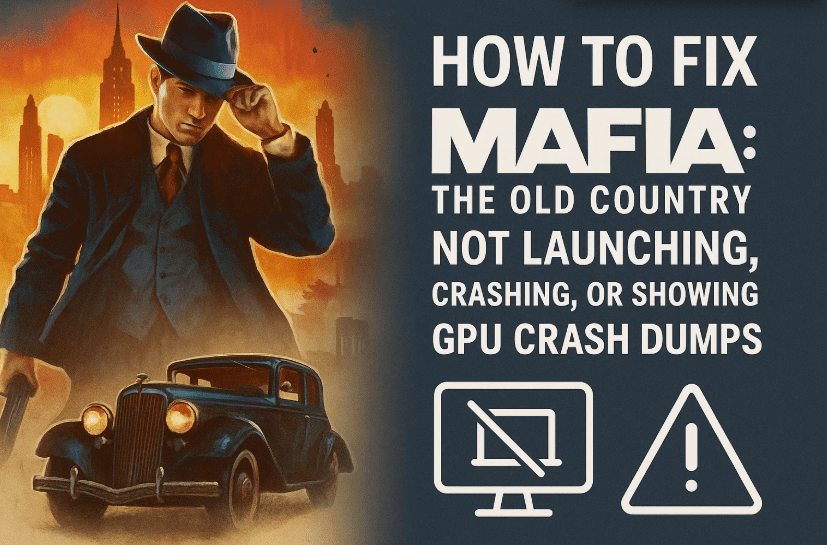
There’s nothing more frustrating for a gamer than buying a highly anticipated title, installing it, and then… nothing. For many players, Mafia: The Old Country is refusing to launch, crashing right after startup, showing UE4 (Unreal Engine 4) error messages, or triggering the dreaded “GPU crash dump triggered” notification.
The good news? In most cases, the problem isn’t your PC giving up—it’s usually a simple fix away. In this guide, I’ll walk you through multiple tested solutions to get Mafia: The Old Country running smoothly again.
We’ll cover everything from verifying your game files to updating your graphics drivers and reinstalling missing Visual C++ packages. Each fix will be explained in detail, so even if you’re not a tech wizard, you can follow along step-by-step.
Why Does Mafia: The Old Country Crash or Refuse to Launch?
Before we jump into fixes, it’s worth understanding why this happens. Some common causes include:
- Corrupted or missing game files after installation or an update.
- Incompatible Windows settings such as full-screen optimizations or lack of admin permissions.
- Outdated GPU drivers that can’t handle the latest graphics instructions.
- Missing Microsoft Visual C++ Redistributable packages, which Unreal Engine games rely on.
- Background processes interfering with the game (e.g., overlays, antivirus).
By addressing each of these possible issues one by one, you can significantly increase your chances of fixing the problem.
Step 1: Verify Integrity of Game Files in Steam
Corrupted or missing files are one of the most common reasons Mafia: The Old Country fails to launch. Fortunately, Steam has a built-in tool to check and repair these files.
Here’s how to do it:
- Open Steam on your PC.
- Go to your Library and locate Mafia: The Old Country.
- Right-click the game and select Properties.
- In the left-hand menu, click Installed Files.
- Click Verify Integrity of Game Files.
Steam will now scan all the game files and automatically replace any that are missing or damaged. Depending on your storage speed, this process can take a few minutes.
💡 Tip: If the verification process finds and replaces files, it’s a good sign you’ve fixed the issue. Try launching the game immediately afterward.
Step 2: Adjust Compatibility Settings
Sometimes, Mafia: The Old Country might need special Windows settings to run properly—especially if full-screen optimizations or permission issues are causing conflicts.
Follow these steps:



- Open Steam and go to your Library.
- Right-click Mafia: The Old Country and choose Properties.
- In the left-hand menu, select Installed Files, then click Browse Local Files.
- This will open the game’s installation folder. Navigate to:
Mafia The Old Country → Binaries → Win64 - Locate MafiaTheOldCountry.exe.
- Right-click it and select Properties.
- Go to the Compatibility tab.
- Check the box for Run this program as an administrator.
- Check the box for Disable full-screen optimizations.
- Click Apply and then OK.
Running the game with administrator rights ensures it can access all necessary system resources, while disabling full-screen optimizations can prevent stutter or crashes in Unreal Engine games.
Step 3: Update Your GPU Drivers via Device Manager
If your graphics drivers are outdated, the game might crash because it’s trying to use features your current driver doesn’t support.
To update via Device Manager:
- Press Windows + S and type Device Manager, then open it.
- Expand the Display Adapters section.
- Right-click your GPU (e.g., NVIDIA GeForce RTX 3060 or AMD Radeon) and select Update driver.
- Choose Search automatically for drivers.
- Let Windows search for and install the latest available version.
⚠ Note: Windows doesn’t always install the absolute newest drivers, so it’s a good idea to also check your GPU manufacturer’s app (covered in the next step).
Step 4: Update GPU Drivers via NVIDIA or AMD Software
If you have an NVIDIA or AMD card, updating through their dedicated software often gives better results than relying on Windows alone.
For NVIDIA users:
- Press Windows + S and type NVIDIA App (or GeForce Experience if you have the older version).
- Open the app and go to the Drivers tab.
- Click Check for updates.
- If an update is available, click Download and then Install.
For AMD users:
- Open the AMD Adrenalin Software from your Start Menu or system tray.
- Go to the Drivers & Software section.
- Click Check for Updates.
- Install the latest driver package if available.
Keeping GPU drivers up to date is critical, as game developers often work closely with NVIDIA and AMD to optimize performance and stability in new releases.
Step 5: Install or Repair Microsoft Visual C++ Redistributables
Mafia: The Old Country is built on Unreal Engine, which depends heavily on Microsoft’s Visual C++ Redistributable packages. If these are missing or corrupted, the game may not run at all.
To install or repair them:
- Visit the official Microsoft download page for Visual C++ Redistributable packages.
- Scroll down to the Latest Supported Visual C++ Downloads section.
- Download both of the following files:
- vc_redist.x86.exe (for 32-bit support)
- vc_redist.x64.exe (for 64-bit support)
- Locate the downloaded files on your PC.
- First run
vc_redist.x64.exe:- Click Yes when prompted.
- Accept the license terms.
- Click Install (or Repair if it’s already installed).
- Wait for the process to complete and click Close.
- Next, run
vc_redist.x86.exeand repeat the same process. - Once both are installed, restart your PC.
Step 6: Restart and Test
After performing the above steps, restart your computer and try launching the game again. This ensures all changes (especially driver and software updates) take effect.
Additional Tips if the Game Still Won’t Launch
If none of the above methods solve the problem, try the following:
- Disable overlays like Discord, Steam, NVIDIA GeForce Experience, or Xbox Game Bar.
- Temporarily disable antivirus to rule out false positives blocking the game.
- Lower in-game graphics settings once it launches to reduce GPU load.
- Reinstall the game as a last resort—sometimes a clean install fixes persistent issues.
Frequently Asked Questions (FAQ)
Q1: What is the UE4 error in Mafia: The Old Country?
The UE4 error is an Unreal Engine crash notification. It often means the engine encountered a fatal issue—either due to corrupted files, missing libraries, or incompatible drivers.
Q2: Why am I getting “GPU crash dump triggered”?
This usually means your graphics card driver crashed while running the game. Updating or reinstalling your GPU drivers often resolves this.
Q3: Do I need to install both x86 and x64 Visual C++ packages?
Yes. Even if you’re running a 64-bit version of Windows, some games still need the 32-bit libraries to run properly.
Q4: Will lowering graphics settings help prevent crashes?
Yes, especially if your GPU is running at 100% usage. Reducing texture quality, shadows, and resolution can help stability.
Q5: Could my PC simply not meet the game’s requirements?
It’s possible. Check the official system requirements for Mafia: The Old Country and compare them with your hardware specs.
Final Thoughts
Fixing Mafia: The Old Country launch and crash issues is usually straightforward once you know where to look. Most problems boil down to either corrupted files, missing redistributables, or outdated GPU drivers. By methodically following the steps above, you should be able to get back into the game without too much hassle.
If you’ve tried everything here and the game still won’t launch, you may want to contact the official support team or check community forums for any ongoing known issues.
Tags: mafia the old country fix, mafia the old country not launching, mafia the old country crashing, unreal engine error mafia, mafia gpu crash dump, steam game not starting, verify integrity of game files, update gpu drivers, install visual c++ redistributable
Hashtags: #MafiaTheOldCountry #GamingFix #PCGaming #GameCrashFix #UnrealEngine #GPUDump #SteamGames #PCGamingTips








