Is your Lenovo laptop turning on, but the screen remains black? This is a common issue faced by many users, and fortunately, there are a few simple troubleshooting steps you can take to fix it yourself—no technical experience required.
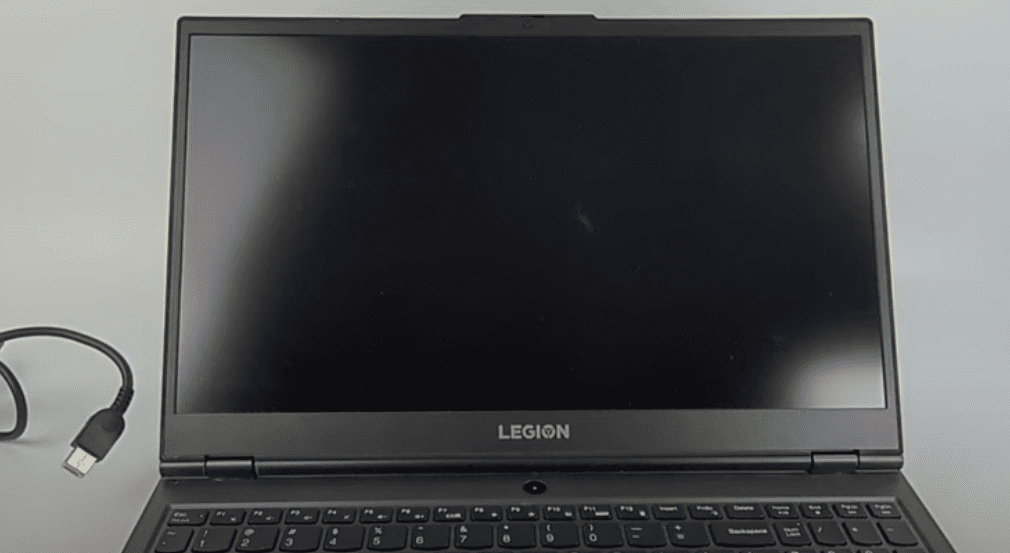
In this article, we’ll guide you through different solutions that have helped many users resolve this problem. These steps are easy to follow and don’t require any software installation or expert tools. Let’s get started.
✅ Step 1: Connect Your Laptop to a Charger
The first step is to ensure that your Lenovo laptop has enough power to boot properly.
- Plug in the charger — Check for the charging port, which is usually located at the back or side of your Lenovo laptop.
- Look for the charging indicator light — When the charger is connected properly, a small LED light near the charging port should illuminate. This confirms that:
- The charger is functional.
- The battery is receiving power.
Now, press the power button and check if the laptop boots normally. If the battery was low, this might fix the issue. If the screen remains black, proceed to the next step.
✅ Step 2: Use a Keyboard Shortcut to Reset Graphics Driver
Sometimes the screen stays black due to a glitch in the graphics system. Windows includes a shortcut to reset your graphics driver without restarting the computer.
- Hold down the following keys simultaneously:
Shift+Ctrl+Windows+B
- After holding these keys together for a few seconds, you should hear a slight beep or notice the screen flicker.
- Wait 30 seconds to 1 minute. If the screen lights up, the problem is resolved.
This command restarts the graphics driver and can resolve temporary glitches without affecting your files.
✅ Step 3: Perform a Hard Reset
If the screen is still black, the next step is to do a hard reset. Don’t worry—this won’t erase any data on your system.
- Hold down the power button continuously for 30 seconds. This will force the laptop to shut down.
- Wait a few seconds after it turns off.
- Press the power button again to turn it back on.
A hard reset can resolve system-level issues that might be preventing the display from initializing correctly.
Conclusion
A Lenovo laptop with a black screen can be a frustrating issue, especially when it powers on but doesn’t display anything. By following the above three steps—checking the charger, resetting the graphics driver, and performing a hard reset—you can usually resolve the issue without needing professional repair.
🔖 Tags
Lenovo laptop troubleshooting, black screen fix, laptop display issue, Lenovo support, graphics driver reset, hard reset laptop, Windows laptop black screen, Lenovo screen problem
#Hashtags
#Lenovo #LaptopFix #BlackScreen #WindowsTips #TechSupport #LaptopTroubleshooting #LenovoSupport #DIYFix






⚠️ Disclaimer
This article is for informational purposes only. While the steps provided here are safe and widely used, please perform them at your own discretion. If your device is under warranty or you are unsure about performing any step, it’s best to consult Lenovo’s official customer support or visit an authorized service center.








