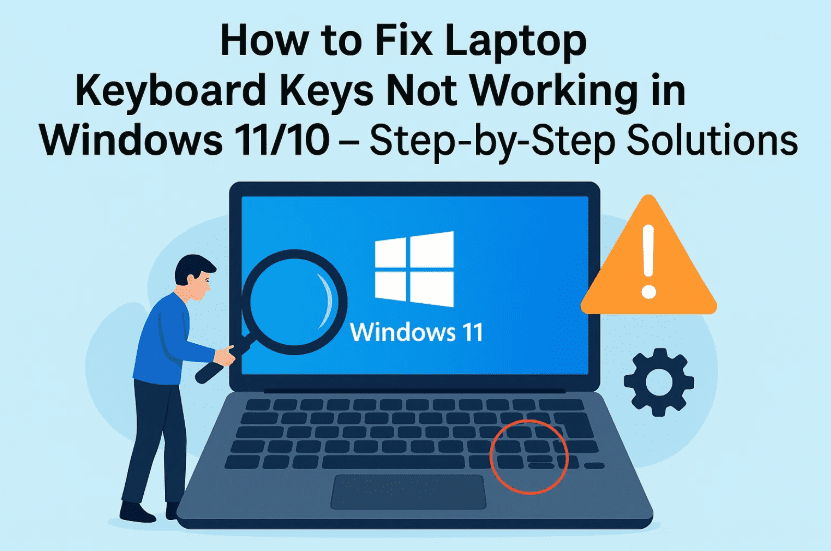
Having keyboard issues on your laptop can be extremely frustrating—especially when certain keys stop working out of nowhere. Whether it’s your spacebar, Enter key, or any letter, don’t worry. This guide will walk you through the most effective solutions to fix keyboard keys not working on Windows 11 or 10.
We’ll cover both software and hardware-related troubleshooting steps. So far, we’ve done a good job identifying the common causes—now let’s fix them one by one.
💡 Common Reasons Why Laptop Keys Stop Working
Before diving into the steps, here are some possible causes:
- Enabled Filter Keys in accessibility settings
- Pending Windows updates
- Corrupted or outdated keyboard drivers
- Hardware issues or physical keyboard failure
🧰 Let’s Fix It – Step-by-Step Methods
We’ll start with basic software fixes and gradually move toward testing and replacing hardware.
🖥️ Step 1: Use On-Screen Keyboard to Log In
If your keyboard isn’t working at the login screen, here’s how you can still access Windows:
📌 Use On-Screen Keyboard:
- At the login screen, click anywhere on the screen.
- Click on Accessibility (the icon at the bottom-right).
- Click On-Screen Keyboard.
- Use the virtual keyboard to enter your password and log in.
Once logged in, you can continue using the on-screen keyboard to perform the fixes.
💡 You can also search for “On-Screen Keyboard” in the Start menu if already logged in.
⚙️ Step 2: Turn Off Filter Keys
Filter Keys is an accessibility feature that can interfere with how the keyboard behaves.
📌 How to check and disable it:
- Press
Windows + Ito open Settings. - Go to Accessibility → Click Keyboard.
- Find Filter Keys and make sure it’s turned off.
- If it’s already off, try turning it on, then off again to refresh the setting.
Also, from this screen, you can enable or disable the on-screen keyboard as needed.
🔄 Step 3: Update Windows
Sometimes pending Windows updates or restarts can lead to partial hardware functionality.
📌 How to update:
- Go to Settings → Windows Update.
- Click Check for updates.
- If updates are found, install them and restart your system.
- After reboot, check if the keyboard keys are working again.
🔁 Restarting your PC after updates is critical—don’t skip it.





🧩 Step 4: Update or Reinstall Keyboard Drivers
Now that basic settings and updates are done, let’s dig into the Device Manager to check for faulty drivers.
📌 How to update drivers:
- Right-click on Start → Select Device Manager.
- Expand the Keyboards section.
- Right-click on your keyboard device → Click Update driver.
- Choose Search automatically for drivers.
If that doesn’t help, try reinstalling:
- Right-click on your keyboard → Uninstall device.
- Restart your PC. Windows will reinstall the driver automatically.
Alternate Method:
- If “Search automatically” doesn’t work, click Browse my computer for drivers, then try switching between available drivers manually (if listed).
🧠 You may need to try a couple of options before one works correctly.
Must read: Mastering Mouse, Keyboard, and Peripheral Settings in Windows
⌨️ Step 5: Test Your Keyboard Online
Still not working? Let’s see if this is a hardware problem using an online keyboard tester.
📌 Use a Free Keyboard Tester:
- Visit: https://keyboardtester.io/
- Launch the tester and start pressing keys on your physical keyboard.
- Keys that work will be highlighted.
- If certain keys do not highlight, those keys may be physically damaged.
🔧 If several keys fail the test and software fixes didn’t help, your keyboard may need to be replaced.
Hope from the above solutions one of the trick should have solved your problem; now how about reading more articles about drivers update like bluetooth, mother boards and ofcourse how to get system drivers get automatically upadated… find them below (A detailed guides I am sure you would love 🙂
- How to Automatically Install All Missing Drivers on a Fresh Windows 10 Install (No Internet Required)
- How to Fix “Please Update Your Nvidia GeForce Driver” Error in Battlefield 6 – Step-by-Step Guide
- How to Fix Missing Realtek HD Audio Manager and Driver Issues in Windows 7, 10, and 11A
- How to Install or Update Intel HD Graphics Drivers on Windows 10 & 11 (Step-by-Step Guide)
- Should You Install AMD Chipset Drivers or Stick With Windows Defaults?
- How to Safely Update All Drivers on Your Windows PC Using DriversCloud
❓ Frequently Asked Questions (FAQs)
Q1: Can a Windows update break keyboard functionality?
Yes. In rare cases, updates may change input behavior or conflict with drivers. Updating again or rolling back a driver can fix it.
Q2: What if only some keys are not working?
Try all the steps above—especially turning off Filter Keys and testing via keyboard tester. If specific keys fail, it’s likely hardware-related.
Q3: Can I replace a laptop keyboard myself?
Depends on the model. Some laptops allow easy replacement while others require professional help.
Q4: Will connecting an external keyboard help?
Yes. Plug in a USB or Bluetooth keyboard—it works as a temporary or permanent fix.
🎯 Final Thoughts
So far, we’ve covered a complete guide to troubleshooting keyboard issues:
- Log in using on-screen keyboard
- Disable Filter Keys
- Check for Windows updates
- Update or reinstall drivers
- Test hardware using online tools
If your keyboard still doesn’t work after all these steps, the issue is likely hardware-related, and replacing the keyboard may be the only solution.
Keep calm, follow these steps carefully, and you’ll either fix the issue or know exactly what needs replacement.
🔖 Tags:
laptop keyboard not working, some keys not responding, windows 11 keyboard fix, keyboard driver update, accessibility settings windows, filter keys issue, keyboard tester, on screen keyboard windows, fix hardware keyboard, device manager update
📢 Hashtags:
#LaptopKeyboardFix #Windows11 #DeviceManager #KeyboardNotWorking #KeyboardDriver #AccessibilityTips #WindowsUpdate #HardwareCheck #FilterKeys
Disclaimer: This guide is meant for informational purposes. If you’re unsure or your device is under warranty, it is recommended to contact your manufacturer or technician before attempting hardware replacement.








