If your Windows laptop battery is draining unusually fast, you’re not alone. This is one of the most common issues faced by laptop users, especially after updates or prolonged usage. The good news is that in most cases, this isn’t a hardware problem — it’s due to incorrect power settings, unnecessary startup apps, brightness levels, or outdated battery configurations.
In this detailed guide, we’ll walk through all the effective ways to fix fast battery drain in Windows 11 or 10. We’ll also show you how to check your battery health and identify whether your battery needs to be replaced or not.
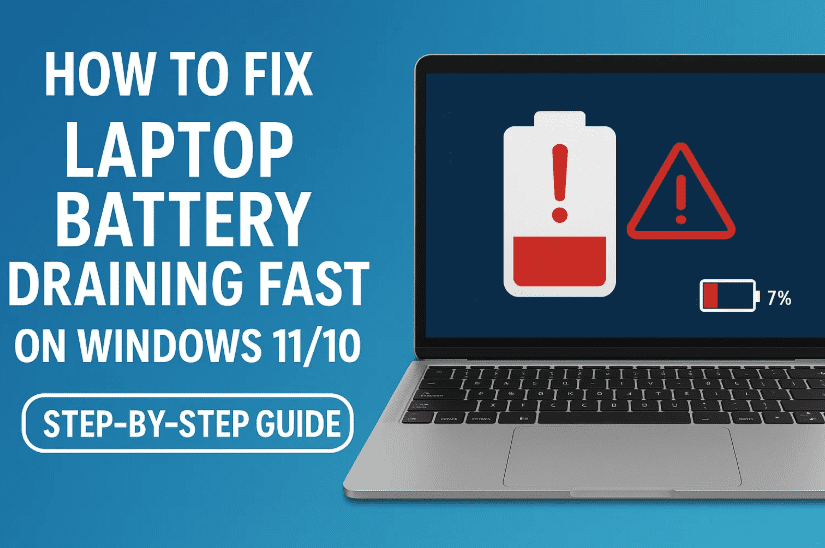
⚙️ Why Does Your Laptop Battery Drain So Quickly?
Battery drain issues can occur due to:
- High screen brightness
- Power plan set to High Performance
- Background startup apps consuming energy
- Outdated drivers
- Battery wear and degradation
- Animations, light themes, and system services running unnecessarily
🔋 Let’s Fix Your Fast Battery Drain Step-by-Step
We’ll start with easy fixes and move toward more advanced ones. You don’t need third-party tools — everything we’ll do is available within Windows itself.
✅ Step 1: Lower Your Screen Brightness
High screen brightness is one of the biggest reasons your battery dies fast.
- Click the battery icon or notification center in the taskbar
- Reduce the brightness slider to a minimum comfortable level
- Avoid using maximum brightness unless you’re in direct sunlight
💡 You can also adjust brightness from Settings → System → Display.
✅ Step 2: Use Balanced Power Plan Instead of High Performance
Let’s optimize your power plan:
- Press
Windows + Sand type Edit Power Plan - Click Power Options
- Select Balanced (recommended) instead of High Performance
High Performance uses more battery even when idle. Balanced gives better efficiency without compromising performance.
✅ Step 3: Refresh Battery Drivers via Device Manager
Sometimes battery drivers need a quick reset to function properly.
- Press
Windows + Xand choose Device Manager - Go to View → Show hidden devices
- Expand Batteries section
- Right-click on:
- Microsoft AC Adapter
- Microsoft ACPI-Compliant Control Method Battery
- Disable both drivers one by one
- Re-enable them again by right-clicking and choosing Enable device
This will refresh battery communication with Windows and may fix battery misreporting.
✅ Step 4: Use a Dark Theme to Save Power
Bright white backgrounds consume more energy, especially on OLED displays.



- Open Settings → Personalization → Colors
- Scroll to Choose your default app mode
- Select Dark
This also reduces eye strain during nighttime.
✅ Step 5: Check Battery Health Using Battery Report
Let’s assess whether your battery is physically degraded.
- Open Command Prompt as Administrator
- Type the following command:
powercfg /batteryreport - Press Enter
- Windows will generate a file like this:
C:\Users\<YourUsername>\battery-report.html - Open the report in your browser and look for:
- Design Capacity
- Full Charge Capacity
Example: If Design Capacity is 50,000 mWh and Full Charge Capacity is only 10,000 mWh — your battery is worn out and may need replacement.
✅ Step 6: Let Windows Choose Optimal Power Settings
Windows can auto-optimize power for best performance-to-efficiency ratio.
- Press
Windows + R, type:sysdm.cpl - Go to the Advanced tab
- Under Performance, click Settings
- Select Let Windows choose what’s best for my computer
- Click Apply → OK
✅ Step 7: Disable Unnecessary Startup Apps
Startup apps running in the background consume resources even when you’re not using them.
- Press
Ctrl + Shift + Escto open Task Manager - Go to the Startup Apps tab
- Disable all unnecessary apps by right-clicking and choosing Disable Only leave critical items like security software enabled
This can significantly improve both performance and battery life.
🧐 Bonus Tip: Check for Windows Updates
Sometimes newer updates fix battery-related issues:
- Open Settings → Windows Update
- Click Check for Updates
- Install all available updates
- Restart your PC
❓ Frequently Asked Questions (FAQs)
Q1: Will resetting my power plan to Balanced affect gaming or performance?
Not significantly. Balanced mode intelligently adjusts performance based on workload. It only reduces resource usage when idle.
Q2: Should I always use dark mode?
If battery saving is your priority, yes. It’s especially effective on OLED screens where black pixels consume less energy.
Q3: My battery report shows good health, but the battery still drains fast. Why?
Check background processes, brightness, startup apps, and drivers. Also, overheating can reduce battery efficiency.
📝 Final Thoughts
So far, we’ve adjusted brightness, optimized power plans, refreshed battery drivers, disabled unnecessary apps, and even generated a battery report. These steps are more than enough to fix most battery drain issues on Windows laptops.
But if after applying all these tweaks your battery continues to drop rapidly and your battery report shows extremely low full charge capacity, it might be time to replace your battery.
Give these methods a try — and you should see noticeable improvements in battery life!
🧷 Tags:
windows battery fix, laptop battery draining fast, battery report windows 11, improve battery life, disable startup apps, powercfg report, windows 10 power settings, reduce screen brightness, dark mode battery saving
🔖 Hashtags:
#LaptopBatteryDrain #Windows11Tips #FixBatteryIssue #PowerSettings #BatteryReport #DarkMode #Windows10 #DeviceManagerFix #StartupApps #BatteryOptimization
Disclaimer:
This article is for informational purposes only. If your laptop is under warranty or your battery is physically swollen, seek professional help immediately. Always back up important data before making system changes.







