If you’ve ever tried connecting your Samsung Smart TV to your iPhone’s hotspot and found that it doesn’t show up or refuses to connect, you’re not alone. This issue is surprisingly common and can happen for a variety of reasons — from incorrect TV network settings and saved Wi-Fi conflicts to outdated date/time or even temporary software glitches.
In this article, we’ll go through all possible solutions to fix iPhone hotspot not showing or working on Samsung Smart TV, explained in detail with clear steps. You’ll also learn some simple background about how hotspot connectivity works between iPhone and TV so you understand why these steps are necessary.
Let’s begin by understanding the issue before jumping into the solutions.
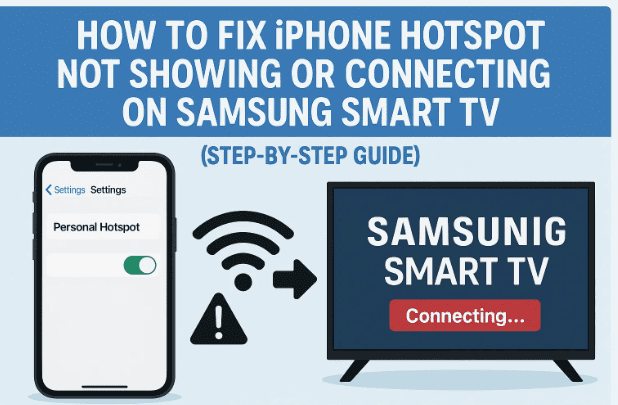
1. Why Your iPhone Hotspot Doesn’t Show on Samsung Smart TV 📶
Before we start fixing, it’s helpful to understand why this happens in the first place. Your TV and iPhone communicate through Wi-Fi, and a few small misconfigurations can block them from seeing each other. Here are the most common causes:
- The hotspot is not turned on properly or not discoverable by other devices.
- Saved Wi-Fi networks on your TV interfere with new connections.
- Network glitches or cached data prevent Wi-Fi scanning.
- The TV’s date and time are incorrect, causing network validation to fail.
- A temporary firmware freeze on the TV or hotspot module.
- The iPhone’s “Maximize Compatibility” setting (for 2.4 GHz mode) isn’t enabled.
The good news is that all these problems are fixable without technical expertise. Let’s begin with the first and most basic step — setting up the hotspot correctly on your iPhone.
2. Step 1: Turn On and Configure Hotspot Properly on iPhone 📱
Let’s start with your iPhone. Sometimes, users just turn on the hotspot from the Control Center and expect the TV to find it instantly. However, TVs often require the hotspot to remain active and discoverable with the screen open.
Here’s what you should do step-by-step:
- Open your iPhone’s Settings.
- Scroll down and tap Personal Hotspot (or Cellular → Personal Hotspot on some versions).
- Turn on the switch for Allow Others to Join.
- Tap Wi-Fi Password to confirm or change your hotspot password.
- Enable Maximize Compatibility (this switches your hotspot to 2.4 GHz Wi-Fi, which most TVs support).
- Keep this screen open — don’t close it yet.
💡 Tip: Many smart TVs (especially older Samsung models) can only detect 2.4 GHz Wi-Fi networks. If “Maximize Compatibility” is turned off, your iPhone may broadcast on 5 GHz, which your TV can’t see.
Once the hotspot is active and visible, it’s time to move to your TV.
3. Step 2: Open Network Settings on Samsung Smart TV ⚙️
Now we’ll configure your TV to detect your iPhone’s hotspot. On your Samsung Smart TV remote, follow these steps carefully:
- Press the Home button.
- Navigate to Settings → General.
- Scroll to Network and select Open Network Settings.
- Choose Wireless.
Your TV will now start scanning for nearby Wi-Fi networks. Wait for the list to populate.



If your iPhone hotspot appears here — perfect! You can move directly to the connection step.
But if it doesn’t, don’t worry. Continue with the next step to remove any conflicting Wi-Fi data.
4. Step 3: Forget Old Wi-Fi Networks on TV 🧹
Sometimes, your Samsung TV is already connected to or remembers an older Wi-Fi network (like your home router). This can prevent it from searching for new networks such as your iPhone hotspot.
Here’s how to clear that:
- In your Network Settings, find the option called Manage Saved Networks.
- Select your existing Wi-Fi (the one already connected).
- Choose Delete or Forget This Network.
This step ensures that the TV no longer prioritizes old connections.
🔎 Why this matters: When the TV automatically tries to reconnect to a previously saved Wi-Fi, it won’t actively look for new signals — so your iPhone hotspot won’t appear in the list.
After forgetting the old network, go back to the Wireless Networks page. Wait a few seconds — your iPhone hotspot should now show up in the available connections list.
5. Step 4: Connect to the iPhone Hotspot Again 🔗
Once your iPhone’s hotspot name appears on the screen, follow these steps:
- Select your iPhone’s hotspot name from the Wi-Fi list.
- When prompted, enter the same Wi-Fi password shown in your iPhone’s hotspot settings.
- Wait for the TV to verify and connect.
If the connection is successful, you’ll see a confirmation message like “Connected to Internet”.
You can now stream apps or update software using your iPhone’s mobile data.
But if your TV still doesn’t detect the hotspot, let’s reset its network configuration.
6. Step 5: Reset Network Settings on Samsung Smart TV 🔄
If none of the above steps work, your TV’s internal Wi-Fi module or saved cache may be corrupted. Samsung provides a feature to reset only the network settings without affecting your apps or system data.
Here’s how to reset:
- Go to Settings → General → Network.
- Scroll down and select Reset Network Settings (or Reset Network).
- Confirm when prompted.
Your TV will restart its wireless adapter and remove all stored connections. This does not reset your apps, picture settings, or other configurations — only the network-related files.
After resetting, return to Open Network Settings, select Wireless, and connect to your iPhone hotspot again.
💡 Note: After a network reset, it’s a good idea to re-enter your Wi-Fi password manually instead of using auto-saved options.
If the hotspot still won’t connect, the issue could be related to your TV’s internal clock or authentication system.
7. Step 6: Check Date and Time Settings on TV 🕒
This may seem unrelated, but an incorrect date or time can actually cause Wi-Fi authentication errors on smart devices. Many network protocols rely on accurate time synchronization to validate secure connections.
Here’s what to do:
- Go to Settings → General → System Manager.
- Select Time.
- Make sure your Time Zone and Date & Time are correct.
- If “Auto” is enabled but the time is wrong, switch to Manual and adjust it manually to your region.
Once the date and time are correct, turn off your TV for a few seconds. Then power it back on and try connecting to your hotspot again.
🧠 Why this helps: Wi-Fi certificates and secure protocols (like WPA2) often reject connections when system time is out of sync, leading to unexplained “connection failed” messages.
8. Step 7: Soft Reset Your Samsung Smart TV 🔁
If none of the above fixes work, performing a soft reset can resolve temporary glitches. This process is safe and doesn’t delete your data — it just refreshes the system memory.
To perform a soft reset:
- Using your remote, press and hold the Power button.
- Keep holding the button even after the TV turns off.
- Continue holding until the TV turns back on automatically (usually after 5–10 seconds).
When your TV restarts, it clears cached processes and reloads all drivers, including Wi-Fi modules.
Now, go back to Network Settings → Wireless, and try connecting to your iPhone hotspot again.
In most cases, this step resolves the problem completely.
9. Common Mistakes to Avoid While Connecting iPhone Hotspot ⚠️
Sometimes, the connection fails due to very simple oversights. Let’s highlight some common ones to avoid:
- Hotspot turned off automatically: iPhone’s hotspot can disable itself when not in use. Keep the hotspot screen open during setup.
- Typing the wrong password: Even a small space or character mismatch can cause repeated failures.
- Too many connected devices: iPhone allows only a limited number of active hotspot connections. Disconnect others before connecting the TV.
- Using 5 GHz-only networks: Many older TVs can’t detect 5 GHz frequency bands. Always enable Maximize Compatibility on your iPhone.
- Outdated TV firmware: Ensure your Samsung Smart TV’s software is up-to-date under Settings → Support → Software Update.
By keeping these points in check, you’ll avoid repeating the same setup frustration in the future.
10. Frequently Asked Questions (Q&A) 💬
Q1: My iPhone hotspot connects but the TV shows “No Internet.” What should I do?
This usually happens when your mobile data signal is weak or restricted. Try toggling Airplane Mode on and off on your iPhone, or check your mobile data plan for hotspot restrictions.
Q2: My Samsung TV connects to every Wi-Fi except the iPhone hotspot. Why?
It may be a compatibility issue. Enable Maximize Compatibility in iPhone’s hotspot settings to force 2.4 GHz mode — that’s the frequency most TVs use.
Q3: Will resetting the TV’s network erase my apps or data?
No. The Reset Network feature only clears Wi-Fi and Ethernet configurations. Your installed apps and login data remain untouched.
Q4: Can I connect multiple devices to the same iPhone hotspot?
Yes, but each device consumes bandwidth. If your TV fails to connect, try disconnecting other devices temporarily.
Q5: Should I update my iPhone or TV software for better compatibility?
Absolutely. Updates often include connectivity improvements. Visit:
- For iPhone updates: https://support.apple.com/iphone
- For Samsung TV updates: https://www.samsung.com/support/
11. Conclusion 🧾
Connecting an iPhone hotspot to a Samsung Smart TV can occasionally be tricky due to minor network settings, compatibility issues, or cached data. But as we’ve seen, the fixes are simple and completely within your control.
Here’s a quick recap of what we did:
- Turned on iPhone hotspot and kept it active.
- Checked TV’s network settings.
- Deleted old Wi-Fi connections.
- Reset the network configuration.
- Corrected the TV’s date and time.
- Performed a soft reset.
Once these steps are done in order, your iPhone hotspot should appear and connect seamlessly.
So far, we’ve covered all known troubleshooting methods — but if your issue persists even after a soft reset, consider checking your mobile carrier settings or Apple ID restrictions that might be blocking hotspot sharing.
And remember — sometimes, simply restarting both your TV and iPhone simultaneously fixes temporary handshake errors between the two.
Disclaimer:
This article is for troubleshooting and educational purposes only. The methods described are based on standard Samsung Smart TV and iPhone settings. Your menu layout may differ slightly depending on model and iOS version. Always ensure you follow official support documentation if unsure.
#iPhoneHotspot #SamsungTV #WiFiTroubleshooting #HotspotFix #NetworkReset #SmartTVTips #AppleSupport #SamsungSupport








