Are you facing a frustrating situation where your internet is connected, but websites won’t load in your browser? You might see errors like:
- “This site can’t be reached”
- “DNS_PROBE_FINISHED_NO_INTERNET”
- “ERR_CONNECTION_TIMED_OUT”
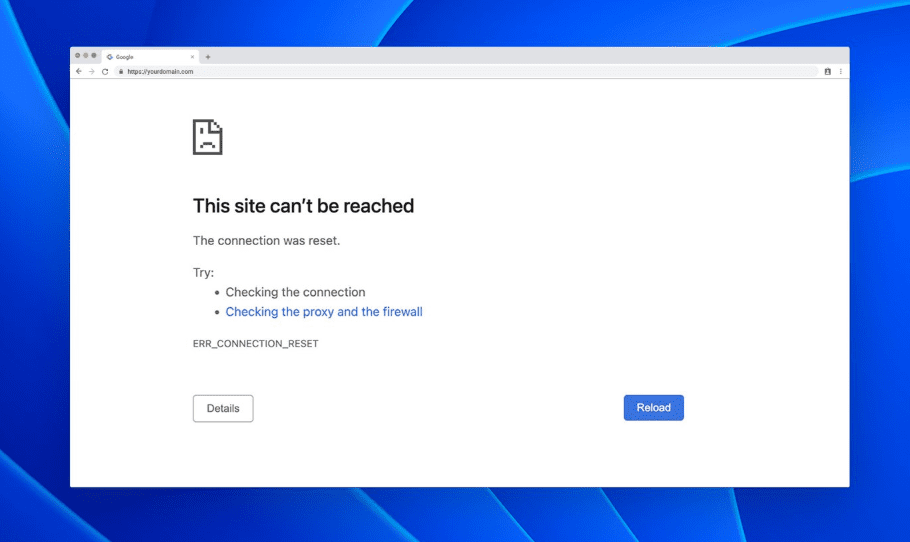
Don’t worry—this is a common issue, and in this guide, we’ll walk you through step-by-step fixes to get your browsing back to normal.
Why Does This Happen?
Even when your Wi-Fi or Ethernet shows as “connected,” websites may fail to load due to:
✔ DNS cache corruption
✔ Incorrect network settings
✔ Proxy misconfigurations
✔ Browser cache issues
Step-by-Step Fixes
1. Restart DNS & DHCP Services
- Press
Win + R, typeservices.msc, and hit Enter. - Locate DNS Client and DHCP Client services.
- Right-click > Restart (if available).
- If grayed out, proceed to the next step.
2. Flush DNS & Reset Network Settings
- Open Command Prompt (Admin) (
Win + X> Terminal (Admin)). - Run these commands one by one:
   ipconfig /flushdns
   netsh int ip reset
netsh winsock reset- Restart your PC and check if the issue is resolved.
3. Change DNS to Google Public DNS
- Go to Control Panel > Network and Sharing Center > Change adapter settings.
- Right-click your active connection (Wi-Fi/Ethernet) > Properties.
- Select Internet Protocol Version 4 (TCP/IPv4) > Properties.
- Set:
- Preferred DNS:
8.8.8.8 - Alternate DNS:
8.8.4.4
- Click OK and restart your connection.
4. Disable Proxy Settings
- Press
Win + I> Network & Internet > Proxy. - Under Manual proxy setup, turn off any proxy settings.
- Click Save.
5. Clear Browser Cache & Reset Chrome
- Open Google Chrome >
Ctrl + Shift + Del. - Select:
- Browsing history
- Cookies & site data
- Cached images & files
- Click Clear data.
- Go to Settings > Reset settings > Restore defaults.
6. Restart Your Router
- Unplug your router for 30 seconds and plug it back in.
- Sometimes, ISP issues or router glitches cause this problem.
Still Not Working? Try These!
- Disable VPN or Firewall temporarily (they may block connections).
- Test another browser (Edge, Firefox) to rule out Chrome issues.
- Run Windows Network Troubleshooter (
Settings > Update & Security > Troubleshoot).
Final Fix: Reset Network Settings
If nothing works, reset your network completely:
- Go to Settings > Network & Internet > Status > Network reset.
- Click Reset now (this will remove all network adapters and reinstall them).
Tags:
Fix internet connection, DNS error, website not loading, Chrome not working, network troubleshooting
Hashtags:
#InternetFix #DNSError #ChromeNotWorking #TechTips #Windows10
Disclaimer:
- Resetting network settings will remove saved Wi-Fi passwords.
- Always back up important data before making system changes.
Did this guide help you? Let us know in the comments! 🚀
Visited 1,130 times, 9 visit(s) today