Is your Hogwarts Legacy game failing to start after a recent update? This issue can be frustrating, but fortunately, there are simple steps you can follow to resolve it. In this guide, we’ll walk you through the process of getting your game up and running again.
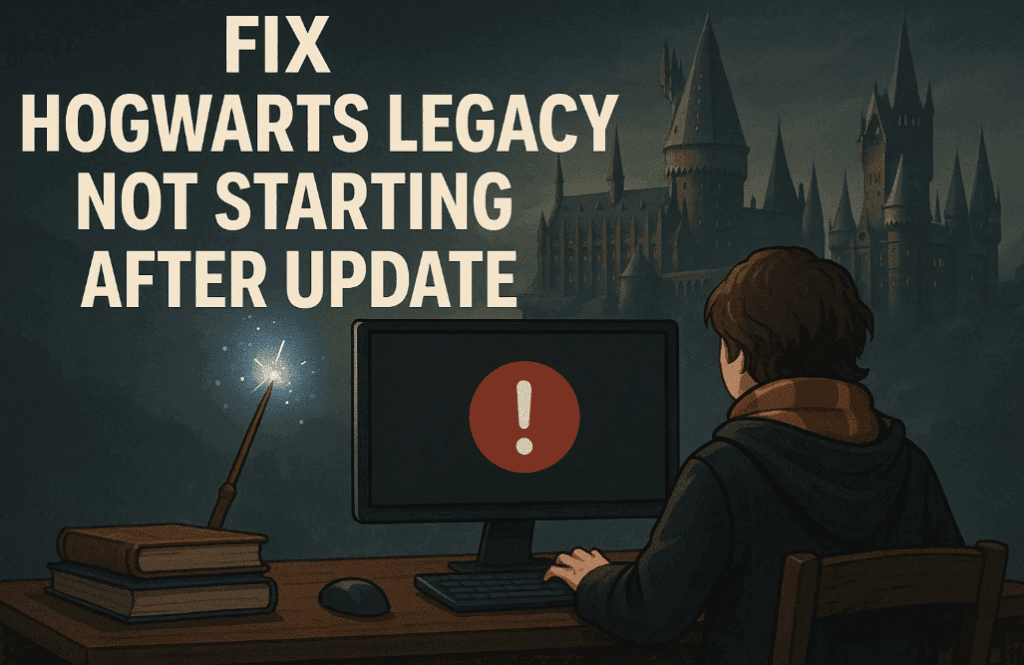
Steps to Fix Hogwarts Legacy Not Starting After Update
Step 1: Extract the Downloaded Fix Files
- Locate the downloaded fix file (usually a
.zipor.rarfile). - Right-click on the file and select “Extract All”.
- Choose a destination folder and click “Extract”.
Step 2: Copy the Extracted Files
- After extraction, right-click on the extracted folder.
- Select “Copy” from the context menu.
Step 3: Navigate to the Hogwarts Legacy Game Folder
- Open File Explorer and go to the directory where Hogwarts Legacy is installed.
- Default location (Steam):
C:\Program Files (x86)\Steam\steamapps\common\Hogwarts Legacy - Default location (Epic Games):
C:\Program Files\Epic Games\HogwartsLegacy
- Double-click to open the game folder.
Step 4: Paste and Replace the Files
- Paste the copied files into the game folder.
- If prompted, select “Replace the files in the destination” to ensure the new files overwrite the old ones.
Step 5: Run the Game from the Correct Executable
- Navigate to:
Hogwarts Legacy\Phoenix\Binaries\Win64 - Double-click on the game’s executable file (usually
HogwartsLegacy.exe).
Step 6: Launch the Game
- The game should now start without any issues. If it doesn’t, try restarting your PC and launching again.
Frequently Asked Questions (FAQ)
Q1. Why is Hogwarts Legacy not starting after an update?
A1. This issue often occurs due to corrupted or missing game files after an update. Replacing them with fresh files usually resolves the problem.
Q2. Do I need to verify game files before applying this fix?
A2. Yes, it’s a good idea to first verify game files through Steam or Epic Games Launcher before manually replacing files.
- On Steam:
- Right-click Hogwarts Legacy > Properties > Installed Files > Verify Integrity of Game Files.
- On Epic Games:
- Click the three dots next to Hogwarts Legacy > Verify.
Q3. Will this method cause any loss of saved game progress?
A3. No, this fix only replaces game executable and related files, not your saved data. However, it’s always good to back up your saves.
Additional Troubleshooting Tips
- Update Graphics Drivers: Ensure your GPU drivers are up to date (NVIDIA | AMD | Intel).
- Run as Administrator: Right-click the game executable and select “Run as administrator”.
- Disable Antivirus Temporarily: Sometimes, security software may block game files.
Conclusion
By following these steps, you should be able to fix Hogwarts Legacy not launching after an update. If the issue persists, check the official Hogwarts Legacy Support Page for further assistance.
Tags
Hogwarts Legacy, Game Fix, Hogwarts Legacy Not Starting, Game Crash Fix, PC Gaming, Troubleshooting
Hashtags
#HogwartsLegacy #GameFix #GamingTutorial #PCGaming #HogwartsLegacyBug
Disclaimer: This guide is for educational purposes. Ensure you download game fixes only from trusted sources to avoid malware. We are not affiliated with Warner Bros. Games or Avalanche Software.