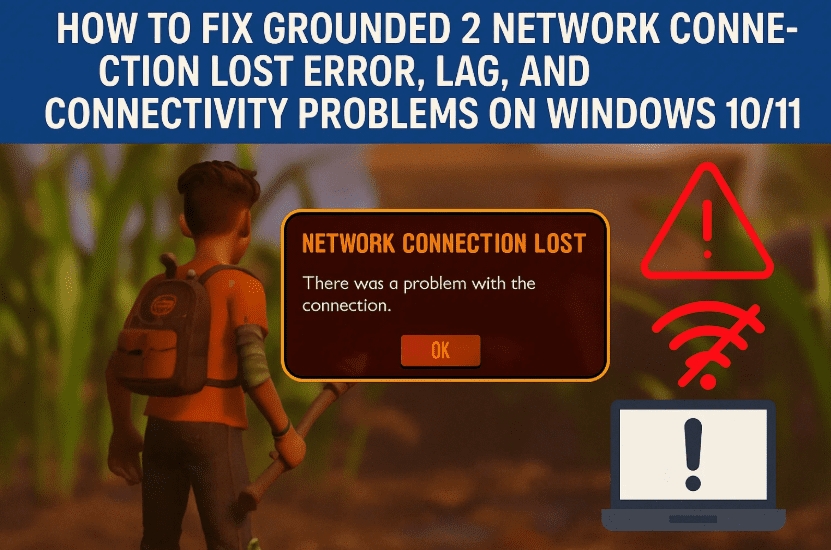
If you’re playing Grounded 2 and keep getting “Network Connection Lost” messages, high ping, lag spikes, or even complete disconnections, you’re not alone.
Multiplayer games like Grounded 2 depend on a stable and fast network connection, and small issues in your PC’s networking configuration can cause big problems in-game.
This guide walks you through a step-by-step process to:
- Reduce lag and high ping.
- Prevent random disconnections.
- Fix login and connectivity issues.
- Improve overall online gameplay stability.
We’ll be using built-in Windows networking tools to refresh your connection, clear outdated DNS records, and optimize your network adapter settings.
Step 1: Reset Network Configuration via Command Prompt
Before we tweak advanced settings, let’s start with a network stack reset. This refreshes your computer’s IP settings and clears temporary network data that could be causing issues.
Here’s how to do it:
- Open the Start Menu (Windows key).
- Type:
cmd - In the search results, right-click on Command Prompt and choose Run as administrator.
- Click Yes if prompted by User Account Control.
Now, type these commands one by one, pressing Enter after each:
ipconfig /release
- This releases your current IP address.
ipconfig /renew
- Requests a new IP address from your router.
ipconfig /flushdns
- Clears outdated DNS records stored on your PC.
netsh winsock reset
- Resets the Windows network socket catalog, fixing corruption in network-related settings.
Finally, type:
exit
Press Enter to close the Command Prompt.
Important: Restart your PC to apply these changes before testing Grounded 2 again.
Why this works:
Many online game errors happen because of stale network data, IP conflicts, or Winsock corruption. This step essentially gives your PC’s network a clean slate.
Step 2: Change Your DNS Server to Google DNS
If your ISP’s DNS server is slow or having issues, it can cause higher ping and slower connection times to game servers. Switching to Google’s public DNS can often improve speed and reliability.







Steps:
- Open the Start Menu and search for:
Control PanelOpen it. - Go to:
Network and Internet → Network and Sharing Center - In the left-hand panel, click Change adapter settings.
- Find your active network adapter (Wi-Fi or Ethernet), then double-click it.
- Click Properties.
- Select Internet Protocol Version 4 (TCP/IPv4) and click Properties.
- Select Use the following DNS server addresses and enter:
- Preferred DNS server:
8.8.8.8 - Alternate DNS server:
8.8.4.4
- Preferred DNS server:
- Click OK and close all windows.
Why this works:
DNS servers translate domain names (like grounded2.game-server.com) into IP addresses. Google DNS is often faster and more reliable than ISP-provided DNS, leading to lower latency in games.
Step 3: Perform a Full Network Reset in Windows
If you’ve tried the above and still have issues, performing a full network reset in Windows can help. This reinstalls all network adapters and resets every network-related setting back to default.
Steps:
- Open the Start Menu and go to:
Settings → Network & Internet - Scroll down and click Advanced network settings.
- Click Network reset.
- Press Reset now.
- Confirm by pressing Yes.
- Close the window and restart your PC.
Warning:
This will remove all saved Wi-Fi networks, VPN settings, and custom network configurations. Make sure you have your Wi-Fi password handy.
Why this works:
If your network issues are caused by a deep configuration problem or driver corruption, a full network reset gives you a clean start.
Step 4: Additional Tweaks for Grounded 2 Performance
While the above steps handle most connectivity problems, these extra optimizations can make your experience even smoother.
A. Use a Wired Connection (If Possible)
Ethernet connections are more stable and have lower latency compared to Wi-Fi.
B. Close Background Applications
- Applications like streaming software, large downloads, or even browser tabs with video can eat bandwidth.
- Use Task Manager (Ctrl + Shift + Esc) to close unneeded apps.
C. Update Network Drivers
- Go to Device Manager → Network adapters.
- Right-click your adapter and choose Update driver.
- Select Search automatically for drivers.
Step 5: Test the Connection
After completing the steps above, launch Grounded 2 and:
- Check if your ping is stable.
- Monitor if connection loss errors have stopped.
- Play for at least 15–20 minutes to confirm stability.
Q&A: Common Questions About Grounded 2 Connection Issues
Q1: Will changing DNS affect other apps?
Yes — but in a good way. Using a faster DNS can improve loading times for websites and reduce latency in other games too.
Q2: What if I’m still lagging after these steps?
It could be due to your ISP’s routing or the game’s server location. Using a gaming VPN (with caution) can sometimes help.
Q3: Do I need to do these steps every time I play?
No — once set, these changes stay active unless you manually revert them or perform another network reset.
Q4: Can router settings also cause this?
Absolutely. Outdated firmware or improper QoS settings on your router can also impact online games.
Disclaimer
These steps involve changing network settings and flushing DNS records. They are safe for most users, but always note down any custom network configurations before making changes. If you’re on a managed network (like at work or school), consult your network administrator.
Official Reference
For more details on Microsoft networking commands, see:
Microsoft Docs – TCP/IP Command Reference
Conclusion
By resetting your IP configuration, switching to a faster DNS, and performing a full network reset, you can fix most instances of Grounded 2 network connection lost, high ping, and login issues. These changes not only help Grounded 2 but also improve your PC’s overall network performance.
With a cleaner network stack and optimized DNS, you should be able to jump back into the backyard adventures of Grounded 2 without worrying about lag ruining your game.
Tags: grounded 2 network error, grounded 2 high ping fix, grounded 2 connection lost, grounded 2 lag fix, windows 11 network reset, flush dns gaming, grounded 2 multiplayer fix
Hashtags: #Grounded2 #GamingFix #NetworkError #PingFix #OnlineGaming #Windows11 #Windows10 #MultiplayerFix








