If you’re facing a black screen issue while launching Free Fire on BlueStacks, especially after the logo appears or during startup, you’re not alone. Many users, particularly those with low-end PCs, encounter this frustrating issue. Fortunately, this article provides a step-by-step solution to fix the Free Fire black screen error in BlueStacks 5 (and works for older versions too).
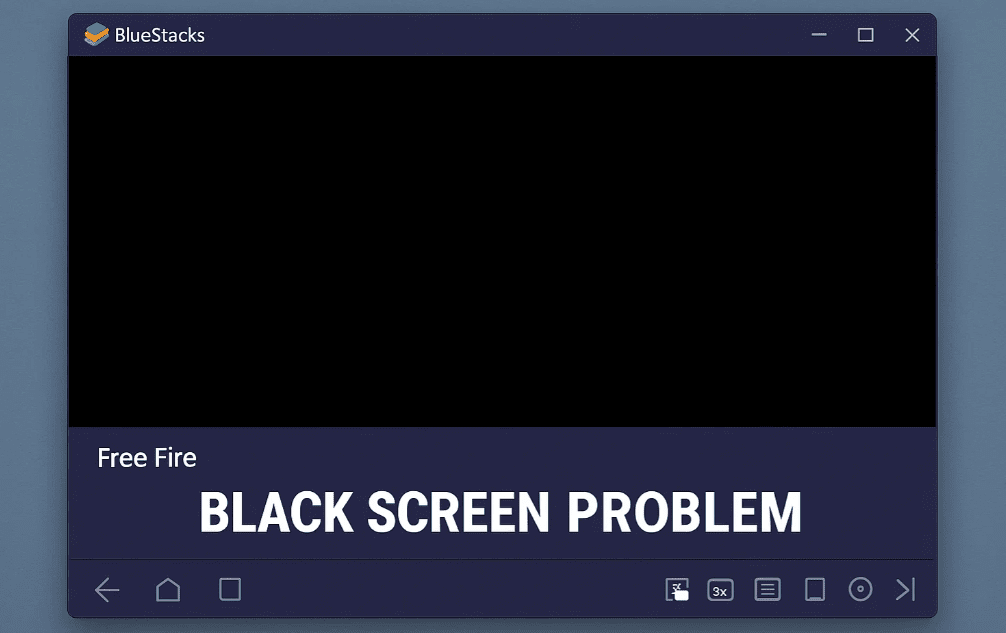
🔧 Step-by-Step Guide to Fix Free Fire Black Screen in BlueStacks
🧩 1. Join the Right Support Server
Before diving into the solution, it’s highly recommended to join a helpful Discord server or support group where you can access:
- Optimized emulator versions
- Free configuration files
- Support from other gamers
These communities often provide custom optimized setups that run smoothly even on low-end PCs with:
- 6GB RAM
- 1GB graphics card
- Core 2 Duo processor
⚙️ 2. Force Stop and Clear App Data
- Open BlueStacks.
- Go to Settings > Apps.
- Find Free Fire.
- Click Force Stop, then clear Cache and Storage.
- (Optional but recommended) Uninstall Free Fire from BlueStacks.
🌍 3. Reinstall the Global Version of Free Fire
The black screen error is often tied to region-specific versions. To fix this:
- Download the global version of Free Fire.
- Ensure it’s compatible with your system and BlueStacks version.
📌 You can download the global APK of Free Fire from trusted sources like:
https://www.apkmirror.com
🖥 4. Optimize BlueStacks Settings for Your PC
Memory Settings:
- If your PC has 8GB RAM, set Memory to 4GB.
- If your PC has 4GB RAM, set it to 2GB.
Graphics Settings:
- If set to OpenGL, switch to DirectX.
- If set to DirectX, try OpenGL.
- Optionally, test with Vulkan if available.
Switching between these render modes helps fix graphical issues depending on your hardware.
📱 5. Change Device Profile in Emulator
Go to BlueStacks settings > Device > Phone Model:
- Change from default to Samsung Galaxy S22 Ultra or the latest available flagship device.
- Save the settings and restart the emulator.
This helps in ensuring compatibility with the game engine and improves FPS and stability.
✅ Final Step: Launch the Game
Once all the above steps are completed:



- Launch Free Fire again.
- You should now see the game start without any black screen issues.
📢 Additional Tip: Use Optimized Emulator Builds
In certain Discord communities, you may find pre-optimized builds of BlueStacks or alternatives (e.g., MSI App Player) specifically tuned for Free Fire.
⚠️ Disclaimer:
This article is intended for educational and troubleshooting purposes only. Download APKs or third-party software only from trusted sources. Always review emulator settings carefully before making changes to avoid system issues.
🔖 Tags:
free fire fix, bluestacks 5, free fire black screen, emulator optimization, bluestacks settings, low end pc gaming, free fire global apk, free fire emulator
📢 Hashtags:
#FreeFireFix #BlueStacks5 #BlackScreenError #FreeFireEmulator #GamingTips #LowEndPC #EmulatorSettings #FixFreeFire #FreeFireGlobalVersion
If you’re still having issues after following all these steps, consider checking the emulator’s official support or exploring lighter alternatives such as LDPlayer or NoxPlayer for better compatibility.








