There’s nothing more frustrating than when your external hard drive shows up in File Explorer but refuses to open. Whether you’re trying to access important documents, backup files, or media, this issue can be a real roadblock.
But don’t worry — we’ve got you covered with multiple solutions. In this guide, we’ll walk through how to fix an external hard drive that is detected but not opening in Windows 10 or 11, using simple step-by-step methods.
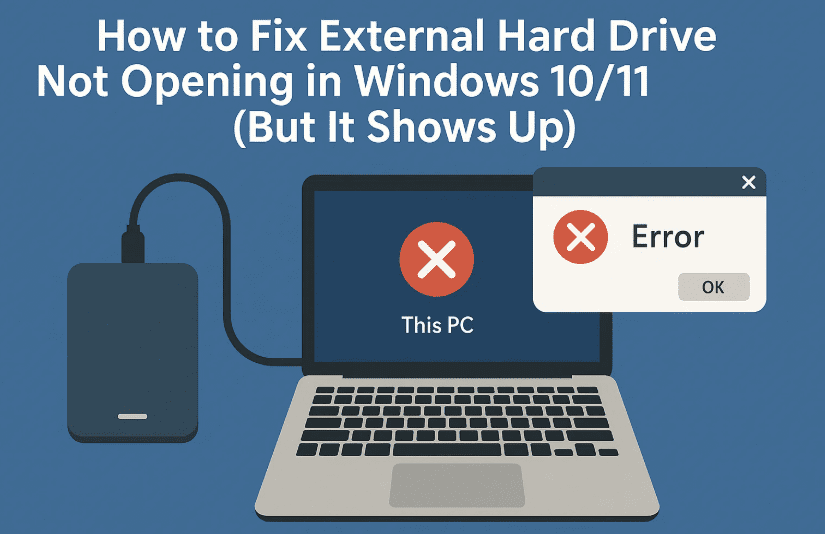
Let’s take it one step at a time — and by the end of this article, you’ll either have your drive working or know exactly what the next move should be.
🔍 Step 1: Identify the Drive Letter of Your External Drive
Before we can run any command or troubleshooting process, let’s find the drive letter of the external hard drive.
Here’s how:
- Plug in your external hard drive.
- Open File Explorer.
- Look for the drive that shows up but doesn’t open.
- Note the Drive Letter (e.g., D:, E:, F:).
🛠 Step 2: Repair Using CHKDSK Command (Command Prompt Method)
Let’s start with a basic but powerful repair tool built into Windows: Check Disk (chkdsk).
Follow these steps carefully:
- Press
Windows + Sand type cmd. - Right-click on Command Prompt → Select Run as Administrator.
- When prompted by UAC, click Yes.
Now, run the following command (replace D: with your actual drive letter):
chkdsk D: /f
- This scans and fixes any basic file system issues.
Next, run a more thorough scan:
chkdsk D: /f /r
- This will also attempt to recover bad sectors and can take more time (depending on drive size).
Let it run completely till 100%. This process often resolves corruption issues or logical errors that prevent access to the drive.
🔐 Step 3: Fix Drive Permission Settings (Security Tab Method)
If the drive still doesn’t open, the issue could be related to file or folder permissions. Let’s make sure your user account has full control over the drive.
Steps to fix drive permission:
- Right-click the external hard drive in File Explorer.
- Click on Properties.
- Go to the Security tab.
- Click Edit → Then Add.
- Type:
Everyone→ Click OK. - Under Permissions for Everyone, check Full control.
- Click Apply → Then OK.
Try reopening your drive now — in many cases, this fixes “Access Denied” errors or non-opening drives.
⚠️ Step 4: Format the Drive (If Nothing Else Works)
⚠️ Warning: This step will erase all data on the external hard drive. Only do this if recovery is not necessary or already backed up.



If nothing worked so far, it’s possible the file system is unreadable (e.g., Linux EXT4 format), or there’s corruption that can’t be fixed.
Here’s how to format the drive:
- Right-click the Start button → Click Disk Management.
- Locate your external drive (usually labeled as D: or other).
- Right-click on it → Choose Format.
- Set the File System to NTFS or FAT32:
- NTFS is recommended for larger file sizes and Windows compatibility.
- FAT32 is better for compatibility with older systems and devices.
- Click OK, confirm any prompts.
After formatting, the drive should open normally — although previous data will be lost.
✅ Bonus Tip: Use Free Data Recovery Before Formatting
If you’re unable to access your data but want to recover it before formatting, consider using free tools like:
These can scan your drive and allow you to retrieve files before wiping them.
❓Frequently Asked Questions (FAQs)
Q1: My drive shows up but won’t open. Is it failing?
Not necessarily. It could be a corrupted file system or permission issue. Try CHKDSK and permission fixes before assuming hardware failure.
Q2: Will formatting delete my data?
Yes, formatting erases all data on the drive. Backup or recover data before proceeding.
Q3: Can Linux-formatted drives open in Windows?
No, Windows does not natively support EXT2/EXT3/EXT4 file systems. You need to format to NTFS or FAT32 for full compatibility.
Q4: I fixed the drive, but it happens again. Why?
It may indicate an unstable hard drive. Consider replacing the drive if issues reoccur frequently.
🎯 Conclusion
So far, we’ve tried every possible solution to fix an external hard drive that’s visible but not accessible on Windows. If you’ve followed each step — from running chkdsk to fixing security permissions, and finally formatting the drive if necessary — you’ve done a thorough job.
Here’s a quick recap:
- ✅ Run CHKDSK to repair file system errors
- ✅ Fix security permissions for user access
- ✅ Format the drive as a last resort
- ✅ Use recovery tools before formatting if needed
This guide should help you reclaim access to your drive or make an informed decision on what to do next.
🔖 Tags:
external hard drive not opening, fix usb not accessible, chkdsk fix drive, drive shows but won’t open, drive permissions error, ntfs format, fat32, drive access denied, windows 11 storage fix
📢 Hashtags:
#ExternalDriveFix #Windows11 #DriveNotOpening #USBError #HardDriveFix #NTFS #TechHelp #Windows10
Disclaimer: Formatting your drive will result in permanent data loss. Always back up important files or use data recovery tools before performing a format. The above methods are intended for general troubleshooting and may not work for failing hardware.








