Today, we’re going to dive into a common and frustrating Windows 10 error that many users—including myself—have encountered:
“Explorer.exe – Class Not Registered”
This error often appears when booting up your computer, and it can prevent you from opening the Start Menu, Search Box, or any built-in Windows 10 apps. In some extreme cases, the screen goes completely black, and Windows Explorer doesn’t load at all—you’re left staring at a blank screen with no taskbar.
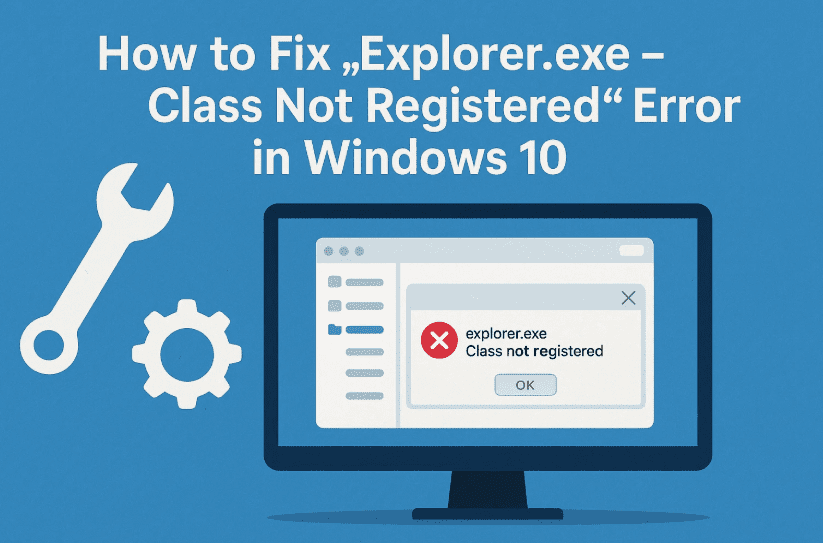
Don’t worry though. In this guide, I’ll show you two practical methods to fix this error:
- Method 1 – Fix it if your desktop and taskbar are still visible
- Method 2 – Fix it from a black screen if Explorer doesn’t launch at all
Let’s go through them step by step.
🛠️ Method 1: Restart Windows Explorer and Update Windows
If you’re lucky enough that your taskbar and desktop still appear, this fix is for you. It’s the quickest way to restore normal functionality.
So far, we’ve done a good job identifying the problem—now let’s move to the fix.
🔹 Step 1: Restart Windows Explorer
- Right-click on the Taskbar and open Task Manager
- Scroll down and look for Windows Explorer
- Select it and click the Restart button at the bottom
This should temporarily resolve the “class not registered” error. Try opening the Start Menu or Search Bar again.
🔹 Step 2: Update Windows
After restarting Explorer, let’s make sure your system is up to date.
- Press
Windows + Ito open Settings - Go to Update & Security > Windows Update
- Click on Check for Updates and install any available patches
💡 Sometimes this error is introduced by a buggy update, and Microsoft often patches such issues quickly. Keeping your system updated is essential.
Once updates are installed, restart your PC again and test to see if the problem is fully resolved.





⚠️ Method 2: Fix from a Black Screen (Severe Case)
If your system boots into a black screen with no taskbar, no desktop, and all apps are non-functional—you’re dealing with a more severe case. Don’t worry, follow these steps to recover access.
Let’s take it one step at a time.
🔧 Step 1: Open Task Manager Without Start Menu
- Press
Ctrl + Shift + Escto open Task Manager- OR
- Press
Ctrl + Alt + Delete, then choose Task Manager
🔧 Step 2: Open Windows Services
- In Task Manager, go to the Services tab
- Scroll to the bottom and click “Open Services” link
- This opens the official Windows Services console
🔧 Step 3: Access Internet Options Through Help
Now here’s a neat trick.
- In the Services window, click the blue question mark icon (Help) in the toolbar
- This launches Microsoft Management Console (MMC) Help
- Click Options → Internet Options
🔧 Step 4: Launch Internet Explorer (from Internet Options)
- In the new Internet Options window, click the question mark (?) icon again
- Choose “About Internet Explorer” → Internet Explorer should open
This gives you a usable UI window to access File Explorer.
🔧 Step 5: Open CMD with Admin Privileges
Let’s get Command Prompt up and running.
- Go back to Task Manager
- In the Processes tab, right-click any system service
- Click “Open File Location”
- This opens File Explorer
- Now search for Command Prompt
- Type
cmdin the File Explorer search bar
- Type
- Right-click on cmd.exe → select “Run as Administrator”
🔧 Step 6: Disable Internet Explorer via Control Panel
Now with Command Prompt open, let’s launch the classic Control Panel:
start control
- In Control Panel, go to Programs → Turn Windows features on or off
- Uncheck Internet Explorer 11
- Click Yes, then OK
You’ll be prompted to restart. Choose Restart Now.
After rebooting, Windows will apply the changes and restart Explorer correctly. Your taskbar, Start Menu, and apps should now work normally.
❓ Frequently Asked Questions
Q1: What causes the “class not registered” error in Windows 10?
A: It’s often caused by corrupt registry entries, broken COM components, or buggy Windows updates—especially affecting Windows Explorer or UWP apps.
Q2: Will disabling Internet Explorer break anything else?
A: For most users, no. It’s safe to disable if you’re not using legacy apps that depend on it.
Q3: Can I prevent this from happening again?
A: Yes—always install cumulative Windows updates and keep your system drivers current. Regularly creating a system restore point also helps.
🎉 Final Words
We’ve done a great job tackling both the mild and severe versions of the “Explorer.exe – Class Not Registered” error in Windows 10. Whether your screen was blank or just the Start menu was unresponsive, this guide should help you get everything running again—without reinstalling your OS.
I personally encountered this issue and thought I’d need to reinstall Windows—but with these steps, I managed to fix it. Hopefully, this article helps you too.
If it worked for you, don’t forget to share this article or drop a comment below. It may help someone else in need!
Until next time, this is Emanuel from Tech Based In wishing you a smooth and error-free Windows experience!
🔗 Useful Links
- 🛠️ Windows Update Troubleshooter – Microsoft
- 💾 Download Visual C++ Redistributables
- 🔍 How to Run System File Checker (sfc /scannow)
📌 Tags & Hashtags
Tags: windows 10 class not registered, explorer.exe fix, windows black screen error, start menu not working, fix windows explorer, windows error recovery, tech based solutions
Hashtags:
#ExplorerExeError #Windows10Fix #ClassNotRegistered #StartMenuFix #WindowsBlackScreen #TechBasedIn #CMDFix #TaskManagerFix #WindowsTips
⚠️ Disclaimer:
This guide is intended for educational purposes only. Modifying system features and components can have unintended side effects. Always create a system restore point before making system-level changes. Proceed at your own risk.








