If you’re trying to launch GTA V on your PC and see an “Entry Point Not Found” error related to FED Gallery Packs or missing DLL files, don’t worry—you’re not alone. This is a common issue that typically occurs due to missing or corrupted system files, particularly associated with Visual C++ Redistributables or improper security permissions.
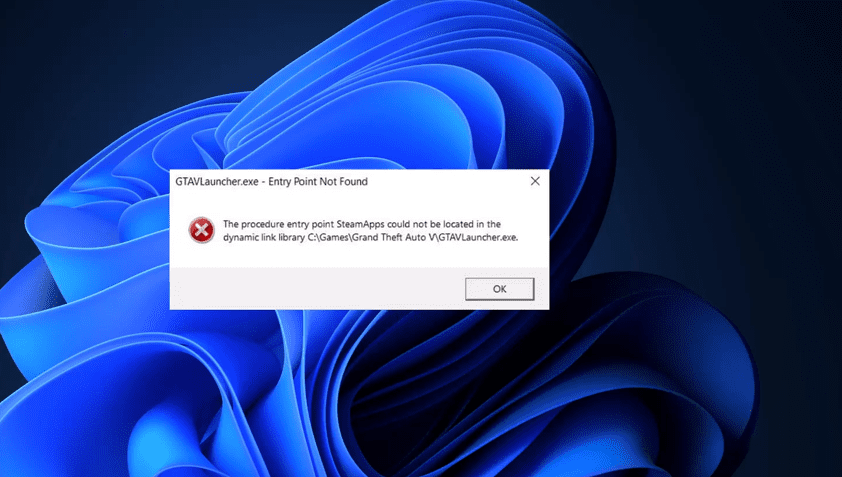
This guide will walk you through step-by-step instructions to resolve the error and launch GTA V without any hiccups.
⚠️ What Causes the Entry Point Not Found Error in GTA V?
This error usually appears when:
- A DLL file is missing or corrupted.
- Your antivirus has quarantined essential game files.
- A third-party mod or patch was incorrectly installed.
- Required Visual C++ Redistributables are not installed or are outdated.
🛠️ Step-by-Step Solution
Follow these steps carefully to resolve the issue:
✅ Step 1: Temporarily Disable Windows Security
- Press
Windows + Sand type Windows Security in the search bar. - Open it and click on Virus & Threat Protection from the left sidebar.
- On the right side, select Manage settings.
- Temporarily turn off all protection settings (Real-time protection, Cloud-delivered protection, etc.).
⚠️ Note: This is temporary and will be re-enabled at the end of the process.
✅ Step 2: Download the Fix Package
To repair your game files, download a fix package from the trusted link below:
This package includes the necessary DLLs and support files often missing due to antivirus actions or failed mod installations.
✅ Step 3: Extract and Replace Game Files
- Locate the downloaded ZIP file.
- Right-click the file and choose Extract All, then select the destination folder.
- Once extracted, copy all files from the folder.
- Open a new File Explorer tab and navigate to your GTA V installation directory.
For example:C:\Games\GTA V\(or wherever your game is installed) - Paste the copied files into the GTA V directory.
- When prompted, click Replace files in the destination.
✅ Step 4: Add GTA V Folder to Windows Security Exclusions
- Go back to the Windows Security window you minimized earlier.
- Scroll down and select Add or remove exclusions.
- Click on Add an exclusion → Folder.
- Navigate to your GTA V game folder and select it.
- The folder will now appear in the exclusions list.
✅ Step 5: Re-enable Windows Security
After successfully applying the fix and excluding your game folder:
- Go back to Virus & Threat Protection settings.
- Click Manage settings again.
- Turn ON all protection options you disabled earlier.
✅ Step 6: Launch the Game
You can now launch GTA V without encountering the “Entry Point Not Found” error. The missing or corrupted files have been replaced, and your antivirus will no longer block them.
ℹ️ Alternative Fix (Optional): Visual C++ Redistributables
If the error still persists, consider downloading and installing the latest versions of Microsoft Visual C++ Redistributables:
These runtime components are essential for many modern games, including GTA V.






🛡️ Disclaimer
The fix provided includes third-party files hosted on Mega.nz. While many users have resolved their issues using this method, we recommend scanning the downloaded files with your antivirus software after temporarily re-enabling protection. Always back up your game folder before making changes.
This article is meant for educational purposes only. The author is not responsible for any damage caused by misuse or improper application of the files mentioned.
🔖 Tags:
GTA 5 fix, entry point not found, gta 5 error solution, fed gallery pack gta v, dll file missing fix, gta v patch, gta 5 pc troubleshooting, windows security exclusion, game file repair, gta v startup error
🔗 Hashtags:
#GTA5 #EntryPointNotFound #GTA5ErrorFix #WindowsSecurity #GTA5PC #GameFix #GTAVDLLFix #VisualCPlusPlus #GTAErrorSolution #GamerTips








