If you’re plugging in a USB device and Windows throws a “Device Descriptor Request Failed” error, you’re not alone. This common issue can prevent USB devices (like flash drives, external hard disks, or even keyboards and mice) from working properly. The good news? You can fix it with a few simple steps — no complicated tools required.
This blog post will guide you through all the working methods to resolve the USB device descriptor failure issue in Windows 11 and 10. So, let’s troubleshoot together — step by step!
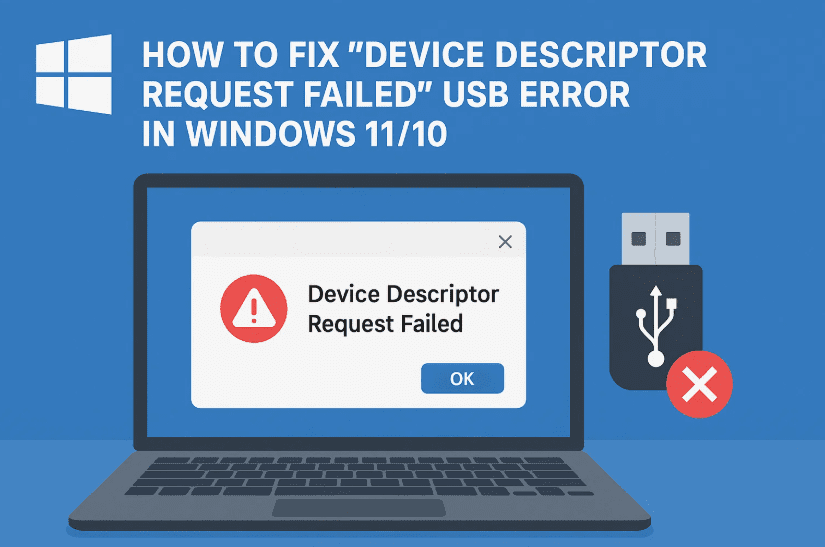
🧠 What Does the “Device Descriptor Request Failed” Error Mean?
When Windows cannot properly identify a USB device, it shows this error under Universal Serial Bus controllers in Device Manager. It’s often accompanied by a yellow triangle ⚠️ and listed as Unknown USB Device (Device Descriptor Request Failed).
This can be caused by:
- Corrupted USB drivers
- Power management issues
- Faulty USB ports or the USB device itself
- Windows registry or system file problems
Now, let’s move to the solutions one by one.
🔧 Step-by-Step Fixes for the Device Descriptor Failure
✅ Step 1: Disable and Re-enable the USB Device
Let’s start with the simplest fix — resetting the USB port via Device Manager.
- Press
Windows + Xand select Device Manager - Expand the Universal Serial Bus controllers section
- Look for the device that shows the error (usually says Unknown USB Device)
- Right-click it and select Disable device
- Wait 5 seconds, then right-click it again and choose Enable device
This refresh often clears minor glitches and may restore functionality.
✅ Step 2: Update or Roll Back the USB Driver
Still facing the issue? Let’s try managing the driver.
- In Device Manager, right-click the problematic USB device
- Click Update driver
- Choose Search automatically for drivers
If Windows says the best driver is already installed and it’s not working:
- Click Browse my computer for drivers
- Then choose Let me pick from a list of available drivers
- Try selecting an older version if available
Sometimes a recent driver version causes the issue, and reverting to an older one helps.
✅ Step 3: Scan for Hardware Changes
Let’s now try to refresh the device detection.








- In Device Manager, click the Action tab on top
- Select Scan for hardware changes
This may force Windows to reinitialize the USB device and install appropriate drivers.
✅ Step 4: Change USB Power Settings
Now, let’s tweak a power setting that often causes this error due to USB suspension.
- Press
Windows + Sand type Edit power plan, then press Enter - In your current plan (e.g., Balanced or High performance), click Change advanced power settings
- Expand the section USB settings → USB selective suspend setting
- Set it to Disabled for both “On battery” and “Plugged in”
- Click Apply, then OK
This setting prevents Windows from cutting power to USB ports, which can lead to device errors.
✅ Step 5: Try the USB Device on Another PC
It’s time to rule out the obvious.
- Plug the same USB device into another working PC
- If the issue persists there too, your USB device may be physically damaged
- If it works fine, then the problem is likely with your PC’s USB controller or software
✅ Step 6: Install Pending Windows Updates
Outdated system files and drivers may cause USB malfunctions.
- Go to Settings → Windows Update
- Click Check for updates
- Install all available updates and restart your computer
After updates are complete, reconnect your USB device and see if it works.
✅ Step 7: Run SFC to Repair Corrupted System Files
If none of the above worked, it’s time to check for system corruption.
- Open Command Prompt as Administrator (Search “cmd”, right-click → Run as admin)
- Type this command and press Enter:
sfc /scannow
This System File Checker scan will repair missing or corrupted Windows components, including those affecting USB handling.
⚠️ This process may take 10–15 minutes. Don’t close the window until it finishes.
Once done, restart your PC, and check if the USB device works properly.
💡 Bonus Tip: Reboot with All USB Devices Removed
Sometimes a clean reboot helps.
- Remove all USB devices
- Shut down your PC completely
- Power it on
- Plug in the problematic USB device only
This resets USB initialization and may help Windows recognize it properly.
❓ Frequently Asked Questions (FAQs)
Q1: Can this error be caused by a damaged USB port?
Yes, if a particular USB port is physically damaged, it may cause device descriptor errors. Try a different port if possible.
Q2: Will using a USB hub fix this issue?
Sometimes. If the issue is port-specific or related to motherboard voltage, a powered USB hub may help.
Q3: Is it safe to disable USB selective suspend?
Yes. Disabling it won’t harm your system; it just means USB ports stay powered even when idle, which may slightly affect power consumption on laptops.
📝 Final Thoughts
So far, we’ve tried re-enabling devices, updating drivers, adjusting power settings, and even running system checks. These steps cover nearly every possible software cause for the Device Descriptor Request Failed error.
If your issue is still unresolved after all of this, the problem may be hardware-related, either with the USB device or the port itself.
Try these steps and let us know what worked for you — every system is a little different, but with the right process, this error can usually be fixed quickly.
🧷 Tags:
usb device descriptor failed, windows 11 usb error, device not recognized, usb power settings, fix usb device issue, device manager, sfc scannow, unknown usb device, usb selective suspend, windows 10 troubleshooting
🔖 Hashtags:
#USBError #DeviceDescriptorFailed #Windows11Fix #FixUSBPort #TechSupport #DeviceManager #UnknownUSB #Windows10 #PowerPlanSettings #SFCSCAN
Disclaimer:
This article provides general technical troubleshooting steps for the “Device Descriptor Request Failed” USB error. Please exercise caution when editing power plans or running system commands. If your device is physically damaged, no software fix will resolve the issue — consult a technician if needed.








