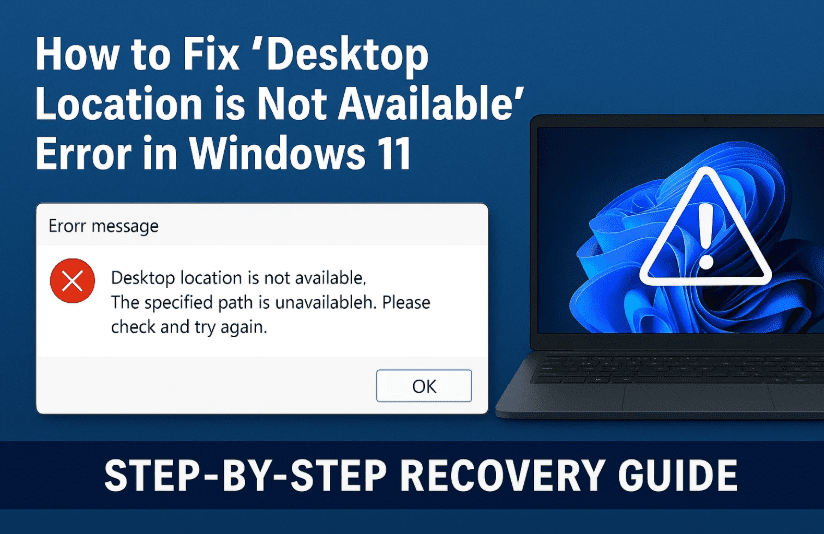
Have you encountered the error message:
“Desktop refers to a location that is unavailable” on your Windows 11 PC?
Don’t worry—you’re not alone, and more importantly, your files are safe. This issue usually means Windows can’t locate your Desktop folder, often due to user profile misconfigurations, corrupted registry values, or missing folder paths.
In this detailed, human-style tutorial, we’ll walk you through multiple proven methods to fix and recover your Desktop, get your files back, and restore normal system behavior. Let’s take it step-by-step and fix this once and for all.
🔍 Why Does This Error Occur?
Before jumping into solutions, it helps to understand the root cause. Here are a few common reasons:
- Corrupted or missing Desktop folder
- Incorrect Registry path values
- Corrupted user profile
- Hidden or relocated Desktop folder
- Broken service dependencies (e.g., RPC)
Now that we’ve identified what could be wrong, let’s fix it together.
🛠️ Method 1: Restore the Desktop Folder in System Profile
Let’s begin with a quick check and fix by manually placing the Desktop folder where Windows expects it.
🔄 Steps to Follow:
- Open File Explorer and navigate to:
C:\Users\<YourUsername>\ - Copy the Desktop folder from this location.
- Now, go to:
C:\Windows\System32\config\systemprofile - Paste the Desktop folder here.
💡 If you can’t see the Desktop folder, click on the View tab in File Explorer, go to Show > Hidden items, and it should appear.
- Restart your PC and check if the issue is resolved.
This step works especially well when the default system profile is missing its Desktop directory, which can happen during OS upgrades or profile resets.
🧰 Method 2: Fix Registry Path for Desktop
If your system is pointing to the wrong folder in the registry, you’ll keep getting the “location is unavailable” error. Let’s fix the registry path to ensure Windows knows where to find the Desktop.
✅ Here’s how to do it:
- Press Win + R to open the Run dialog.
- Type
regeditand press Enter. - In the Registry Editor, navigate to:
HKEY_CURRENT_USER\Software\Microsoft\Windows\CurrentVersion\Explorer\User Shell Folders - On the right side, find the Desktop entry and double-click it.
- Update the Value data to one of the following (depending on your setup):
%USERPROFILE%\DesktopC:\Users\<YourUsername>\Desktop
- Click OK and close the Registry Editor.
- Restart your PC to apply the change.
⚠️ Important: Don’t change anything else in the registry unless you’re sure. Take a backup before editing by going to File > Export.
🚨 Method 3: Boot into Safe Mode and Repair User Profile
If your user profile is corrupted, Windows might lose access to folders like Desktop, Documents, and Downloads. Safe Mode allows you to troubleshoot and fix the issue safely.


🧭 Steps to Boot into Safe Mode:
- Go to Settings > System > Recovery.
- Under Advanced startup, click Restart now.
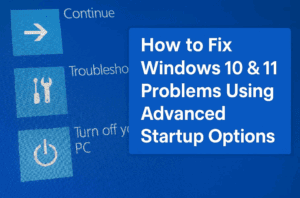
- On reboot, select Troubleshoot > Advanced options > Startup Settings.
- Click Restart again.
- On the next screen, press:
- F4 to enter Safe Mode
- or F5 to enter Safe Mode with Networking
Once in Safe Mode:
- Log into your admin account.
- Open File Explorer and navigate to your user folders. Make sure the Desktop folder exists under:
C:\Users\<YourUsername>\ - If missing, create a new Desktop folder.
- Restart normally and check if the issue is resolved.
⚙️ Method 4: Check Remote Procedure Call (RPC) Services
Sometimes, essential services like RPC can misbehave and affect folder paths and profile loading. Let’s ensure these are running as intended.
👇 Follow these steps:
- Press Win + S and type Services, then press Enter.
- Scroll down to find Remote Procedure Call (RPC).
- Ensure the Status is “Started” and Startup type is set to Automatic.
- Find RPC Locator service.
- Right-click > Properties
- Set Startup type to Manual
Once done, restart your computer and see if the Desktop loads correctly.
🧽 Bonus Fix: Create a New User Profile (If All Else Fails)
If the above steps don’t work, your Windows user profile might be too corrupted. You can create a new profile and move your data over.
How to create a new user:
- Open Settings > Accounts > Other users.
- Click Add account.
- Create a local user or Microsoft account.
- After creating it, sign out and sign in to the new user.
- Manually copy files from your old profile (
C:\Users\OldUsername) to the new one (Documents, Desktop, Downloads, etc.).
This ensures a fresh start with all your important files intact.
❓ Frequently Asked Questions (FAQs)
Q1: Are my Desktop files lost if the location is not available?
No, the files are still on the disk, but Windows can’t locate them. Most of the time, correcting the folder path or restoring the Desktop folder fixes it.
Q2: Can I use a backup or restore point to fix this?
Yes. If you have a System Restore point, you can revert your PC to a previous working state using Control Panel > Recovery.
Q3: What causes the Desktop folder to disappear?
The most common reasons include:
- Corrupted user profiles
- Windows updates that misconfigure paths
- Accidental deletion or move of the folder
- Broken registry keys
Q4: Can I reinstall Windows without losing my files?
Yes, you can use Windows Reset > Keep my files option, but this should be your last resort.
⚠️ Disclaimer
Editing the Windows Registry and handling system folders can impact your PC. Always create a system restore point or backup before making major changes. This guide is intended for educational purposes and dtptips.com is not responsible for any system issues resulting from improper steps.
🔖 Tags:
desktop not available, windows 11 desktop location error, fix desktop location, user profile corrupted, registry editor, windows desktop recovery, restore desktop folder, safe mode windows 11
#Hashtags:
#Windows11 #DesktopError #FixDesktop #UserProfileIssue #RegistryFix #dtptips #WindowsTroubleshooting
💡 Final Thoughts
Losing access to your Desktop might feel alarming, but in most cases, it’s fixable with a few simple steps. Whether it’s restoring a missing folder, tweaking the registry, or cleaning up user profile settings—this guide has you covered.
If you found this article helpful, consider bookmarking it or sharing it with a friend who’s facing similar issues. And don’t forget to regularly back up your files to avoid unexpected loss in the future.
Let us know in the comments if you have questions, or if you’d like a dedicated guide on repairing user profiles or using System Restore.
Happy troubleshooting! 🛠️🖥️








