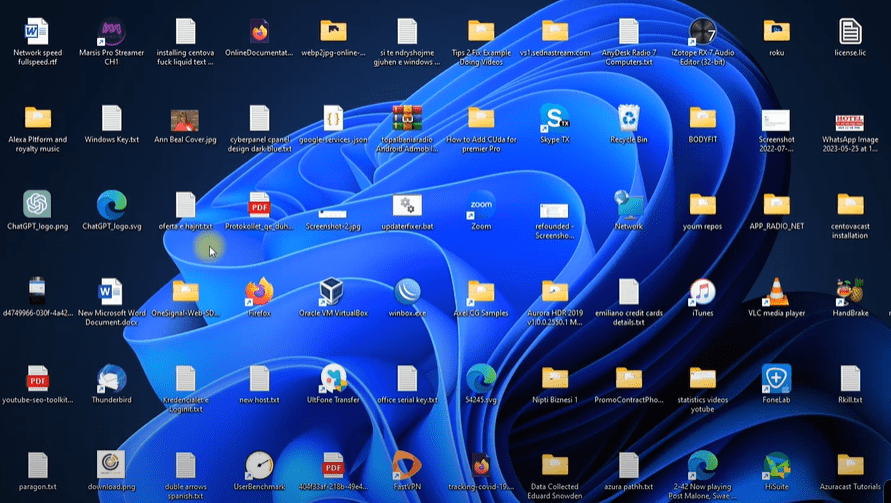
Have you noticed your desktop icons looking awkwardly spaced—too far apart either vertically or horizontally—after a Windows 11 update? You’re not alone. This issue has been reported by many users, especially those using the Windows 11 Insider Preview builds.
In this article, we’ll walk you through a simple registry tweak that will fix the icon spacing and restore your desktop to its clean, organized layout.
🛠️ What’s the Problem?
After updating to the latest version of Windows 11, you may see:
- Icons spread too far vertically or horizontally
- Inconsistent spacing on the desktop
- A generally messy or unorganized appearance
This is caused by altered values in the Windows Registry that control desktop icon spacing metrics.
🧩 Solution: Modify Registry Editor Values
⚠️ Before you proceed, always back up your registry. Making incorrect changes can affect system stability.
Step-by-Step Instructions:
- Open Registry Editor
- Press
Win + R, typeregedit, and hit Enter - Click Yes if prompted by UAC
- Press
- Navigate to the Following Path:
HKEY_CURRENT_USER\Control Panel\Desktop\WindowMetrics - Modify Icon Spacing Values:
- Find these two entries:
IconSpacingIconVerticalSpacing
- Find these two entries:
- Set Recommended Values:
- Horizontal (IconSpacing): Set to
-1125 - Vertical (IconVerticalSpacing): Set to
-1125
-480to-2730) - Horizontal (IconSpacing): Set to
- Apply Changes:
- Click OK after modifying each value
- Close the Registry Editor
- Restart Your Computer:
- You can also sign out and sign back in to see the changes take effect
✅ Optional: Use a Pre-Made Registry File
If you’re not comfortable editing the registry manually, you can use a pre-exported .reg file.
Here’s how:
- Download the registry file from a trusted source (like our website)
- Double-click the
.regfile - Click Yes when prompted to apply changes
- Restart your computer
This file will only adjust the necessary icon spacing values and will not affect other settings.
🖥️ Result
After restarting your system or signing back in, your desktop icons should now appear evenly spaced and properly aligned, just like they used to.
This fix helps:
- Improve the aesthetic of your desktop
- Boost your workflow and organization
- Solve spacing bugs introduced in preview or update builds
📝 Final Thoughts
Windows updates can sometimes introduce minor bugs like this, but thankfully the fix is quick and simple. Whether you prefer to tweak values manually or use a ready-to-go registry file, your desktop can be back to normal in just a few minutes.











Tags:
windows 11 icon spacing fix, desktop icons issue, registry editor tweak, fix desktop layout, windows 11 bug fix, icon spacing too wide, windows 11 insider preview, control panel desktop tweak, registry icon fix, spacing registry editor
Hashtags:
#Windows11 #DesktopFix #IconSpacing #RegistryEditor #MicrosoftTips #TechFix #WindowsTweaks #InsiderPreview #PCHelp #TipsToFix








